Migrate from other services
Learn how to export and import users from your own data store.
Migrate your existing user data from your own data store into WorkOS using the AuthKit API. Follow these steps to export and then import your users.
Prepare the authentication-related metadata to move to WorkOS. Most applications will continue to store certain user information in their own data store. Export the following common subset of data:
Ensure this information is programmatically available for the import step by:
- Exporting the relevant data to a file such as JSON or CSV.
- Allowing the data to be queried from the data store directly.
Once the data is accessible, proceed to the import.
Call the WorkOS Create User API for each user to create a matching User object within WorkOS.
A successful response includes a new WorkOS user ID. Persist this WorkOS user ID alongside the application-local user object.
Email addresses are unique to each WorkOS environment. If you have a subset of users already in WorkOS, you may need to handle constraint violation errors.
Choose from the following options depending on your application’s needs:
Import existing password hashes during the user creation process, or later using the WorkOS Update User API.
WorkOS currently supports the following password hashing algorithms:
bcryptscryptfirebase-scryptsshapbkdf2argon2
For scrypt and pbkdf2 passwords, use the PHC string format.
The hash and salt should be B64 encoded: trim the = characters that represent Base64 padding. Using a PHC-formatting library, like
Node’s @phc/format, should handle this for you.
The following table shows how to map the scrypt and pbkdf2 parameters to the PHC parameters.
scrypt
A valid scrypt PHC formatted string looks like this:
pbkdf2
For pbkdf2 allowed values for digest are sha256 or sha512. The value for iterations is dependent on digest. For sha256 there is a minimum of 600,000 iterations and a max of 1,000,000. For sha512 there is a minimum of 210,000 and a max of 1,000,000.
A valid pbkdf2 PHC formatted string looks like this:
argon2
The variant should be argon2id, but older supported variants include argon2d and argon2i. The version must be 19. The following memory, time (iterations), and parallelism settings are based on OWASP recommendations. Memory is specified in KiB with a minimum of 4,096 KiB (4 MiB) and maximum of 262,144 KiB (256 MiB). For time, there is a minimum of 1 iteration and a maximum of 5 iterations, except for argon2i which has a minimum of 3 iterations. Parallelism ranges from 1 to 8 threads. If your requirements fall outside of these guidelines, please contact support.
A valid argon2 PHC formatted string looks like this:
For firebase-scrypt passwords, refer to the Firebase Migration guide for an example of how to format the password_hash.
For ssha passwords, use the following algorithm:
- Generate a
salt: random bytes - Hash the user’s password and the
saltusing the SHA1 algorithm - Base64 encode the hash followed by the salt
- Prepend the string with
{SSHA}
A high-level representation is: {SSHA}base64(sha1(password + salt) + salt).
Once imported, users can continue to sign-in with their existing password, without having to go through a password reset flow.
If you cannot export passwords from your existing data store, programmatically trigger a password reset flow using the WorkOS Password Reset API.
Initiate this process at any time; it does not need to happen during the user import process.
To remove password-based authentication in favor of another method like Magic Auth, skip the password import entirely.
Users who previously signed in using social auth providers, such as Google or Microsoft, can continue to sign in with those providers after migrating to WorkOS.
Configure the relevant provider’s client credentials in WorkOS. See the integrations page for guidance.
After configuring the provider, users sign in with their provider credentials and are automatically linked to a WorkOS user. WorkOS uses the email address from the social auth provider to determine this match.
Some users may need to verify their email address through WorkOS if email verification is enabled in your WorkOS environment’s authentication settings.
Email verification behavior varies depending on whether the provider is known to verify email addresses. For example, users signing in using Google OAuth and a gmail.com email domain will not need to perform the extra verification step.
Consider the timing of your migration if your app allows users to sign up at any time. Users who sign up after you complete the import but before you switch to WorkOS for authentication will be omitted from the migration process.
Handle this with one of two strategies:
Schedule an appropriate time for the migration and disable signups while in progress. Control this with temporary code in your application managed by a feature flagging system.
After the migration is complete, update your application to perform authentication using WorkOS and disable the signup block. This ensures the export/import process captures all active users.
For applications that cannot disable signups, use a “dual-write” strategy.
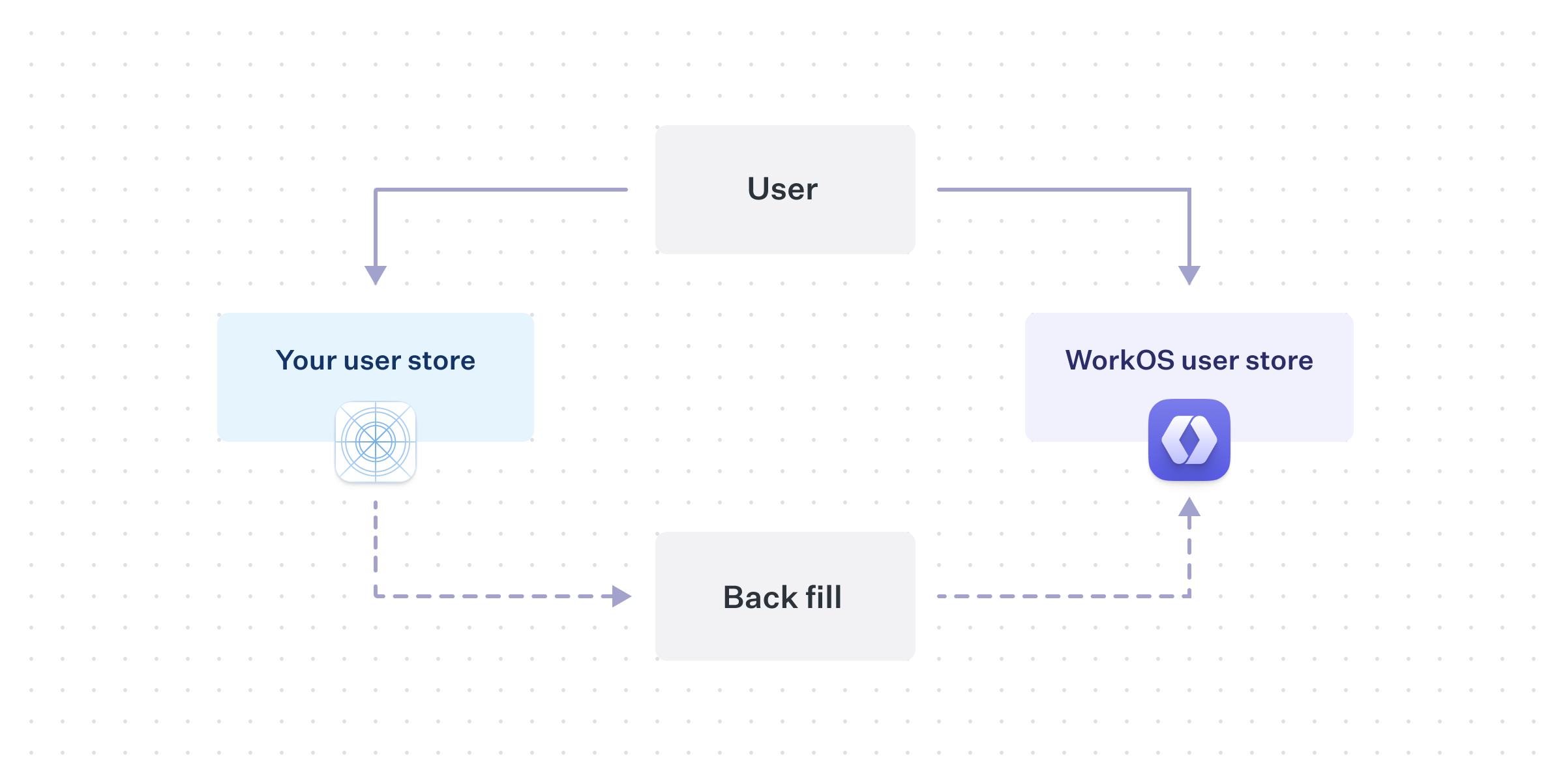
When a new user signs up, create a user record in both the existing user store and in WorkOS using the Create User API. WorkOS stays consistent with future new users, but you still need to perform the migration for historical users.
Perform the same export and import process, keeping in mind that some users will already exist in WorkOS from the dual-write.
This approach minimizes downtime, but introduces other considerations. For example, if a user updates their email or authentication method, perform the same update in WorkOS until the migration process is complete.
Which to choose?
Your timeline for completing the migration, along with your user’s tolerances for disruption, will affect which strategy makes more sense for your application.
Disabling signups, or even sign-in entirely, and doing a “big-bang” migration by moving all users at the same time, could be reasonable for a smaller application. However, larger applications that are on the critical path for their customers may need a more careful path in order to provide consistent access.
User management migration complexity varies, so consider how existing application constraints transfer to WorkOS. For questions, reach out to support@workos.com or via your team’s WorkOS Slack channel for more help planning your migration.