Configuration
Configure roles and permissions
Configure roles and permissions for your application’s access control model.
Roles are logical groupings of permissions that set access control levels for users within your application. Each role is identified by a unique, immutable slug and assigned to users via organization memberships. Role assignments can be sourced manually or from Identity Provider (IdP) group mappings (SSO or Directory Sync).
Permissions grant users privileged access to resources and actions in your application. Each permission is referenced by a unique, immutable slug and can be assigned to any number of roles.
Role and permission configuration applies to all integrations.
Use roles alone when your application requires only coarse-grained access control, separating users into broad categories with minimal overlap. For more complex scenarios, combine roles with permissions.
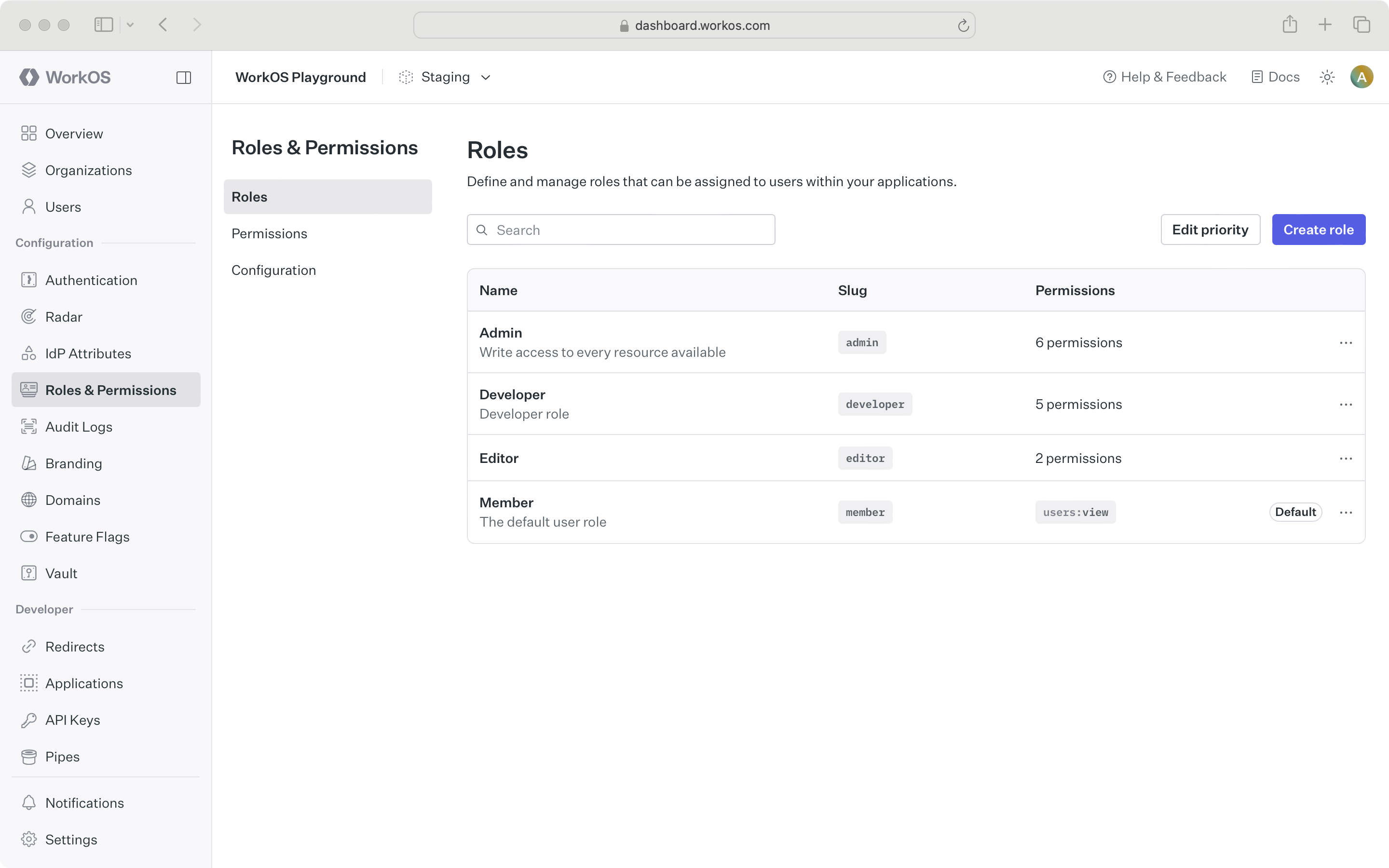
Manage roles in the Roles & Permissions section of the WorkOS Dashboard or using the Roles API.
Note that role slugs are immutable and cannot be changed after creation. Environment role slugs are unique within an environment. Organization role slugs are unique within an organization.
Configure roles at the environment level. Each environment is seeded with a default member role, which is automatically assigned to every organization member. This default role cannot be deleted, but you can set any role as the default.
To set default roles or other role configurations at the organization level, refer to the Organization roles section.
All integrations support multiple roles across directory users, SSO profiles, and organization memberships. Users without explicitly set roles receive the default role.
Enable multiple roles by opening the Roles & Permissions configuration page and scrolling to the Multiple Roles section. This setting is disabled by default.
Multiple roles is an environment-level setting and applies to all organizations in that environment.
Set the role priority order to resolve conflicts in IdP role assignment when a user belongs to multiple mapped groups. The highest-priority role wins. Priority order also determines which role is assigned to users when migrating from a multiple-role to single-role configuration in the environment.
When roles are deleted:
- Single-role (default): All affected organization memberships, SSO profiles, and directory users are reassigned to the default role.
- Multiple-roles: The deleted role is removed from each organization membership that has it, any other roles on the membership remain intact.
Deletion is asynchronous, so updates may take a moment to propagate.
Tip: To migrate from one default role to another, set the new default, then delete the old one – users will be reassigned automatically.
Use permissions for more detailed and flexible access management. Add permissions when:
- You anticipate frequently modifying access rights or introducing new roles.
- There is significant overlap in access rights between different roles, but with some variations.
- You want to minimize code changes when modifying access rights. Abstract access control checks to permissions so you can add or modify roles without changing application code.
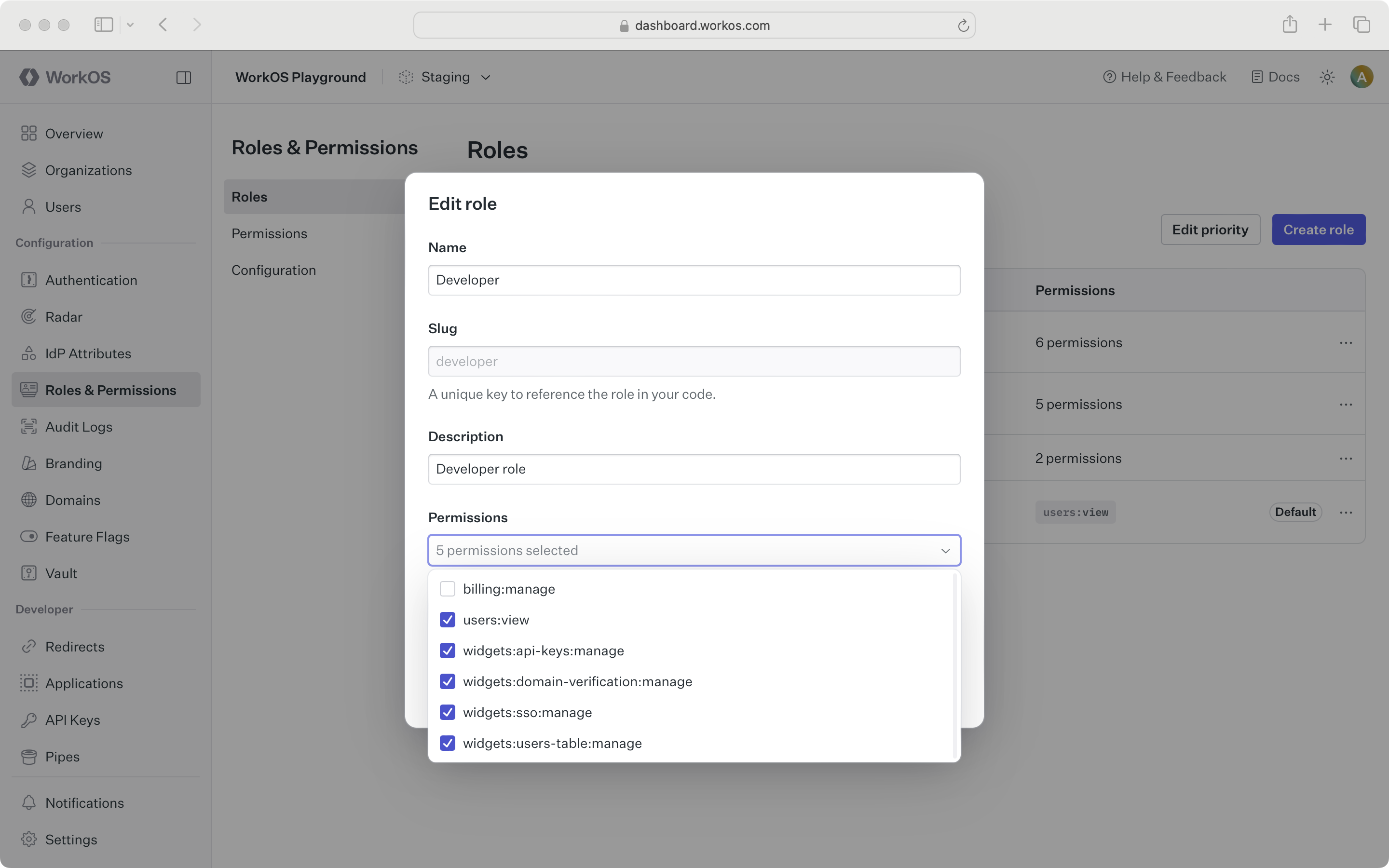
Manage permissions in the Roles & Permissions section of the WorkOS Dashboard or using the Permissions API.
When configuring permissions:
- Define a common naming scheme across all permissions for your application. Separate the resource and action with a delimiter, such as
users:view. The following delimiters are permitted:-.:_*. - Keep permission slugs clear and concise. When assigned to roles, these slugs are included as part of session cookies in the session JWT claims, which is limited to a maximum size of 4KB in many modern web browsers.
Assign permissions when creating a new role or when editing an existing role.