Admin Portal
A first-class Single Sign-On and Directory Sync onboarding experience for organization admins.
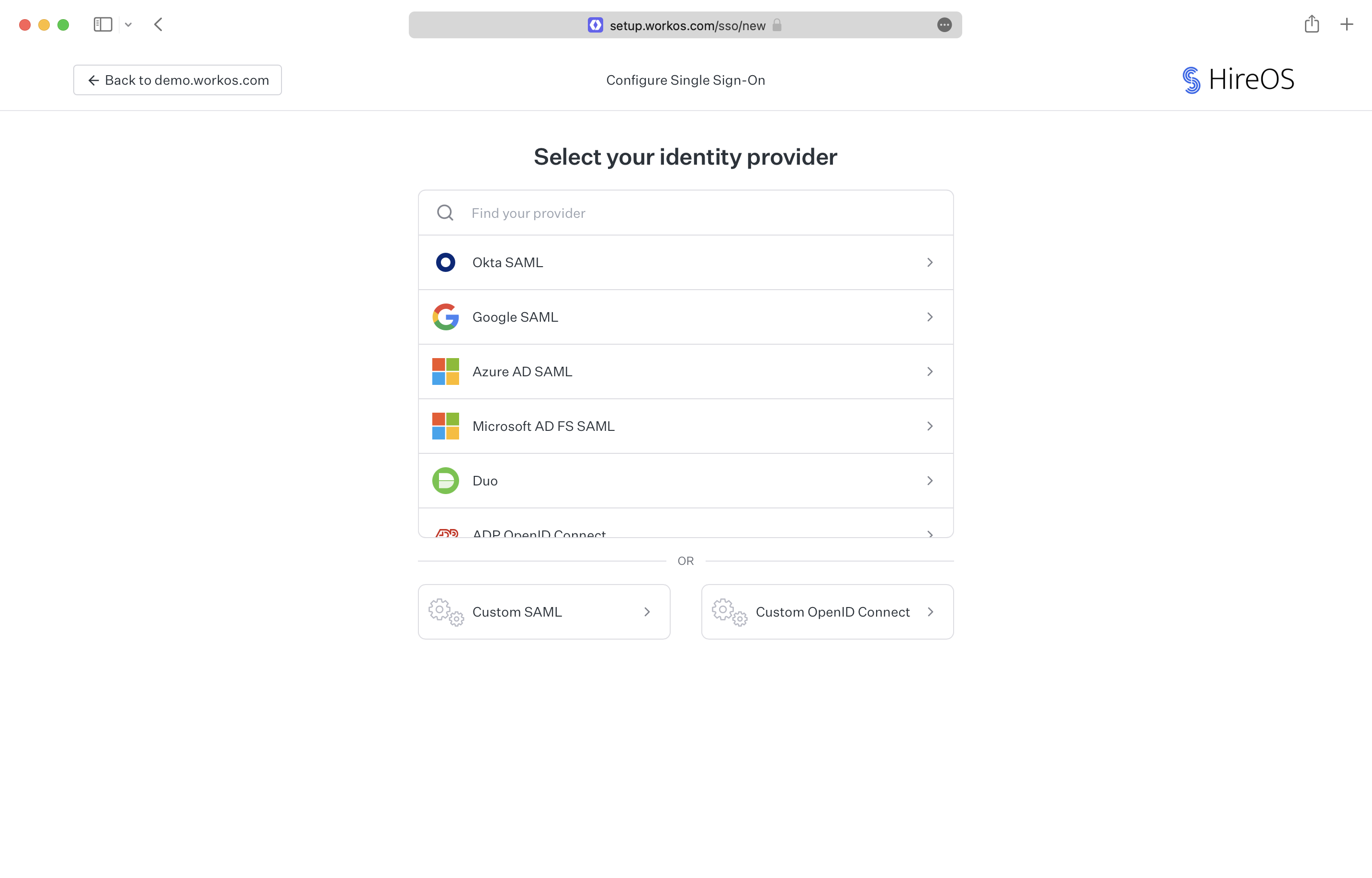
The Admin Portal provides an out-of-the-box UI for IT admins to verify domains, configure SSO and Directory Sync connections, and more. Custom walk-through documentation for each identity provider means that organization admins can onboard their organizations without high-touch support from your team. Fully maintained and hosted by WorkOS, the Admin Portal makes Domain Verification, SSO, and Directory Sync setup simple, fast, and secure.
There are two main ways to initiate an Admin Portal session for IT admins:
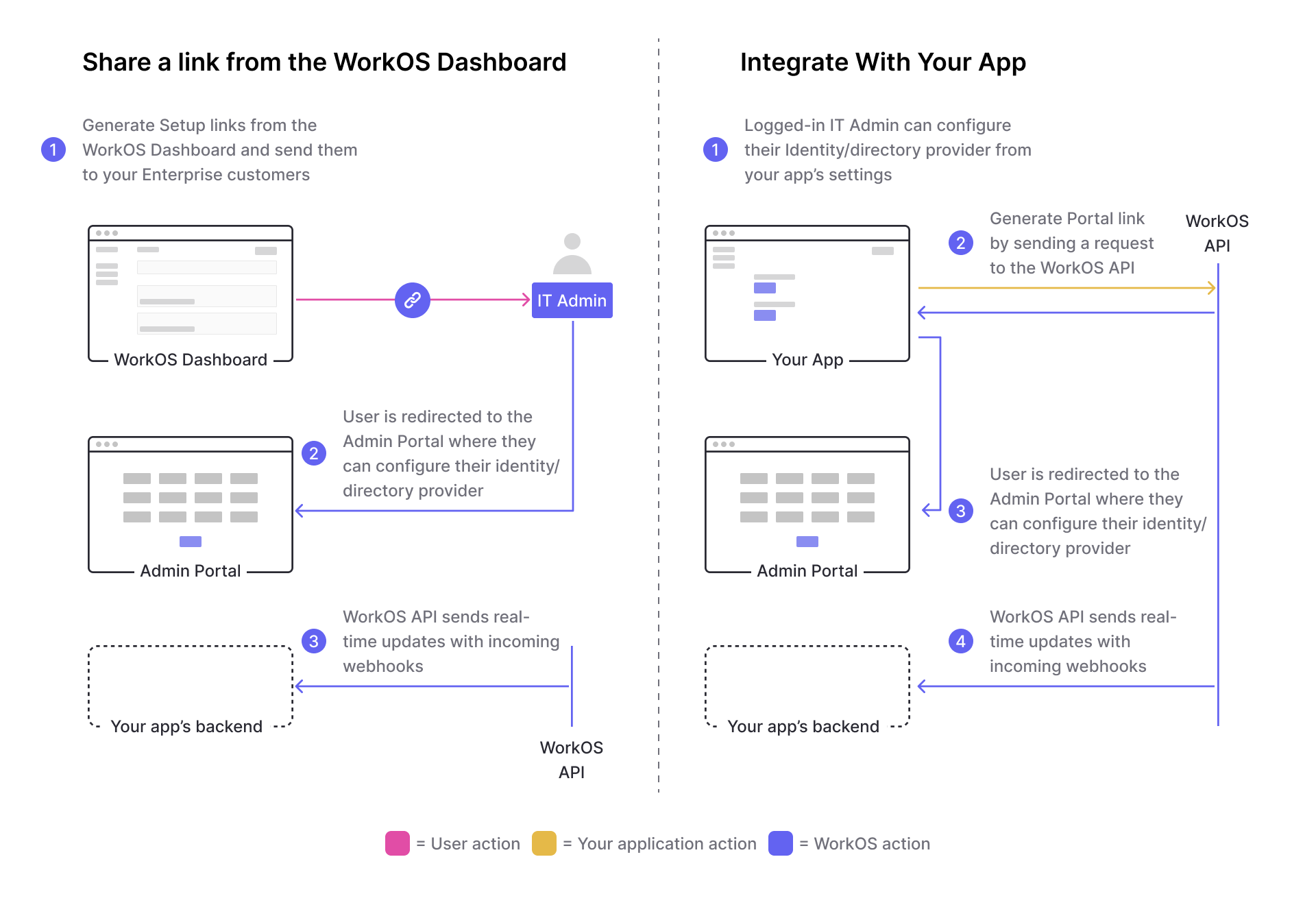
Use the dashboard approach to share a link with an IT admin over email or direct message. Use the API approach to add a button within your application that opens the Admin Portal.
- Connection
- Represents the method by which users of an organization sign in to your application.
- Organization
- Describes an organization whose users sign in with an SSO connection, or whose users are synced with a Directory Sync connection.
- Portal link
- A temporary link to initiate an Admin Portal session.
In the Admin Portal Domain Verification flow, IT admins view instructions on adding a DNS TXT record to prove ownership of their organization’s domain(s).
Unless an organization allows any domain, a verified domain is required to activate SSO. Domains can also be manually verified outside of the self-serve Admin Portal flow if the IT admin has already proven domain ownership in another context.
On the Admin Portal SSO screen, IT admins can view identity provider details and connection status, metadata configuration details, and a list of recent connection sessions. They can test the SSO connection using the “Test sign-in” button.
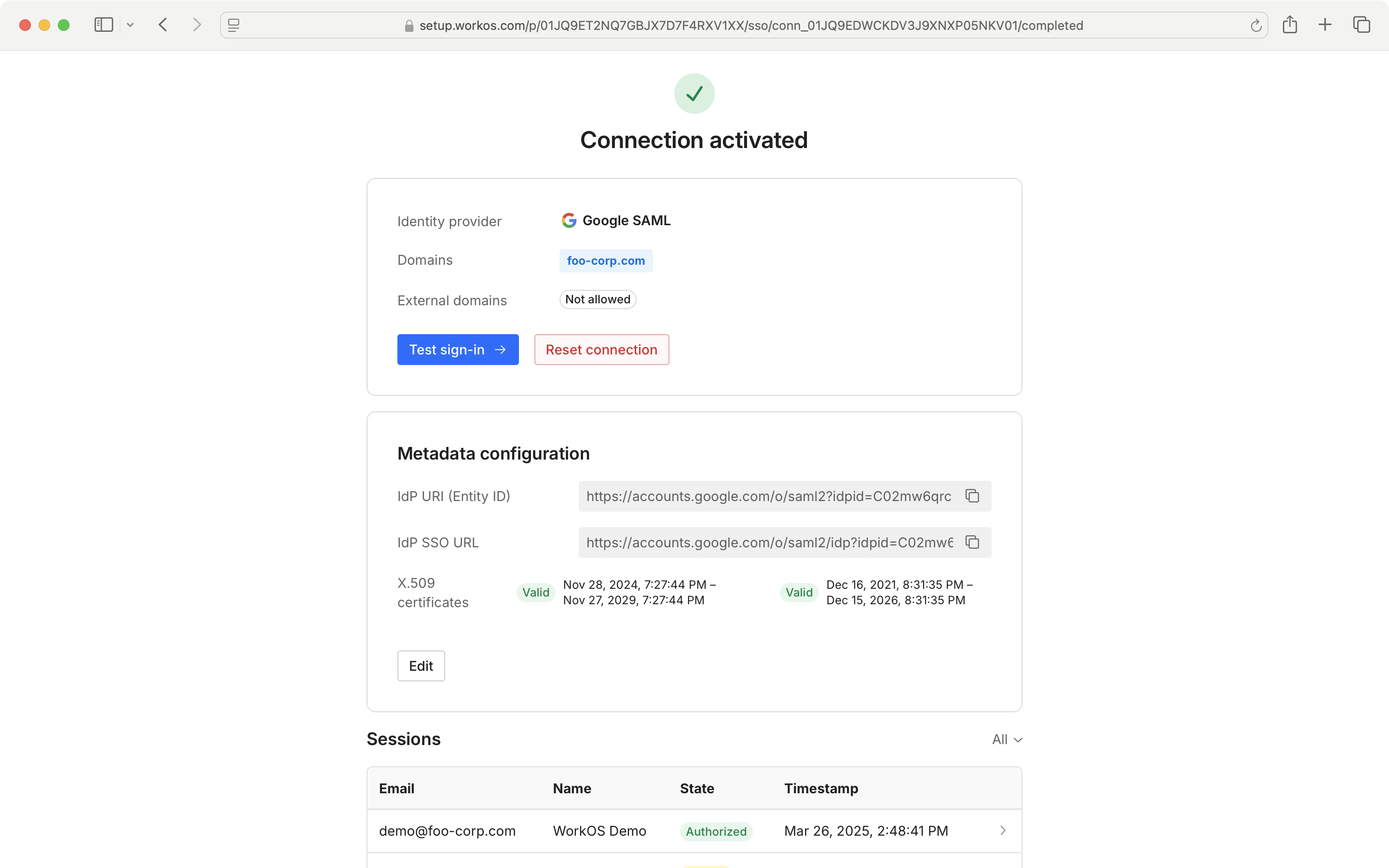
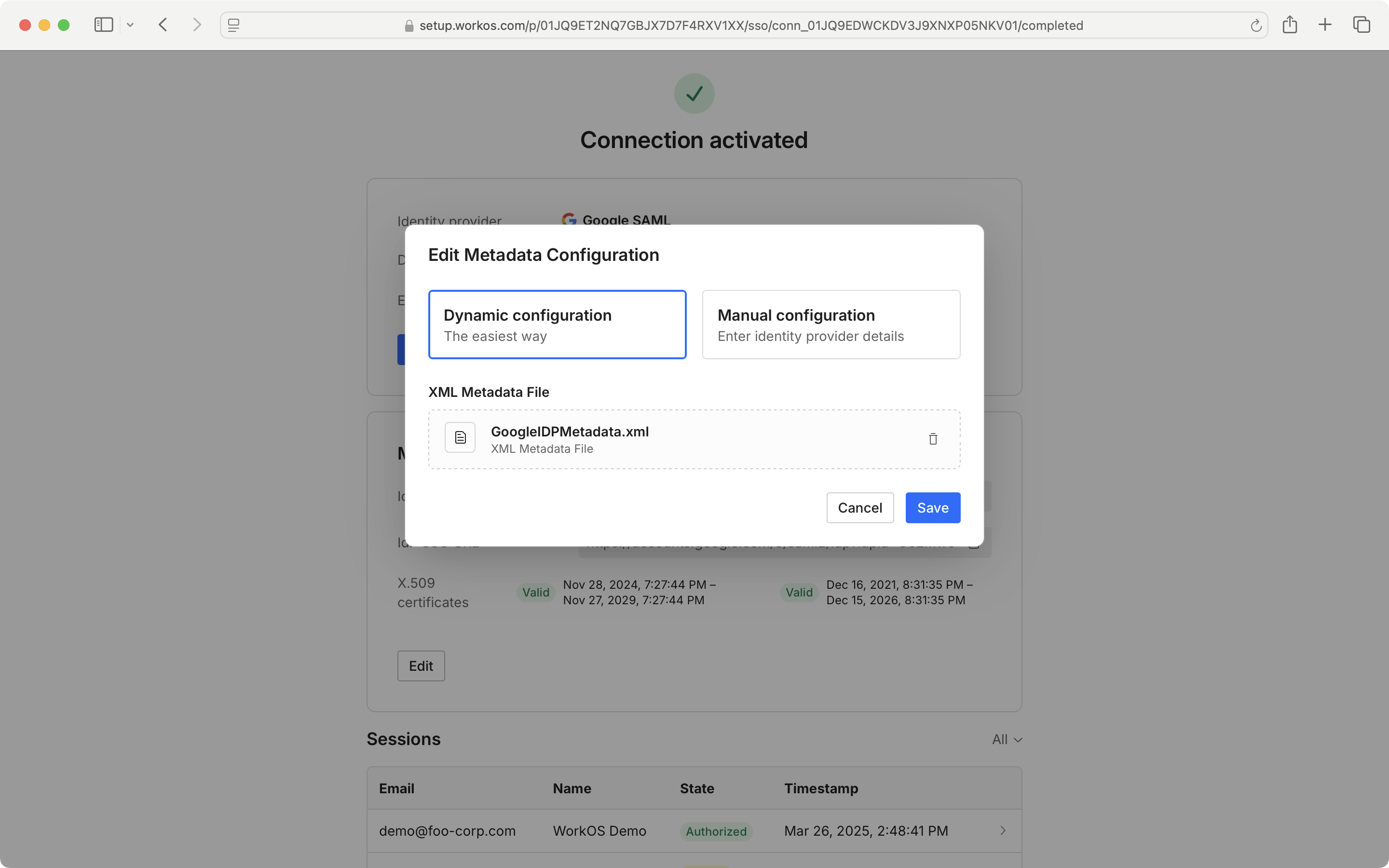
Metadata configuration can be edited from the Admin Portal.
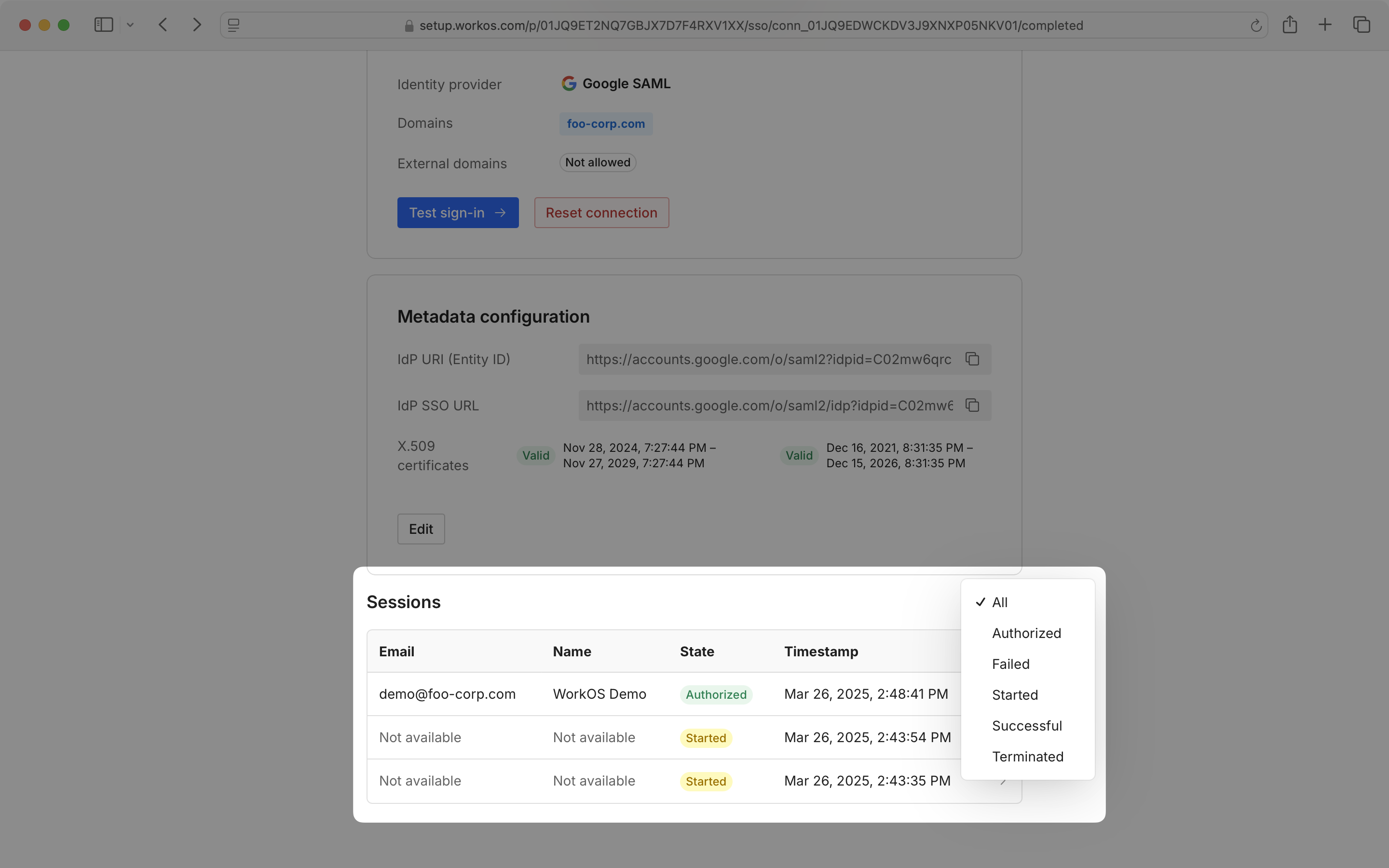
The Sessions section displays a list of recent sessions by timestamp, sortable by state.
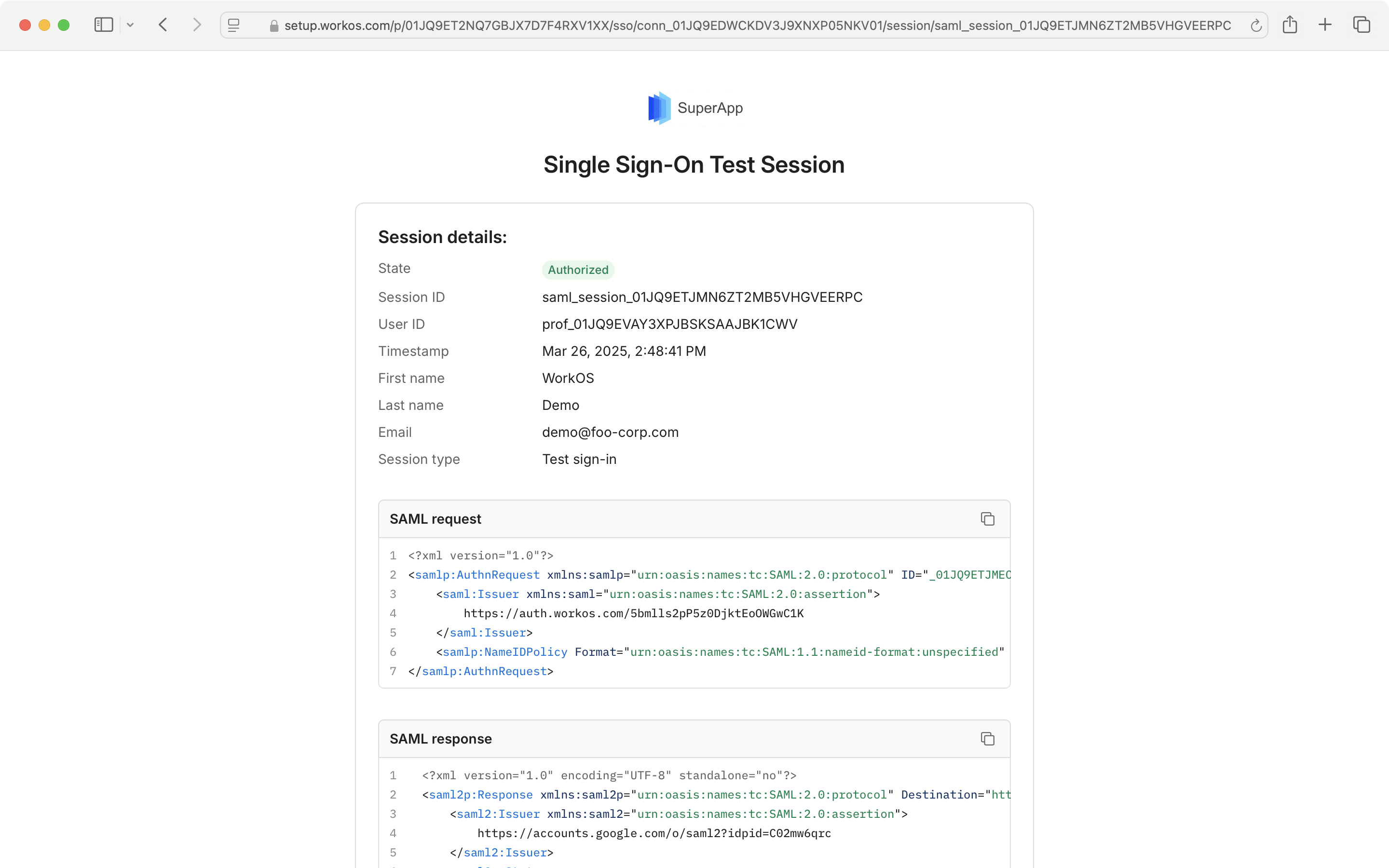
Click on a session to see details such as the request made to the IdP and the response.
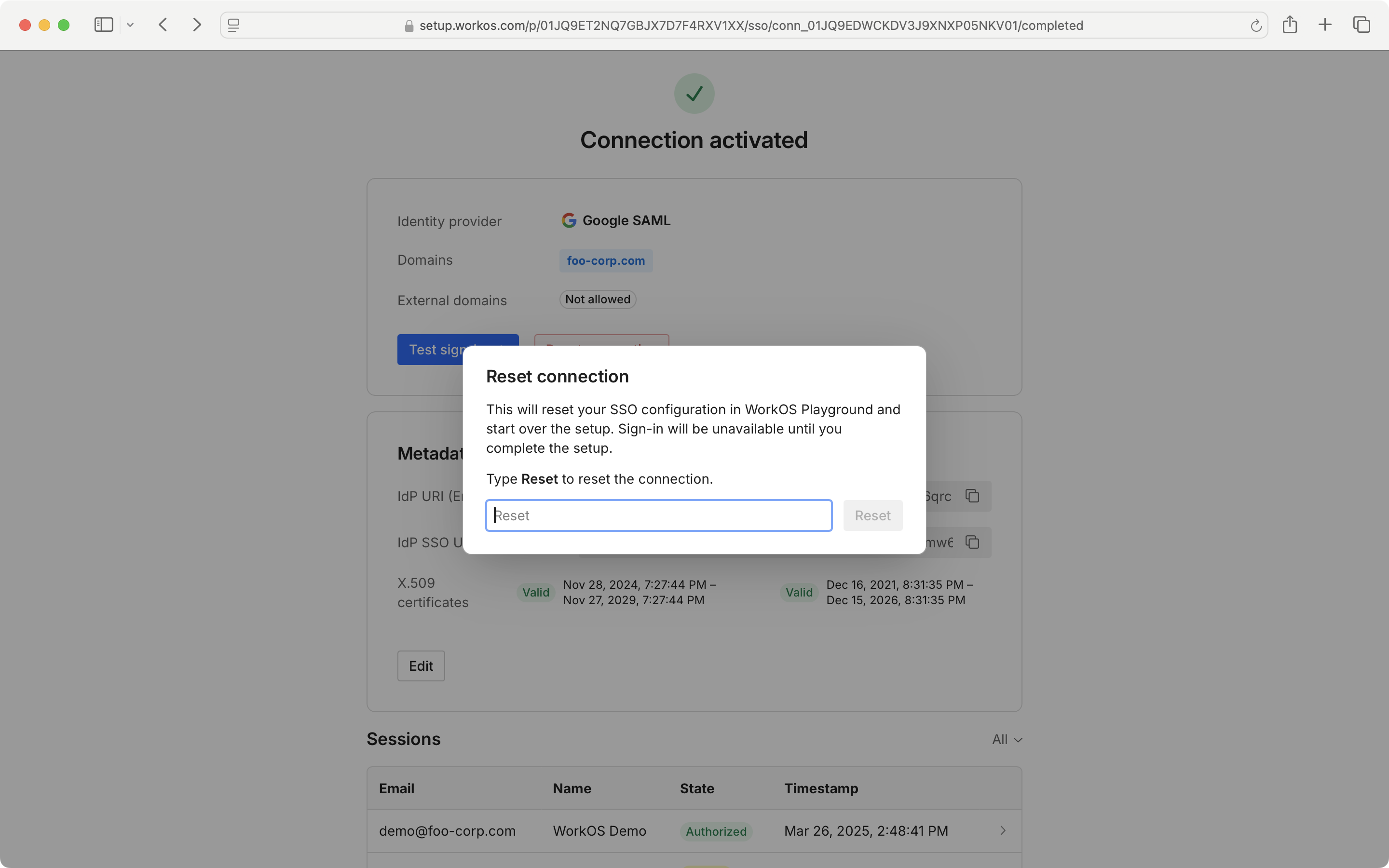
To reset an SSO connection and set it up from scratch, select “Reset Connection” and follow the prompts.
On the Admin Portal Directory Sync screen, IT admins can view directory provider details and connection status, user and group counts, and last sync time. There is also an option to reset the directory.
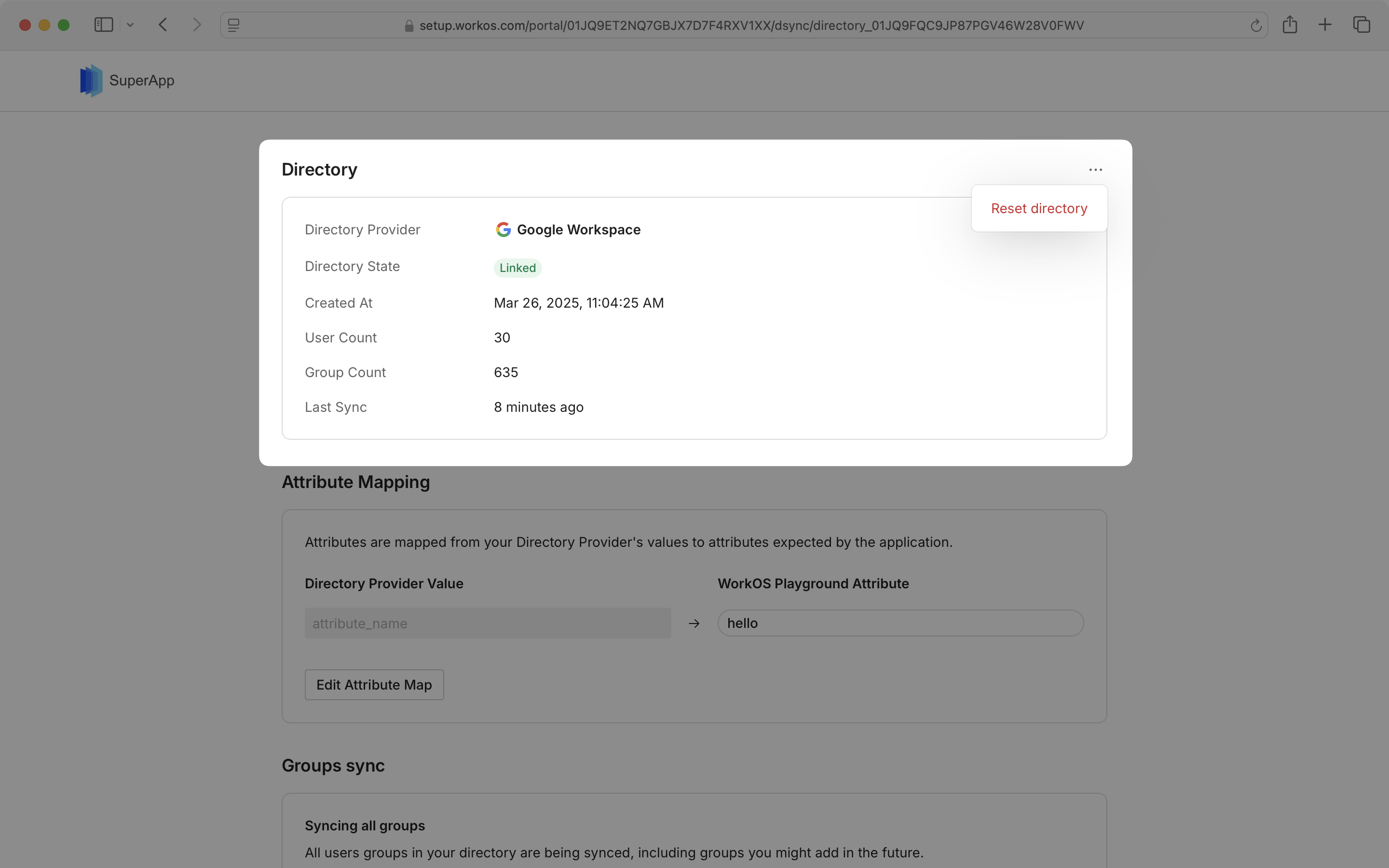
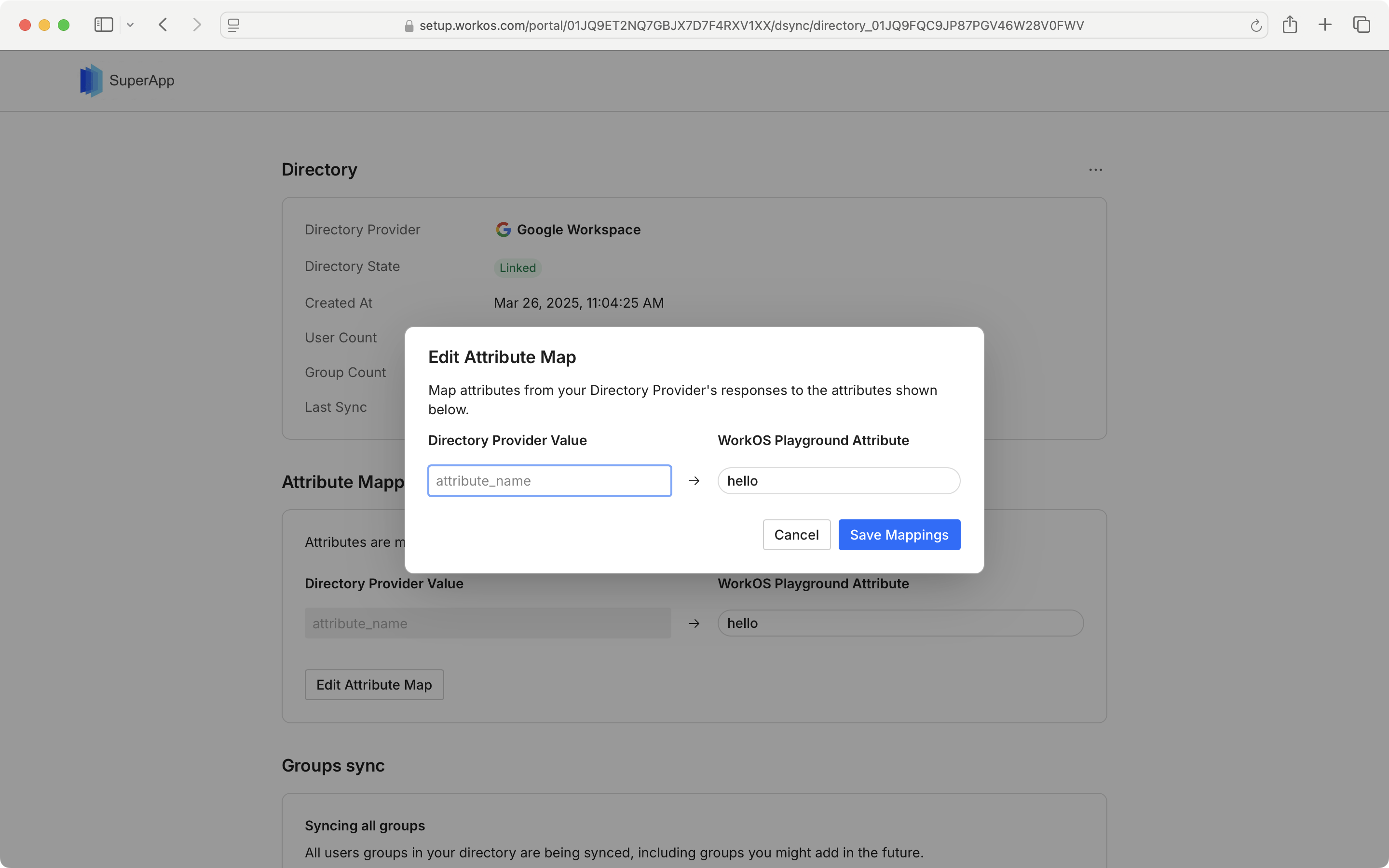
The attribute map from the synced directory can be viewed and edited by clicking “Edit Attribute Map”.
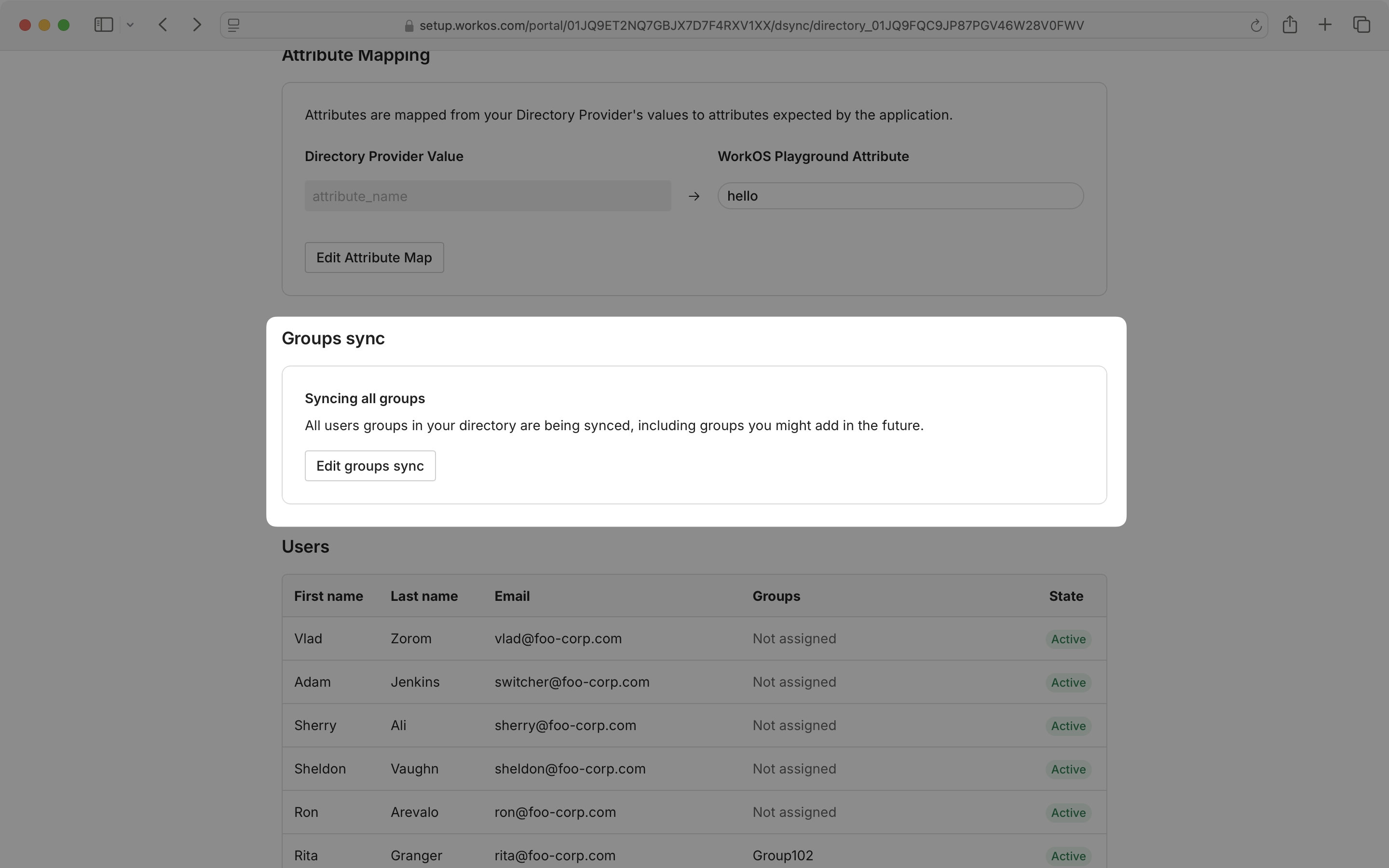
To update the groups being synced, select “Edit groups sync” and follow the prompts.
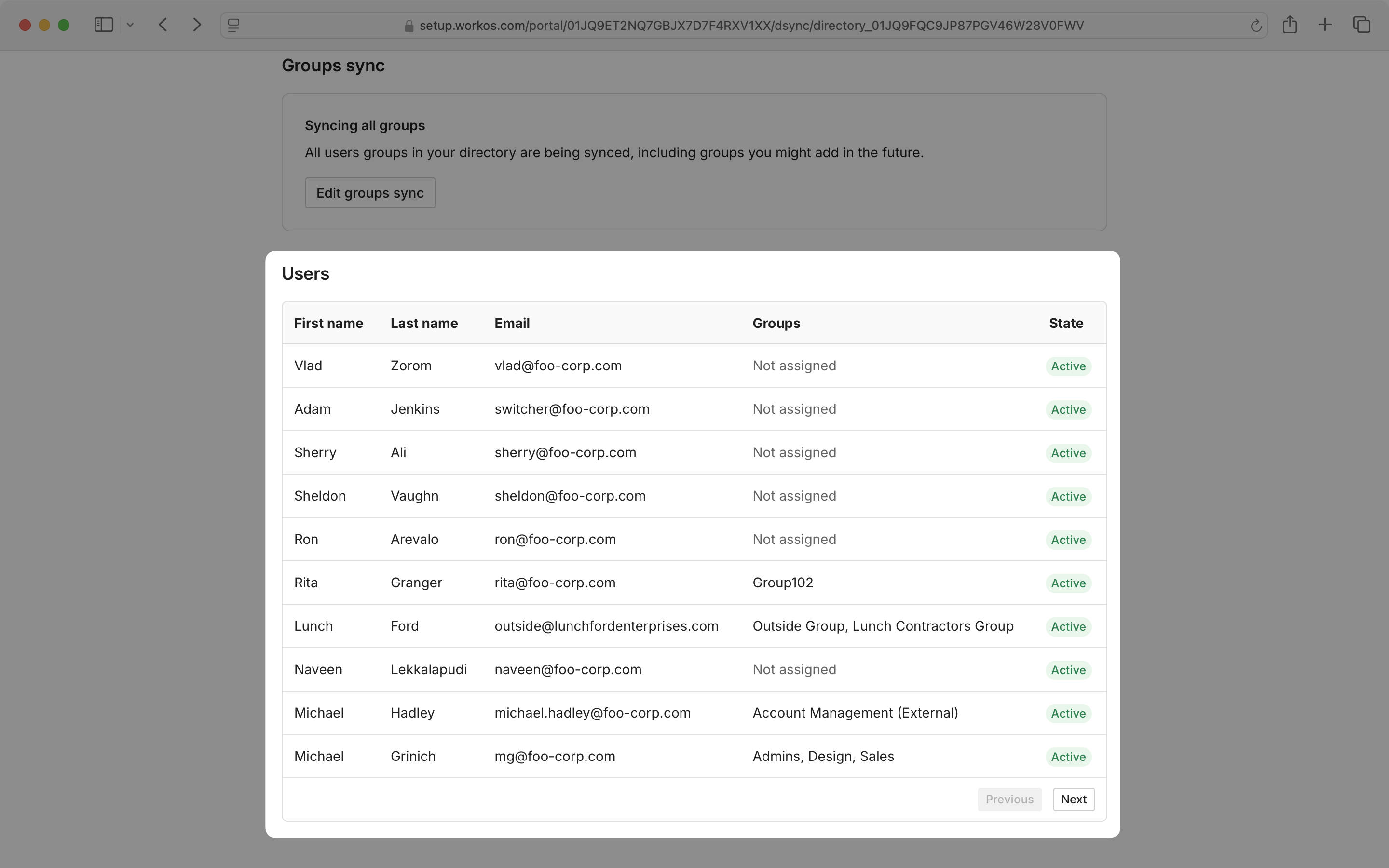
A complete list of users from all selected groups in the synced directory is also available.
- Set Up via Dashboard – Share an Admin Portal link with an IT admin
- Integrate with the API – Embed the Admin Portal in your application
- Custom Branding – Apply your brand to the Admin Portal
- SSO Quick Start – Integrate Single Sign-On
- Directory Sync Quick Start – Integrate Directory Sync