Sign-in Consent
Learn about the sign-in consent screen, an extra layer of protection against login CSRF attacks and phishing attempts.
Configure sign-in consent to require user approval before completing SSO authentication.
The sign-in consent screen is an extra layer of protection against login CSRF attacks or phishing attempts. A user may click a link that appears legitimate, but which unknowingly leads them to signing in through a malicious identity provider controlled by an attacker. The sign-in consent screen mitigates this risk by displaying the user’s email and the identity provider’s domain, ensuring the user is aware of how they are signing in to the application.
The sign-in consent screen is an interstitial page that appears during the Single Sign-on flow, after the user has gone through the identity provider (IdP), before redirecting to the application.
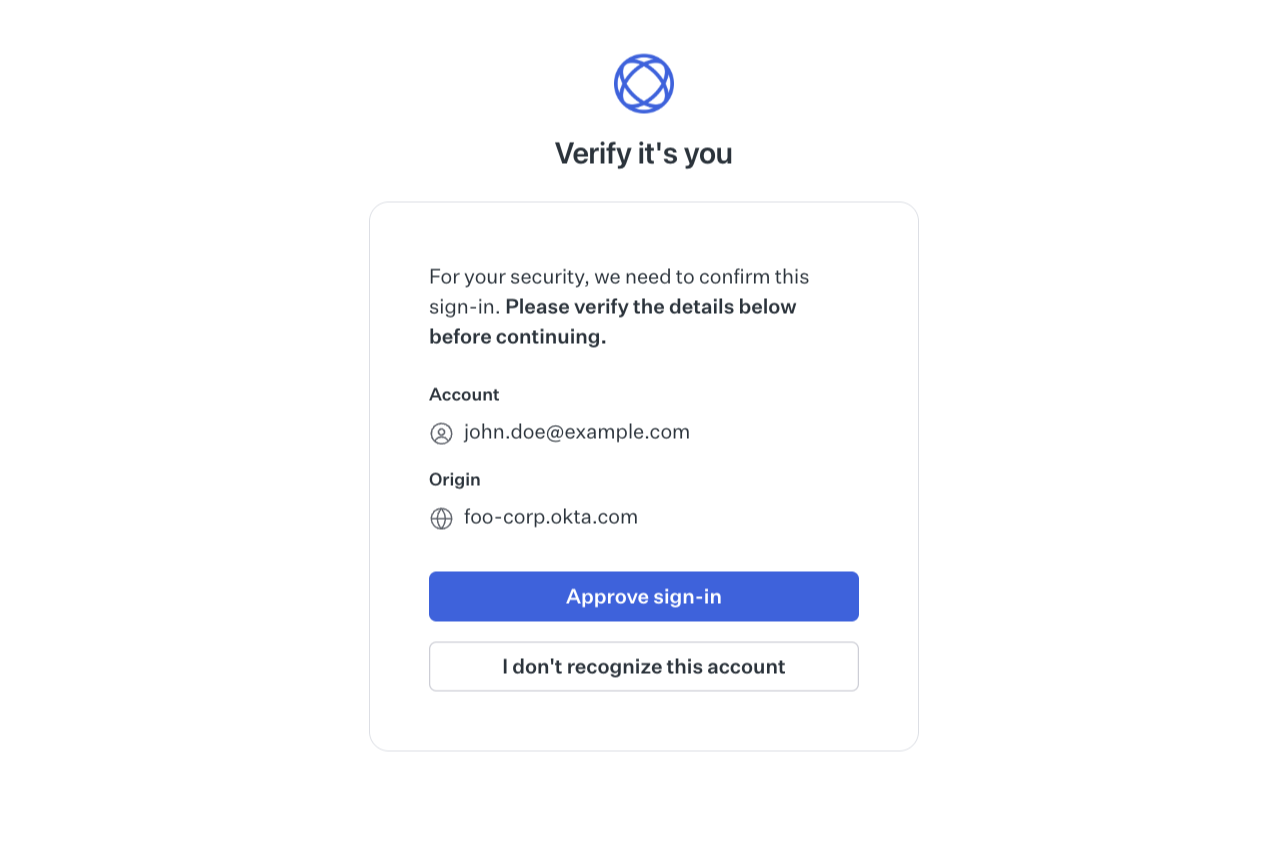
This page displays to the user the email returned from the IdP, as well as the IdP origin. With this information, the user must either consent to or deny the sign-in flow.
- Consenting sign-in leads to completing the SSO flow, where the authorization code is forwarded to the application callback.
- Denying the sign-in will result in an SSO session failure and the user will be redirected to the application callback with a
signin_consent_deniederror.
To activate the sign-in consent protection, navigate to the Authentication section and enable the sign-in consent checkbox in the Single Sign-On settings.

The recommended approach is to use the signin_consent_denied error code to display useful information to the user, so that they can contact their admin and the application’s support team for information about a possible phishing attempt.
When a user denies the sign-in consent, the application’s callback receives an error response:
For more information about error handling, see the Get Authorization URL error codes documentation.
WorkOS determines whether the sign-in consent screen should be displayed, based on the identity provider, user fingerprint, and SSO flow parameters.
Once a user accepts the sign-in consent screen, the system remembers this approval and avoids displaying the page again for a better user experience.
The sign-in consent screen is always displayed in the following scenarios:
- IdP-initiated flows: The sign-in consent screen is always displayed for IdP-initiated flows (i.e. users clicking on a tile in their IdP), regardless of the identity provider, if the user has not previously approved it.
- Custom SAML or OIDC connections: The sign-in consent screen is displayed for custom connections if the user has not previously approved sign-in consent.
The sign-in consent screen automatically inherits the Admin Portal branding and is served through the custom authentication API domain, if available. If AuthKit is enabled, the sign-in consent screen follows the AuthKit branding instead. The primary button color and logos should be reviewed before enabling this feature, to ensure a trusted experience for customers.