SSO Session Lifecycle
Understanding SSO session statuses and their meaning.
Every SSO authentication flow in WorkOS is tracked as a session, providing visibility into authentication activity and helping diagnose issues. Sessions can originate from different sources depending on how the flow is initiated:
- Service Provider (SP): Your application initiates the flow by redirecting users to WorkOS.
- Identity Provider (IdP): The IdP initiates the flow, sending users directly to WorkOS. This applies only to SAML connections. OIDC connections are always SP-initiated.
- Admin Portal: Test sessions are initiated through the WorkOS Admin Portal to verify SSO configuration.
As the user interacts with the IdP and the authentication progresses, the session transitions through various statuses. Understanding these statuses helps you monitor authentication activity and troubleshoot issues in your SSO implementation.
A session is marked as In progress when the authentication flow has been initiated but not yet completed. This status indicates that the user is currently interacting with the IdP or that the authorization code exchange is pending.
Sessions in this state are waiting for one or more of the following:
- The user to complete authentication at the IdP
- The IdP to send a response back to WorkOS
- Your application to exchange the authorization code for tokens
A session is marked as Success when the entire authentication flow completes successfully. This means:
- The IdP authenticated the user
- WorkOS validated the IdP response
- Your application exchanged the authorization code for tokens
- User profile data was successfully retrieved
A session is marked as Failed when the authentication flow encounters an error. Common causes include:
- Invalid or expired certificates
- Invalid or malformed IdP response
- Profile attribute mapping misconfiguration
- Profile attribute validation errors
- CSRF token validation failure
- User denied access at the IdP
- IdP returned an authentication error
When a session fails, the error details are available in the WorkOS Dashboard to help diagnose what went wrong.
A session is marked as Timed out when it remains in the “In progress” state for too long without completing. By default, sessions time out after 5 minutes.
Timeouts typically occur when:
- The user abandons the authentication flow at the IdP
- The user closes their browser before completing authentication
- Network issues prevent the IdP response from reaching WorkOS
When testing SSO connections through the Admin Portal, sessions are tracked with special test statuses:
A test session is marked as Test successful when the IdP response is received and validated. This confirms that the SSO connection is properly configured and the IdP is sending valid responses.
A test session is marked as Test failed when validation errors occur during the test. This helps identify configuration issues before rolling out SSO to your users.
Test sessions are not subject to the standard timeout behavior, allowing you to take your time when verifying your SSO configuration.
SSO sessions are tracked in the WorkOS Dashboard by navigating to the Organization → Connection detail page and clicking on the “Sessions” tab.
The Sessions section displays a list of sessions from up to 90 days back and can be filtered by session ID, profile email, status, origin, and timestamp.
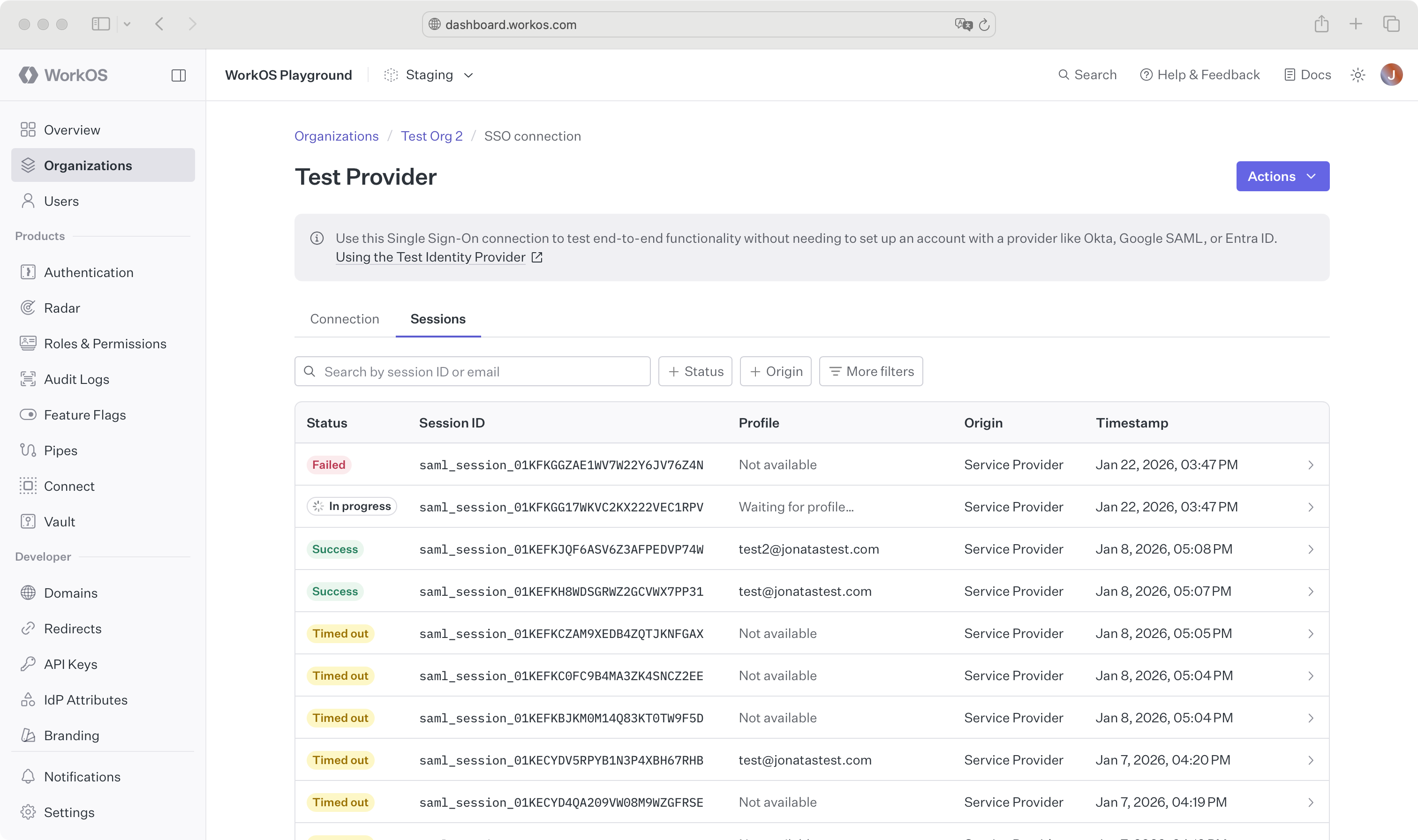
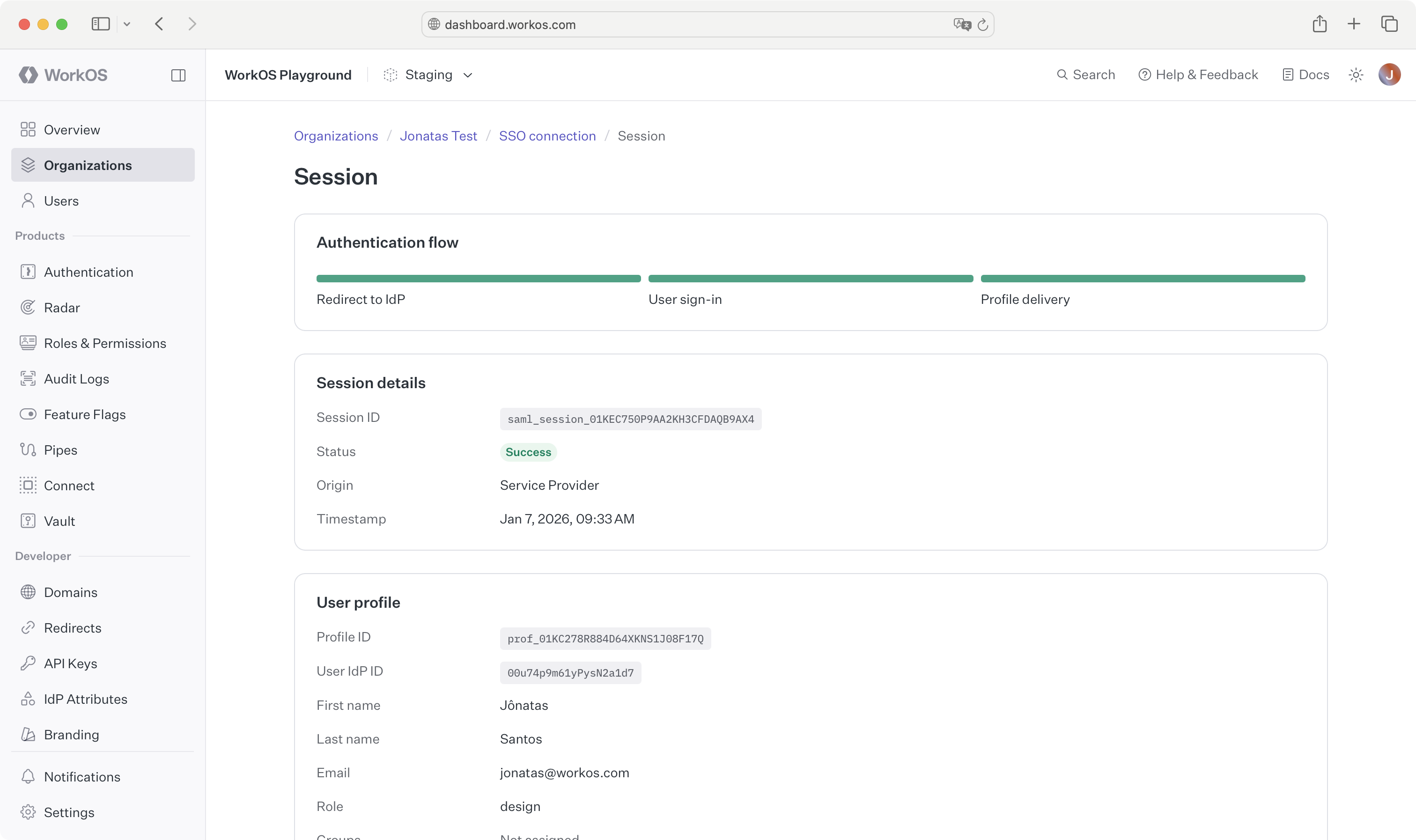
Click on a session in the list to see session details, such as the request made to the IdP and the response.
SSO sessions can be monitored by subscribing to the authentication.sso_* events. The following events are available:
authentication.sso_started: Emitted when a new SSO session is started.authentication.sso_succeeded: Emitted when an SSO session is completed successfully.authentication.sso_failed: Emitted when an SSO session fails.authentication.sso_timed_out: Emitted when an SSO session times out.
These events can be streamed to Datadog for observability and alerting.
The Stream events to Datadog documentation provides more details on streaming events to Datadog. The events documentation covers each event and its payload.