Test SSO
Learn how to test your Single Sign-On integration end-to-end.
Test your SSO integration end-to-end using WorkOS’s built-in Test Identity Provider.
Your staging environment includes a default Test Organization and active SSO connection configured with the Test Identity Provider.
Log into the WorkOS Dashboard and navigate to the Test SSO page. This page outlines a number of different SSO scenarios and provides all the necessary information to complete the tests.
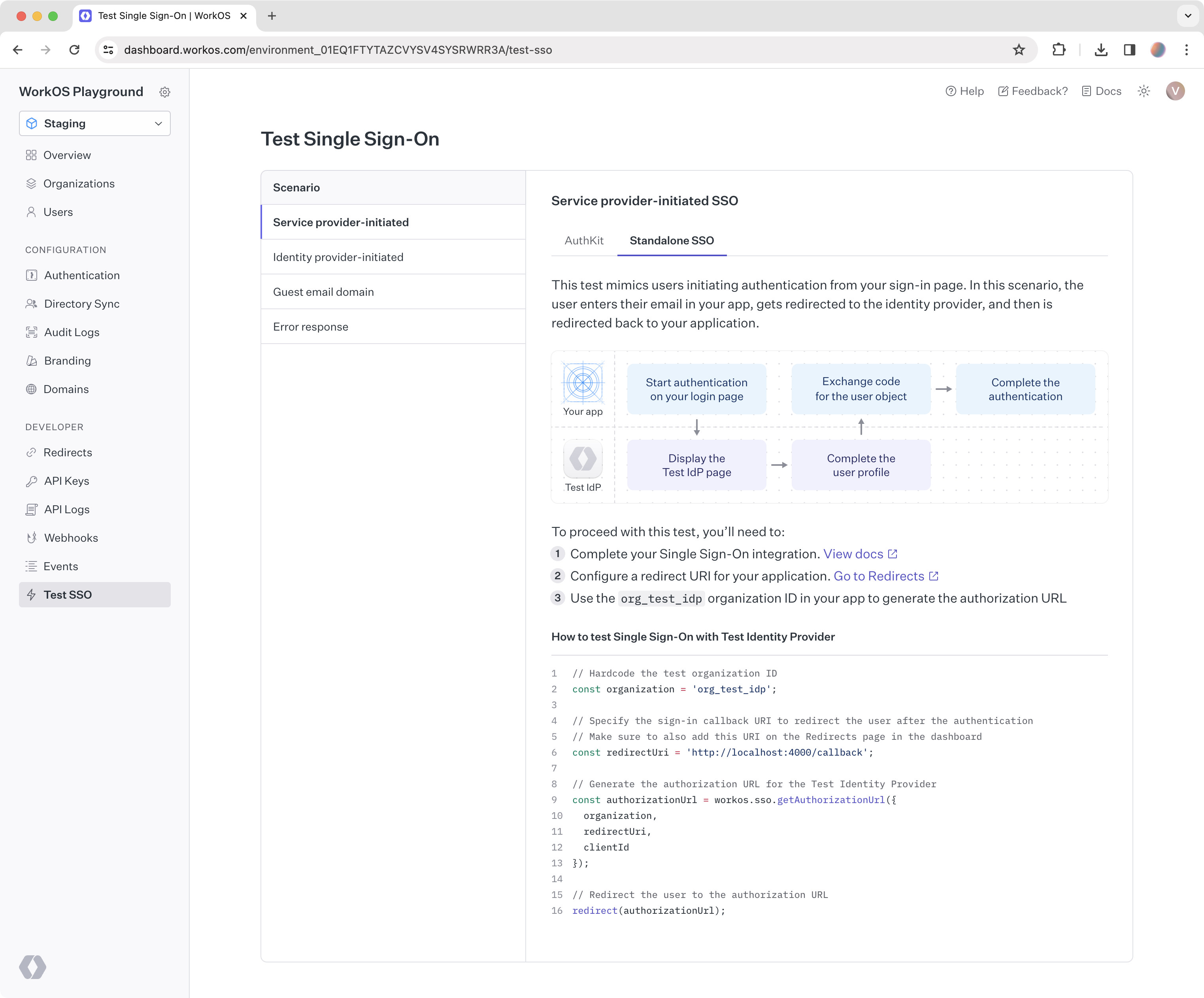
Start with this login flow when implementing SSO in your app. The test simulates users initiating authentication from your sign-in page. The user enters their email in your app, gets redirected to the identity provider, and then is redirected back to your application.
Test this common login flow where users initiate authentication from their identity provider. In this scenario, users log in to the identity provider directly, select your application from their list of SSO-enabled apps, and are redirected to your application upon successful authentication.
Ensure AuthKit is disabled before testing.
Test authentication with an email domain different from the verified domain of the test organization, example.com. A relevant scenario is authenticating freelance users, whose email domain is not owned by the company.
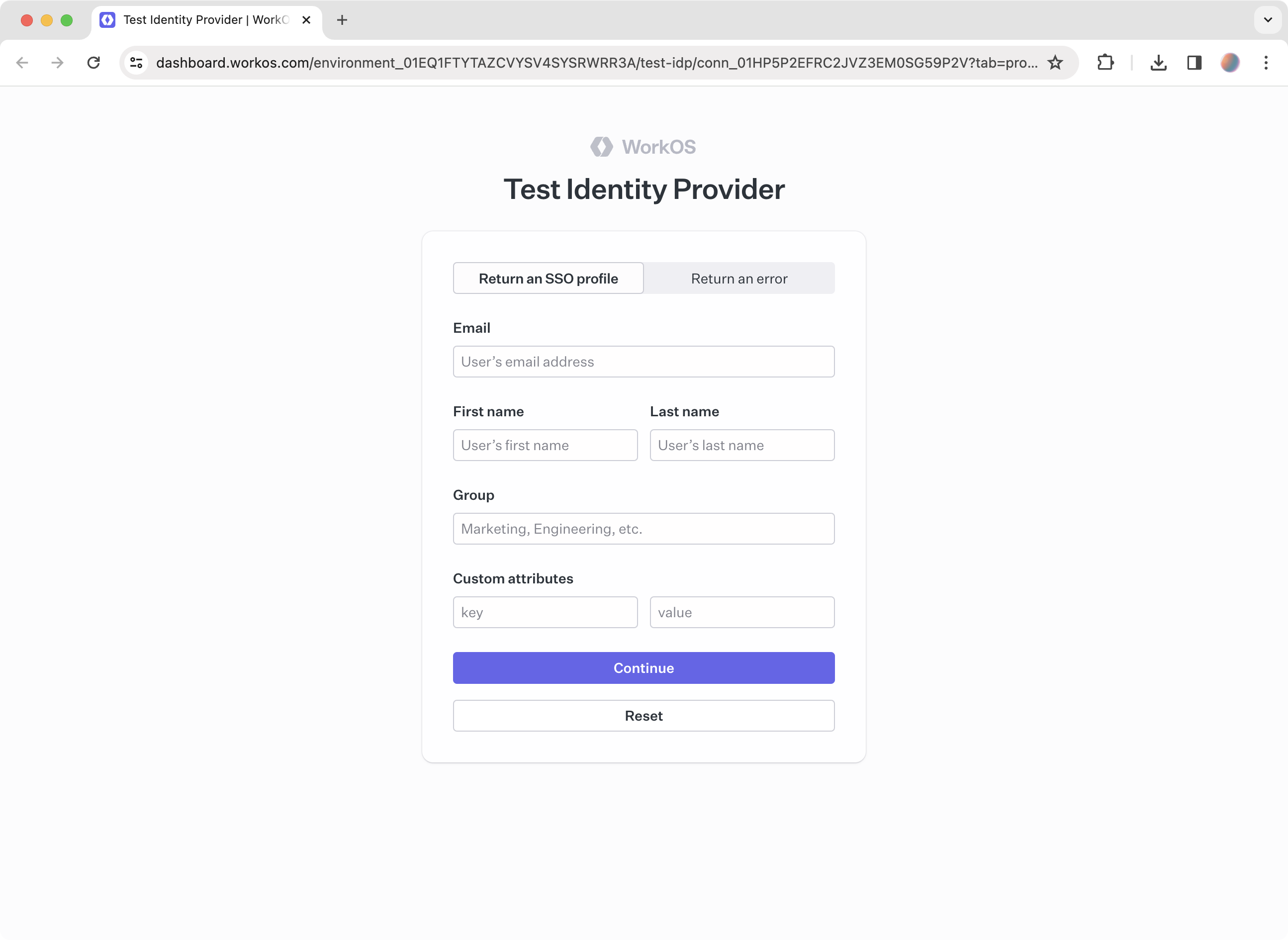
Test a generic error response from the user’s identity provider. In this scenario, SSO authentication has failed for the user. Below is an example of the error-related parameters passed to the redirect URI in your application.
The Test Identity Provider saves time by providing an out-of-the-box experience compared to the configuration process required with a real identity provider.
If your integration works with the Test Identity Provider, it will work with other identity providers. To also learn about the setup process that your customers go through, which varies depending on the specific identity provider, follow the steps below.
Create an organization in the WorkOS Dashboard. Organizations in WorkOS represent your customer, so creating an organization allows testing the SSO connection the way your customers will experience it.

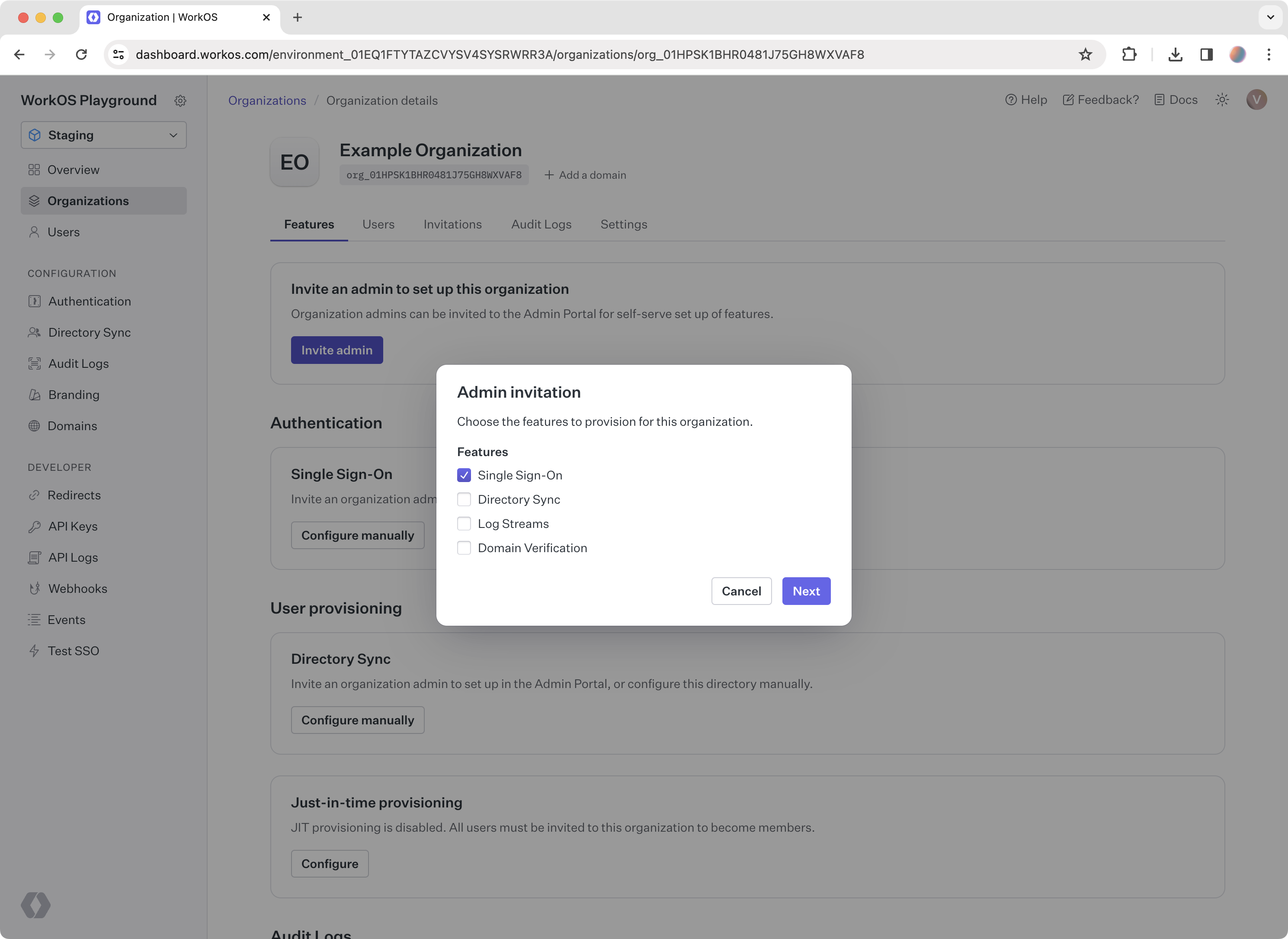
Go to the organization and click Invite admin. Select Single Sign-On from the list of features. Enter an email address to send the setup link to, or click Copy setup link.
The setup link goes to Admin Portal, where your customers get the exact instructions for every step they need to take to enable Single Sign-On with your app.
Integrate Admin Portal directly into your app to enable self-serve setup of Single Sign-On and other enterprise features for your users.
Create an account with the identity provider to test with. After signing up, follow the corresponding Admin Portal instructions from the setup link. Once done, start testing the SSO integration with that identity provider.
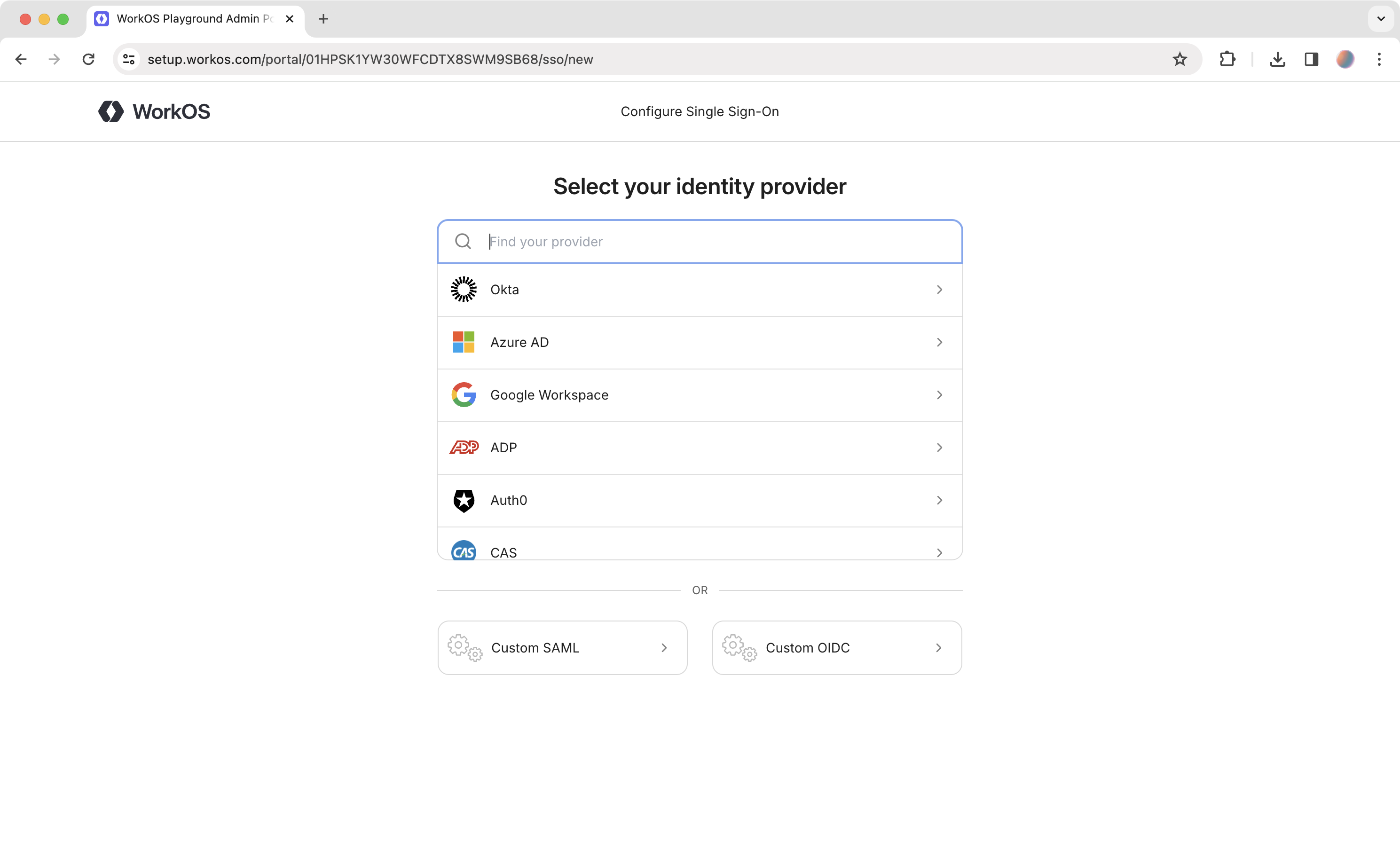
The setup instructions from the Admin Portal are also available directly in the docs for creating a connection manually: