CLI Auth
Quickly add authentication to your command-line application.
Add CLI authentication so users can sign in to your command-line application via AuthKit.
To begin the authentication flow, make a request to the /authorize/device endpoint to obtain the necessary codes and URLs for user authentication.
After receiving a response, provide next steps to the user.
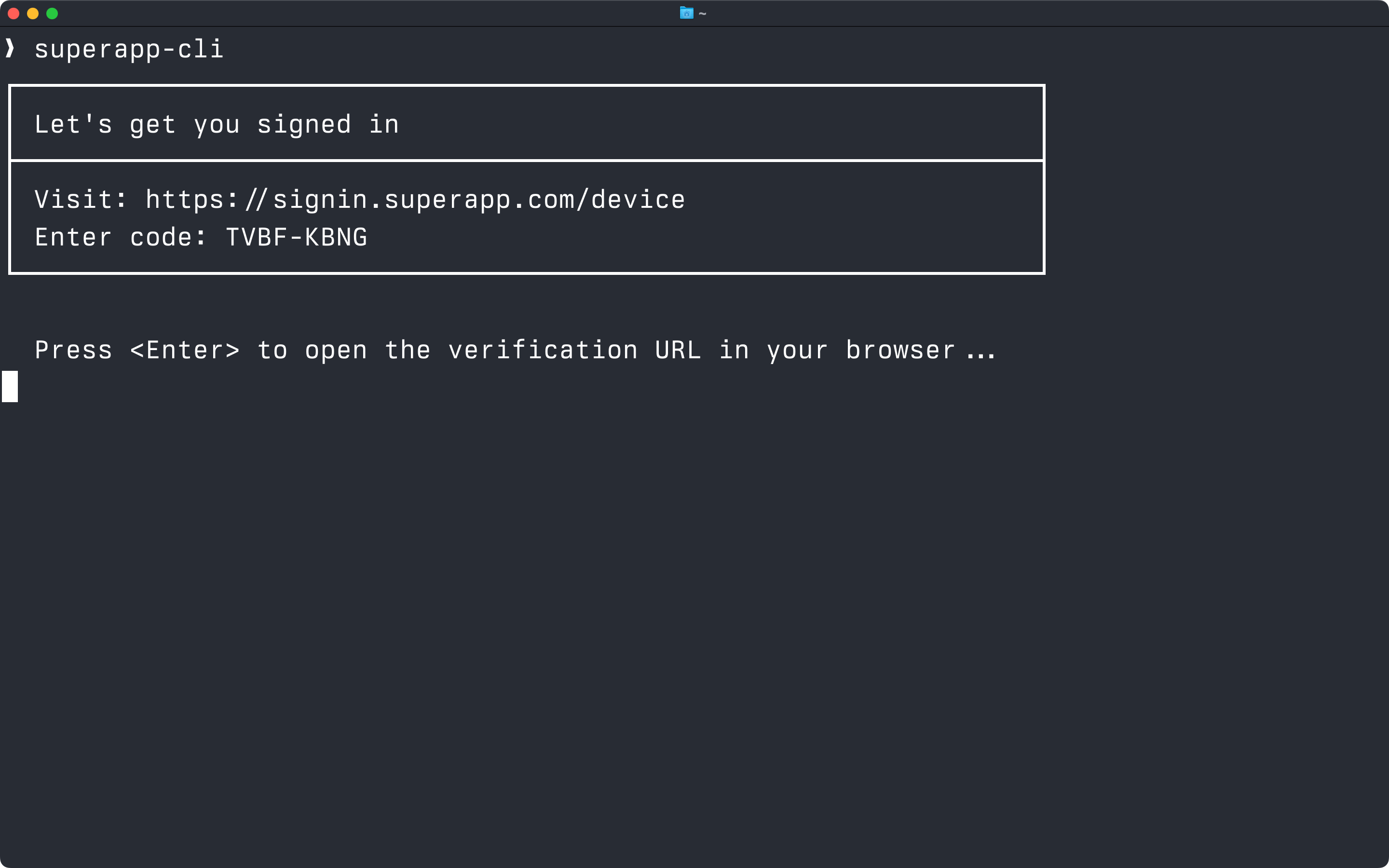
Display the user_code from the response, along with the verification_uri in the terminal. If offering the ability to open in a browser easily as shown in this screenshot, use the verification_uri_complete for that.
Never display the device_code to the user. That is only for the device to poll the token endpoint.
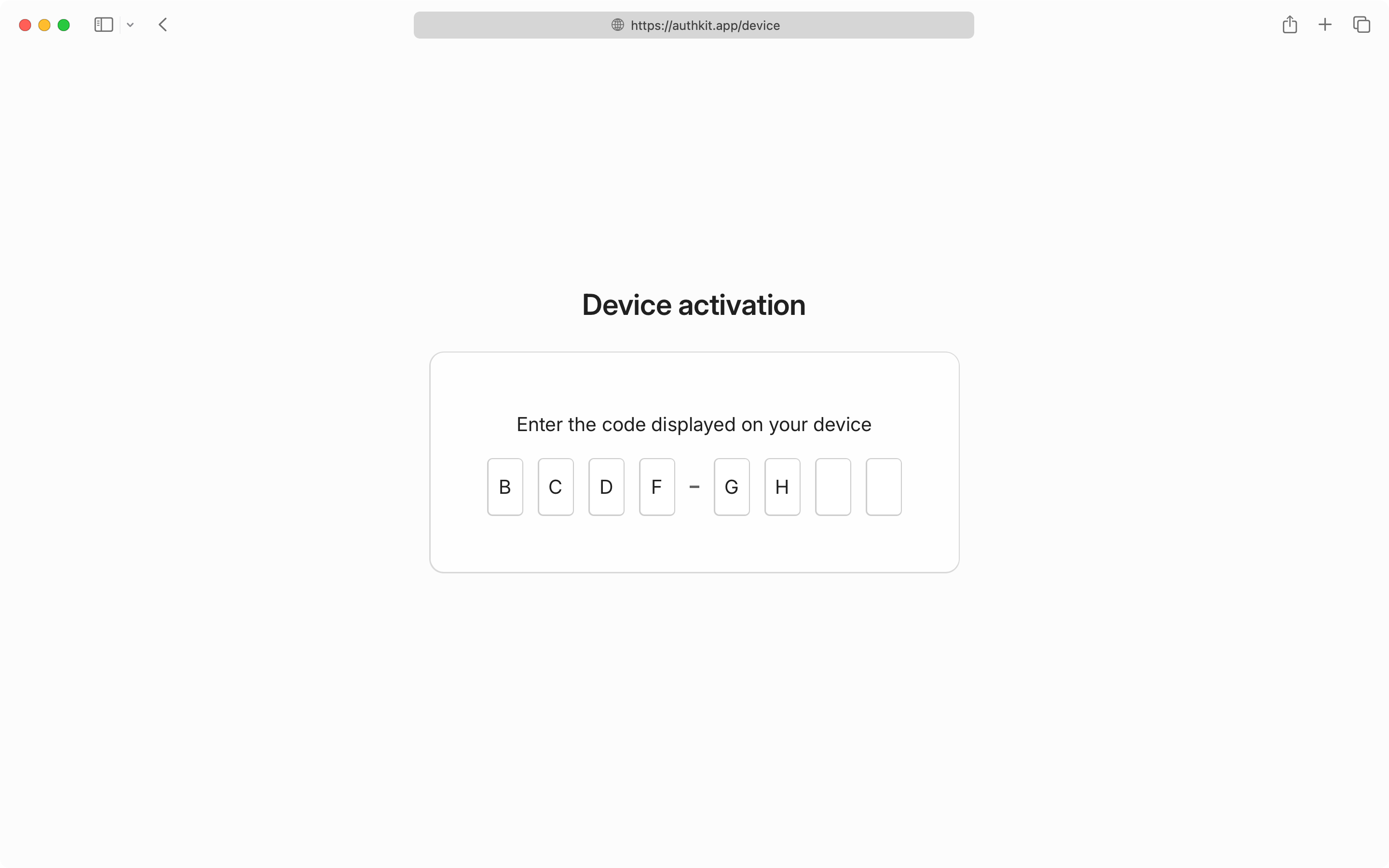
If the user navigates to the verification_uri, a form appears to enter the code manually. If the user is not logged in, they are prompted to do so first and then returned to the code entry screen.
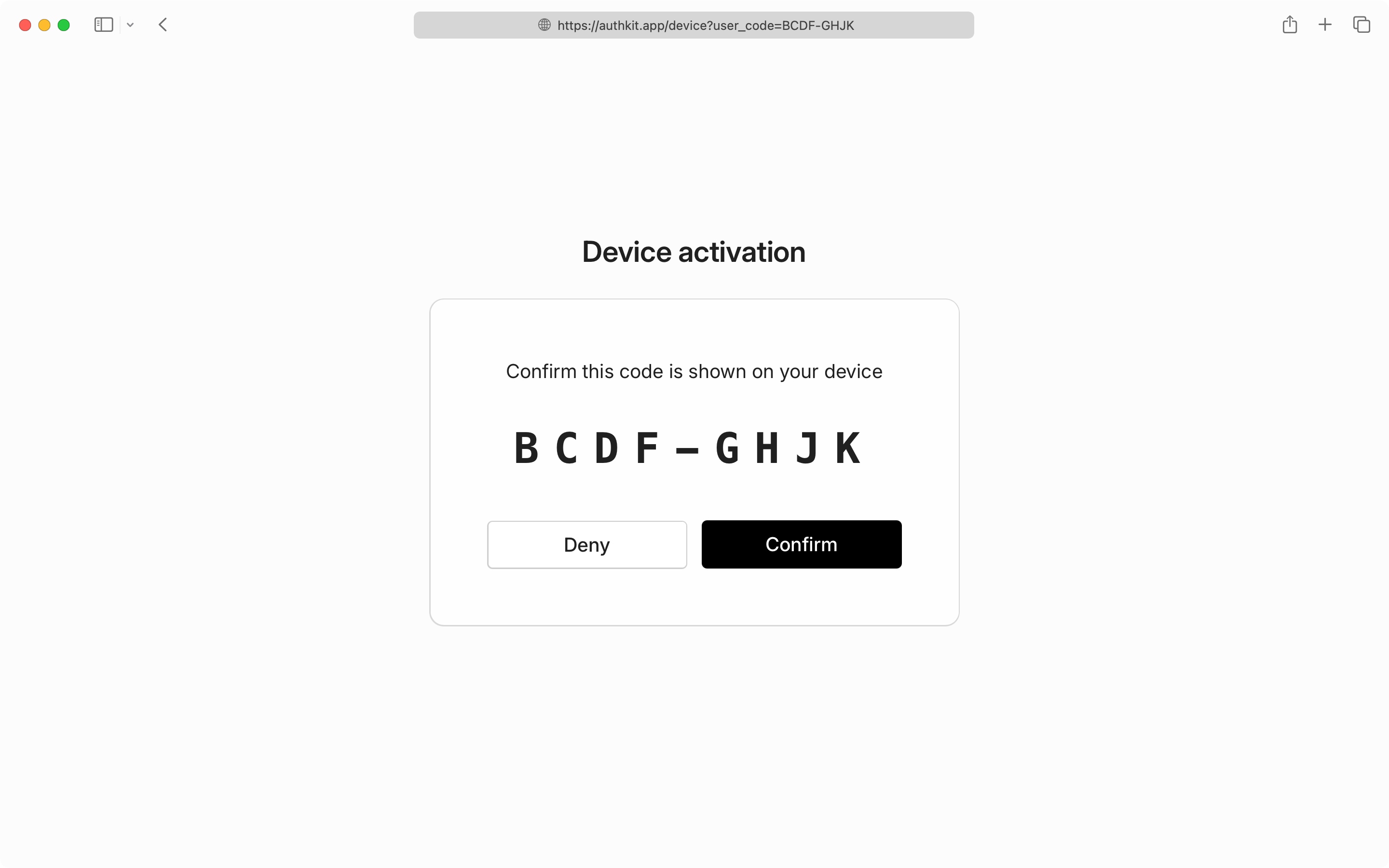
If the user goes to the verification_uri_complete (for example, https://<authkit_domain>/device?user_code=ABCD-EFGH), they instead confirm that the code matches what is displayed in the terminal.
While the user is completing authentication in their browser, poll the token endpoint to check for authorization completion.
Make requests to the token endpoint using device_code from the authorization response in step 1:
- Poll at the interval specified in the authorization response (every 5 seconds)
- Respect
slow_downerrors by increasing your polling interval - Stop polling when you receive
access_deniedorexpired_tokenerrors - Implement a reasonable timeout to avoid infinite polling
CLI Auth is available for Connect applications, allowing you and third-party developers to build CLI tools that integrate with your app’s credentials.
The flow is the same but uses Connect endpoints:
- Authorization:
https://<authkit_domain>/oauth2/device_authorization - Token:
https://<authkit_domain>/oauth2/token
Since command-line applications are distributed to end users, avoid embedding the client secret in the app. Instead, set up your Connect app as a Public application.
Third-party Connect applications will require users to grant consent to the third-party app.