Roles and Permissions
Manage and assign roles and permissions to users.
A role represents a logical grouping of permissions, defining access control levels for users within your application. Roles are identified by unique, immutable slugs and are assigned to users through organization memberships.
Permissions grant users privileged access to resources and actions in your application and are referenced in your code by unique, immutable slugs. A permission can be assigned to any number of roles.
Roles alone can be sufficient when your application only requires very coarse-grained access control. This is suitable if users only need to be separated into broad categories and there is minimal overlap between roles. Simple roles can be easier to manage, but are less flexible for complex access control scenarios.
Permissions allow for more detailed and flexible management of access. They are particularly useful when:
- You anticipate the need to frequently modify access rights or introduce new roles.
- There is significant overlap in access rights between different roles, but with some variations.
- You want to minimize code changes when modifying access rights. By abstracting access control checks to permissions, you can add or modify roles and their access rights without changing the application code.
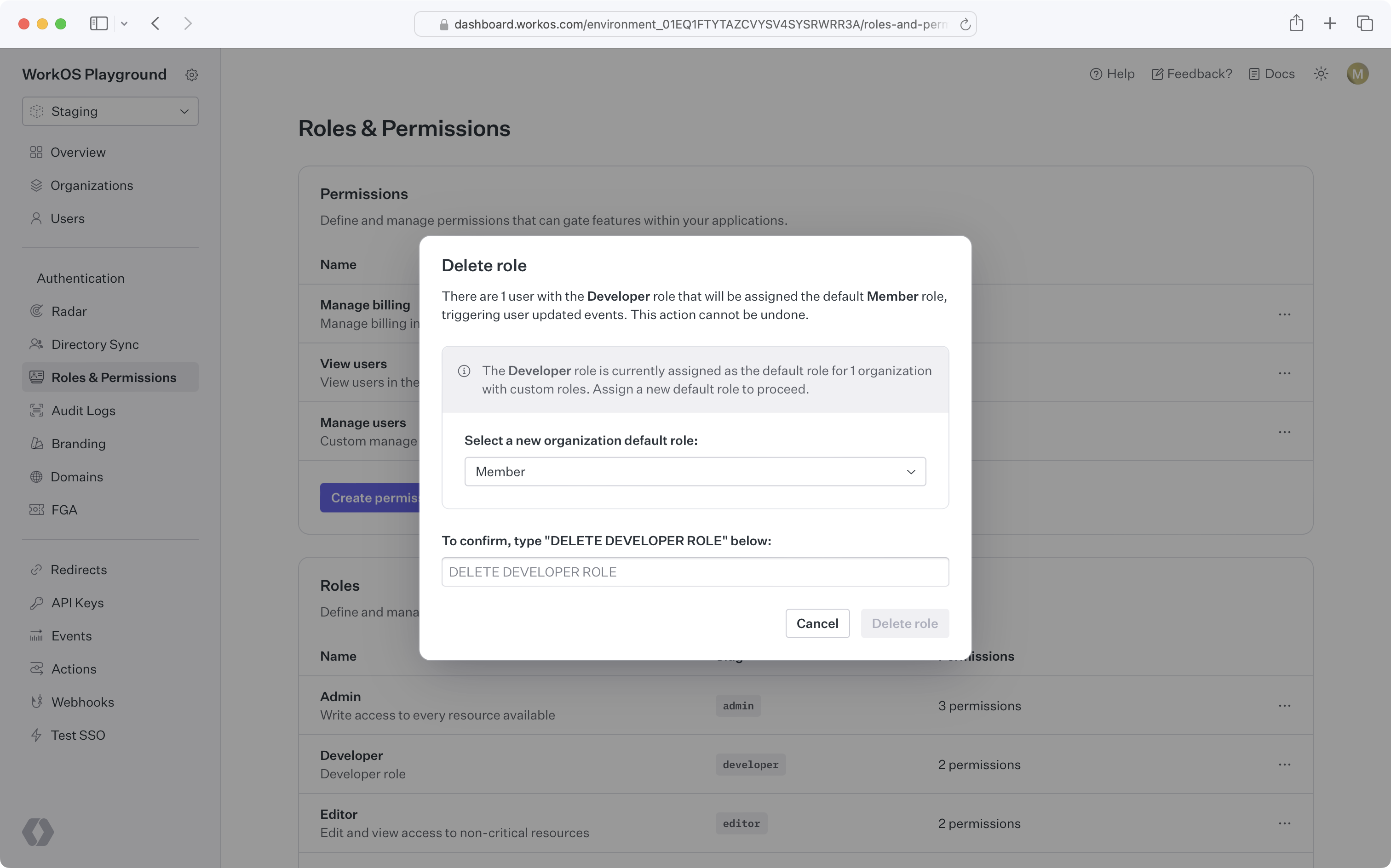
Roles and permissions are managed in their own section of the WorkOS Dashboard or through the Roles and Permissions API.
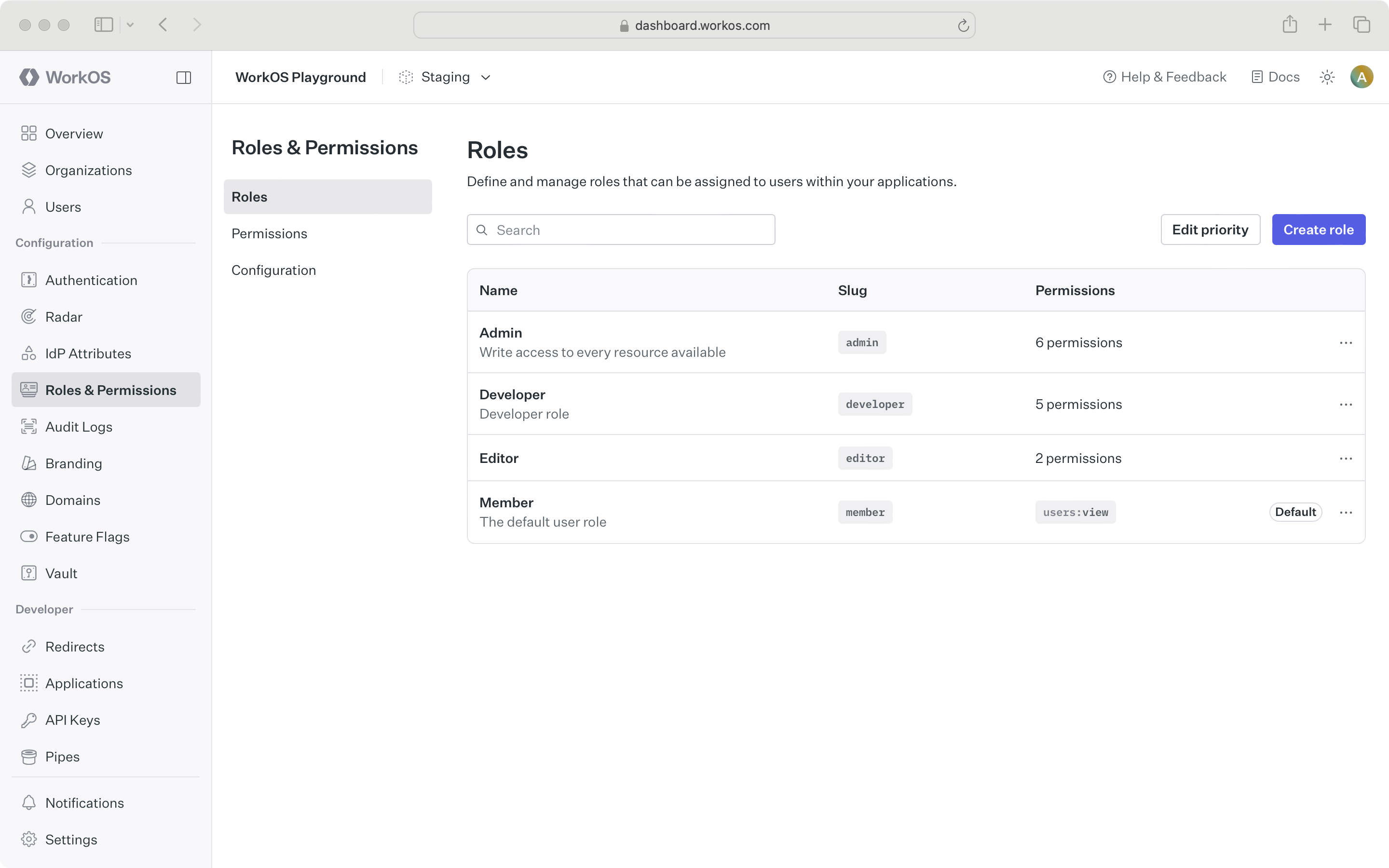
When configuring permissions, the recommended approach is:
- Define a common naming scheme across all permissions for the application. Consider separating the resource and action with a delimiter, such as
users:view. The following delimiters are permitted:-.:_*. - Keep permission slugs clear and concise. When assigned to roles, these slugs are included in session cookies in the session JWT claims, which is limited to a maximum size of 4KB in many modern web browsers.
Permissions can be assigned when creating a new role or when editing an existing role.
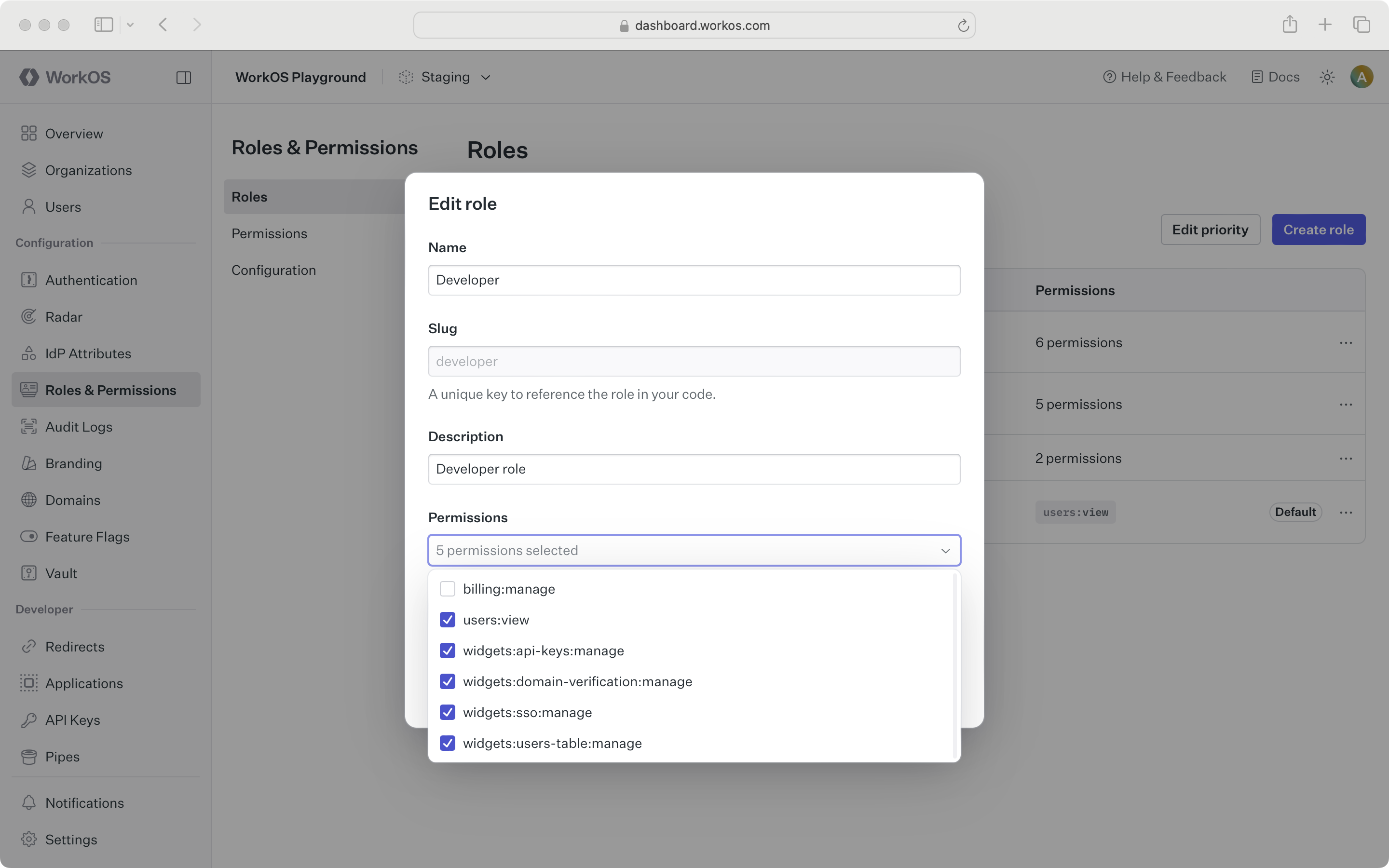
Role configuration occurs at the environment level. Each environment is seeded with a default member role, which is automatically assigned to every organization member. This default role cannot be deleted, but any role can be set as the default.
To set default roles or other role configurations at the organization level, refer to the Organization roles section.
By default, organization memberships require exactly one role. Every user with an organization membership is automatically assigned the default role when added to an organization. This role can be edited.
When multiple roles is enabled, several roles can be assigned to an organization membership. The user receives all permissions from each role.
Role information can be retrieved from the user’s organization membership object to determine their access level and capabilities within the application.
Role changes are tracked and logged via the organization_membership.updated event. These changes can be viewed on the events page by filtering for organization_membership.updated.
When roles are deleted:
- Single role mode: All organization memberships with the deleted role are reassigned to the default role.
- Multiple roles mode: The deleted role is removed from all organization memberships that have it assigned, while other roles on the organization membership remain intact. If the deleted role was the only role assigned to the membership, it will be reassigned the default role.
Role deletion happens asynchronously, so there may be a slight delay between deleting a role and updating all affected organization memberships.
To migrate from one default role to another, set the new default role and delete the old one. All users will then be reassigned to the new default role.
If a user is provisioned from multiple sources with conflicting roles, the role with the highest priority will be assigned. This is applicable for a single role architecture utilizing role assignment.
Priority order also determines which role will be assigned to users when migrating from a multiple roles to single role configuration in the environment.
When enabled, AuthKit supports multiple roles per organization membership. A user receives the union of permissions across all assigned roles. For example, a user with the Designer and Engineer roles gets both sets of permissions in their session. This prevents role explosion by avoiding redundant hybrid roles, like “designer-engineer”. Each organization membership must have at least one role and will always receive the default role if no other role(s) are set.
By default, multiple roles is disabled and users can only have a single role per entity. Multiple roles becomes beneficial when there is a need for:
- Cross-department collaboration: e.g., designers who need some engineering permissions.
- Additive, disjoint permissions: independent permission sets that should stack.
- Temporary access: time-bound extra capabilities without creating hybrid roles.
For most applications, starting with single-role relationships provides simplicity and predictability. Multiple roles should be adopted only when overlapping permission sets become common.
Roles can be assigned manually through the steps below, or via identity provider role assignment as outlined in the next section.
- From the WorkOS Dashboard, open Users.
- Select a user and navigate to Organization memberships
- Click Edit roles and add all relevant roles
- Alternatively, assign roles via the API
Each organization membership must have at least one role.
Identity provider groups can be mapped to roles to automatically assign roles to users. AuthKit supports two methods for role assignment:
Roles can be assigned via SCIM through directory group role assignment. Admins can map group memberships to roles in the Admin Portal during SCIM or Google Workspace directory setup. These mappings are used to assign roles to organization memberships via Directory Provisioning.
Roles can also be assigned via SSO group role assignment. Groups returned in the SSO profile can be mapped to roles in the WorkOS Dashboard. If an AuthKit user authenticates via SSO and belongs to a mapped group, the corresponding role will be set on the organization membership and reflected in the user’s session.
Ensure SSO JIT provisioning is enabled for each organization using SSO role assignment.
Organization admins can assign roles to identity provider groups in the Admin Portal during SSO or directory setup.
From the Roles and Permissions section in the WorkOS Dashboard, role assignment is an environment-level setting. However, it can also be configured per organization via the Roles tab on that organization’s page. When enabled, all Admin Portal sessions for the relevant SSO connection or directory support group role assignment.
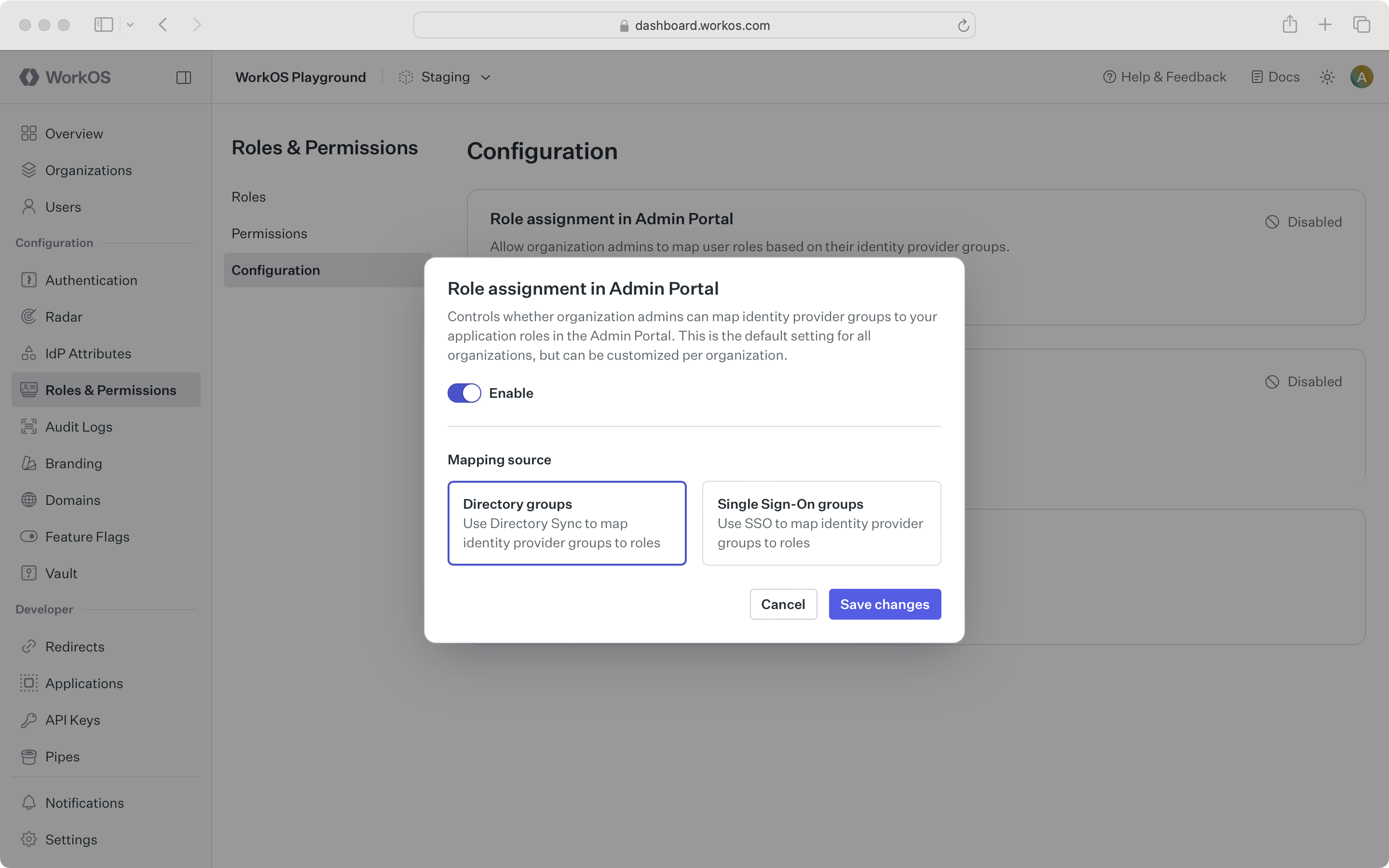
Whether to enable role assignment for SSO or directory groups depends on the application’s setup. When provisioning users with Directory Sync, the recommended approach is to enable directory group role assignment due to limitations of SSO role assignment.
If directory provisioning is not yet in use, SSO group role assignment can serve as the environment default.
Because this setting is configurable per organization, a sensible default should be chosen based on the typical customer setup:
-
A. All organizations use SSO: If no organizations are using Directory Sync, SSO group role assignment should be enabled in Admin Portal at the environment level.
-
B. Some organizations use Directory Sync: Directory group role assignment should be enabled in Admin Portal for those specific organizations.
-
C. Most organizations use Directory Sync: Directory group role assignment should be enabled in Admin Portal at the environment level, with the setting overridden for organizations that only use SSO.
The recommended practice is to use only one role assignment source per organization. If an organization currently uses SSO group role assignment and needs to switch to directory group role assignment, there are two paths to consider:
-
A. Directory is not yet configured: Enable directory group role assignment for the organization via the Roles tab under an organization in the WorkOS Dashboard. The organization admin will be prompted to set up directory group role assignments in the Admin Portal.
-
B. Directory is already configured: Roles can be manually assigned to directory groups in the WorkOS Dashboard, or an Admin Portal link can be regenerated so the organization admin can set the role mappings there.
Directory group role assignments take precedence and override any SSO group role assignments on the organization membership. Once directory group roles are properly set up and reflected, the SSO group mappings can be deleted.
AuthKit enforces strict priority rules for assigning roles. When roles are sourced from SSO group role assignment:
- An explicit SSO group role assignment overrides any role manually assigned via the organization memberships API or the WorkOS Dashboard. However, a default SSO group role assignment does not override a manual one.
- The system may allow a temporary override through the organization memberships API, but it reapplies the SSO-assigned role when the user next authenticates, provided the assignment came from an explicit SSO group.
- The system always overwrites previous SSO role assignments with new ones, whether they originate from an explicit or default mapping.
Role assignments sourced from Directory Provisioning:
- An explicit directory group role assignment overrides any role manually assigned via the organization memberships API or the WorkOS Dashboard, or any SSO group role assignment.
- The system does not allow SSO to override these roles.
- These roles can be overridden temporarily via the organization memberships API, but directory provisioning reapplies them during the next sync.
- The system always replaces previous directory-provisioned role assignments with new ones, regardless of whether they came from an explicit or default mapping.
When a user signs in, a user session is initiated. The authentication response includes an access token, a JSON Web Token (JWT), with role claims indicating the user’s organization membership role(s) for that session.
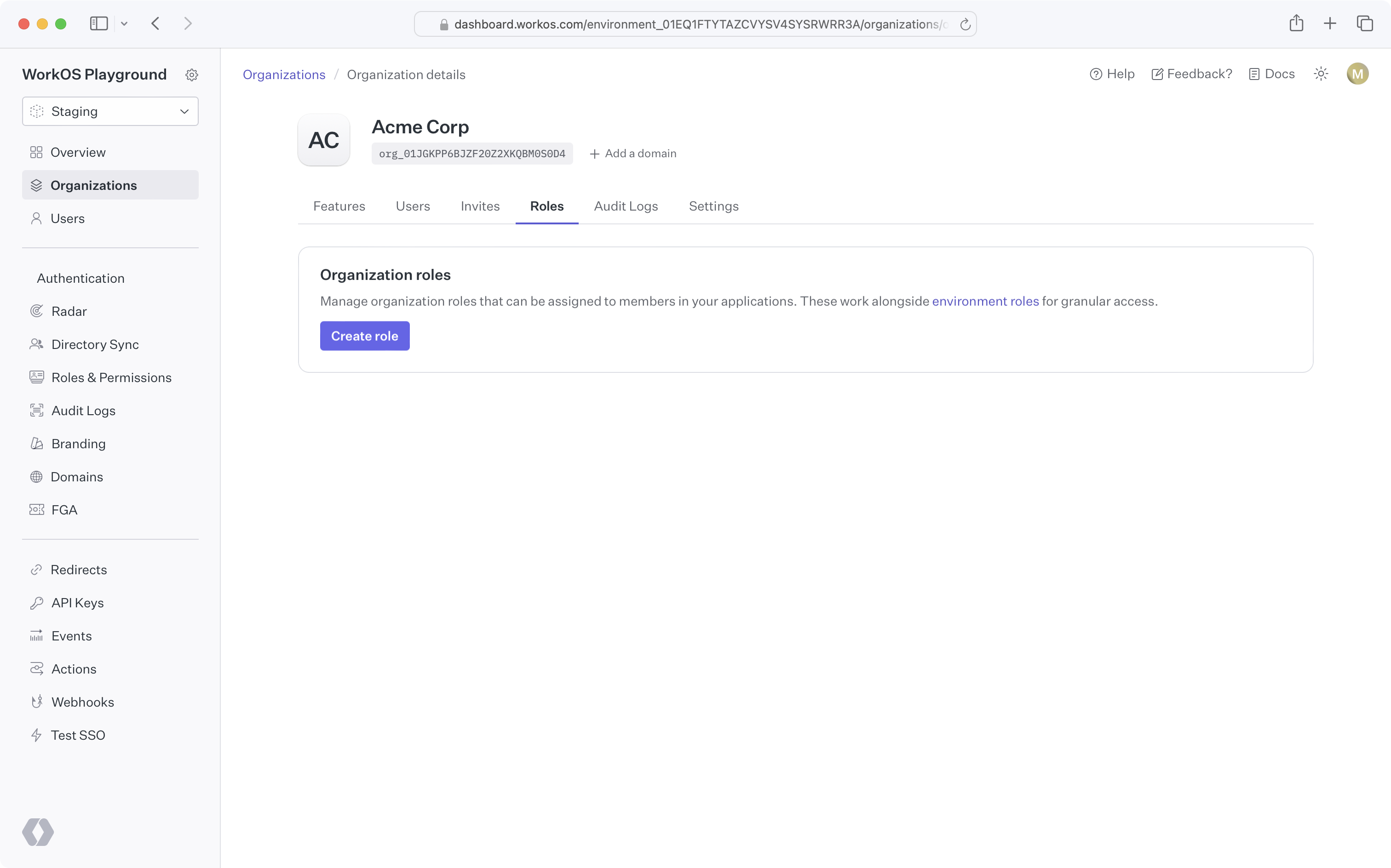
Organization roles are custom roles scoped to a particular organization. They are managed via the “Roles” tab under an organization in the WorkOS Dashboard or using the Organization Roles API.
Why might organization roles be needed?
In some cases, an application’s fixed set of roles may not meet the needs of certain organizations. For example, an organization may require a lesser-privileged set of permissions for its members. Organization roles allow custom roles to be created with the organization’s desired set of permissions, without affecting access control for other organizations.
By default, organizations have no custom organization roles and simply inherit the environment-level roles. An organization role can be created by clicking the “Create role” button on the organization’s “Roles” tab or through the Organization Roles API. All organization role slugs are automatically prefixed with org.
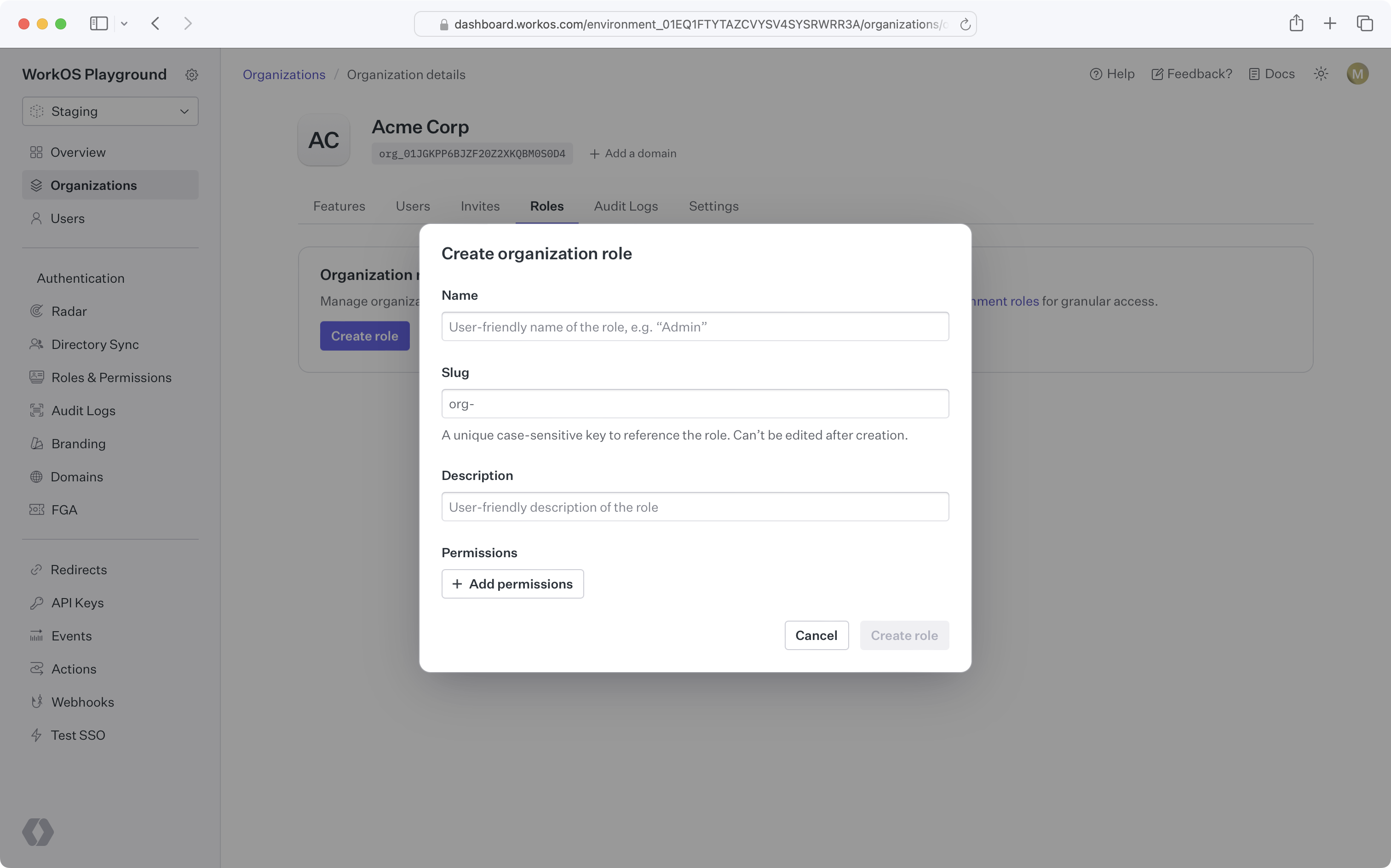
Once the first role is created for an organization, that organization will have its own default role and priority order, independent from the environment.
New roles added to the environment will be available to the organization and placed at the bottom of the organization’s role priority order.
Like environment-level roles, organization roles can be used in role assignment, sessions, and the organization membership API. No additional action is required to enable this behavior after creating organization roles.
When attempting to delete an environment role that is the default role for one or more organizations, a prompt appears to select a new default role for all affected organizations. Organization members previously assigned the deleted role will be assigned the new organization default role.