Custom Email Providers
Send emails through your own email service provider.
Configure a custom email provider to deliver authentication emails through your own email service.
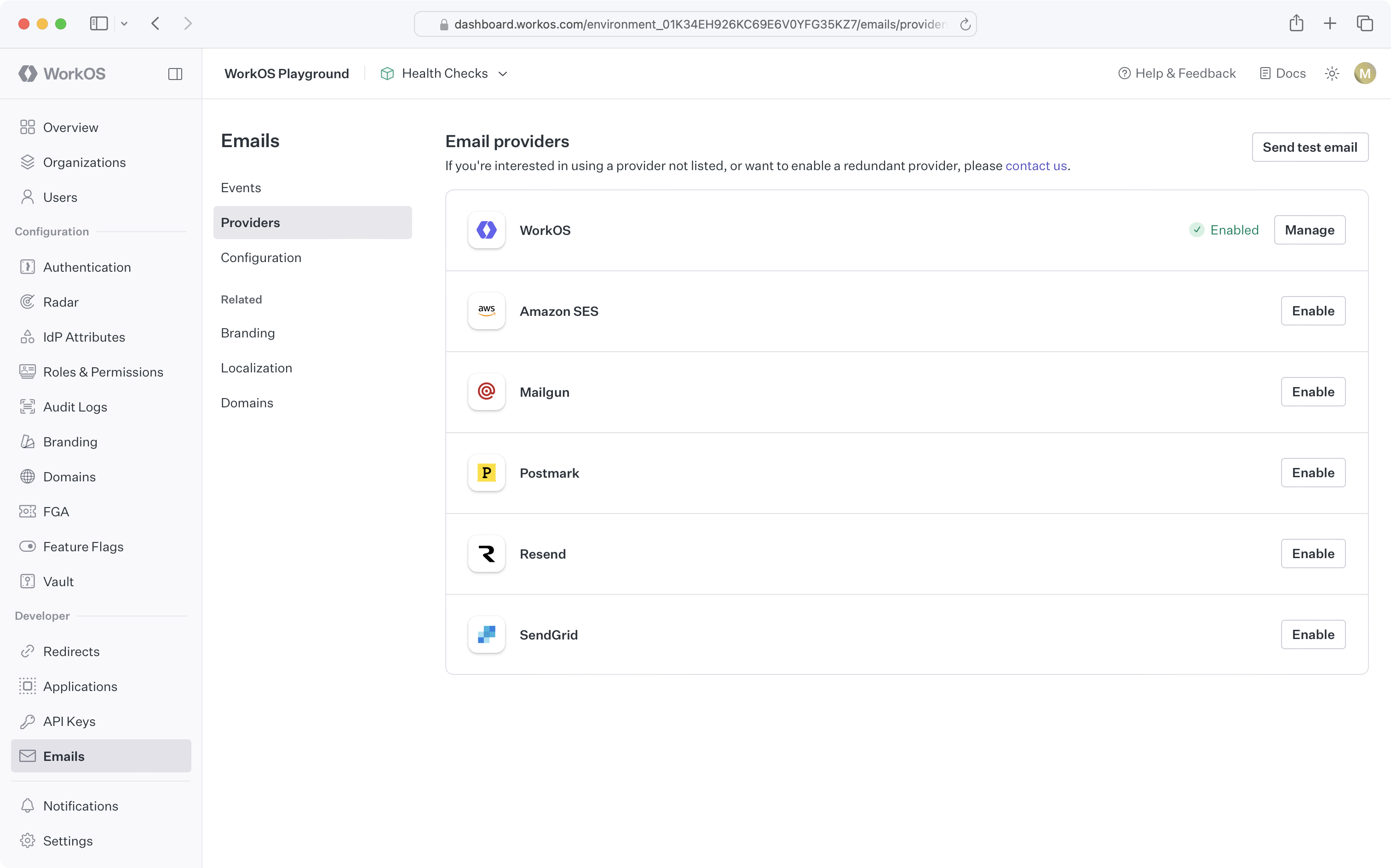
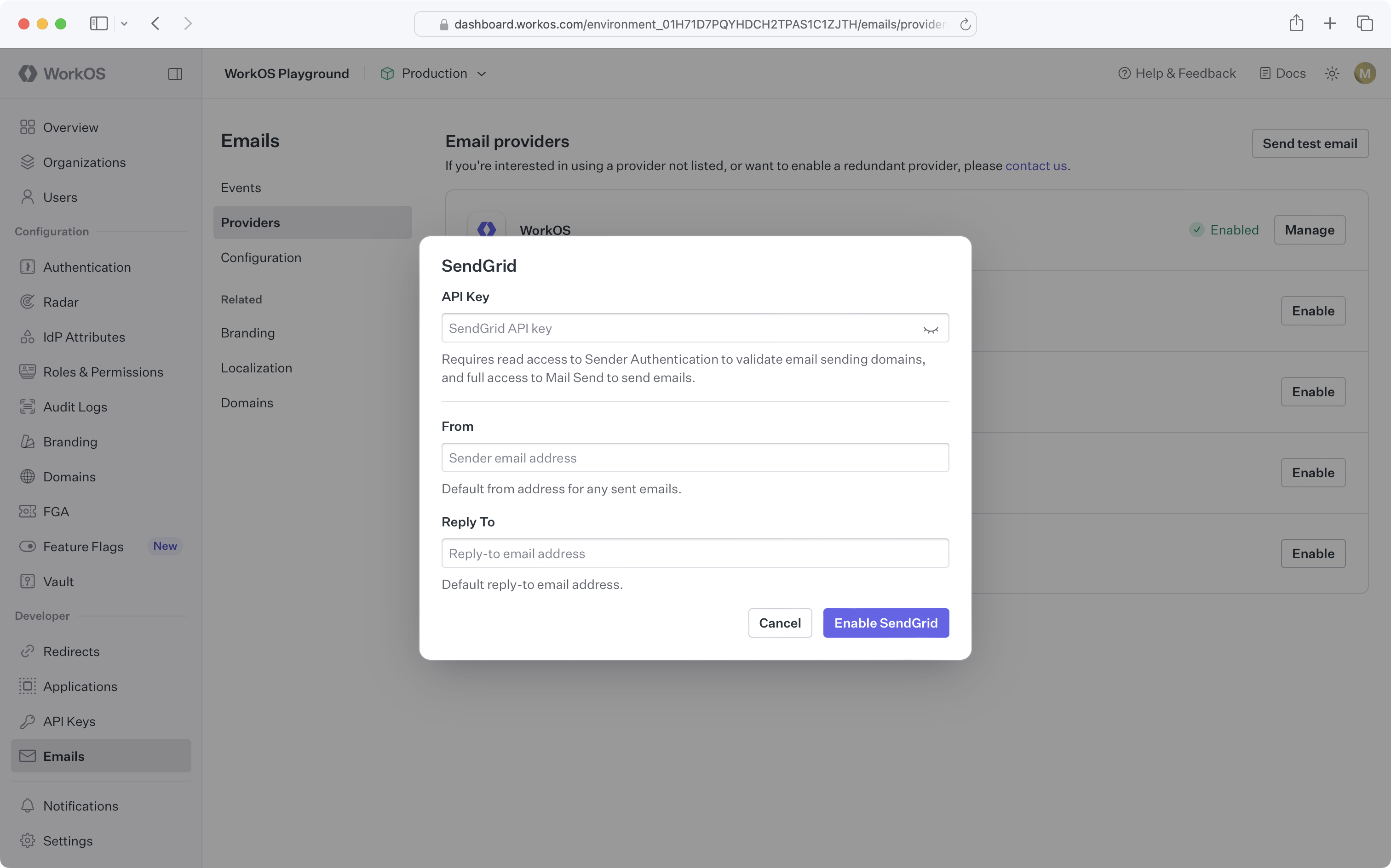
To configure a custom email provider for an environment, navigate to Emails → Providers and click Enable next to the desired provider, then enter the required information.
If your email service provider is not listed, contact support.
To connect WorkOS to Amazon SES, create an IAM user with an access key and verify email sending identities. Ensure the IAM user has a policy like the following:
Update the resource scope with your Amazon SES region and account ID. For additional ways to restrict access, refer to the Amazon SES documentation.
To use temporary security credentials to access Amazon SES, contact support.
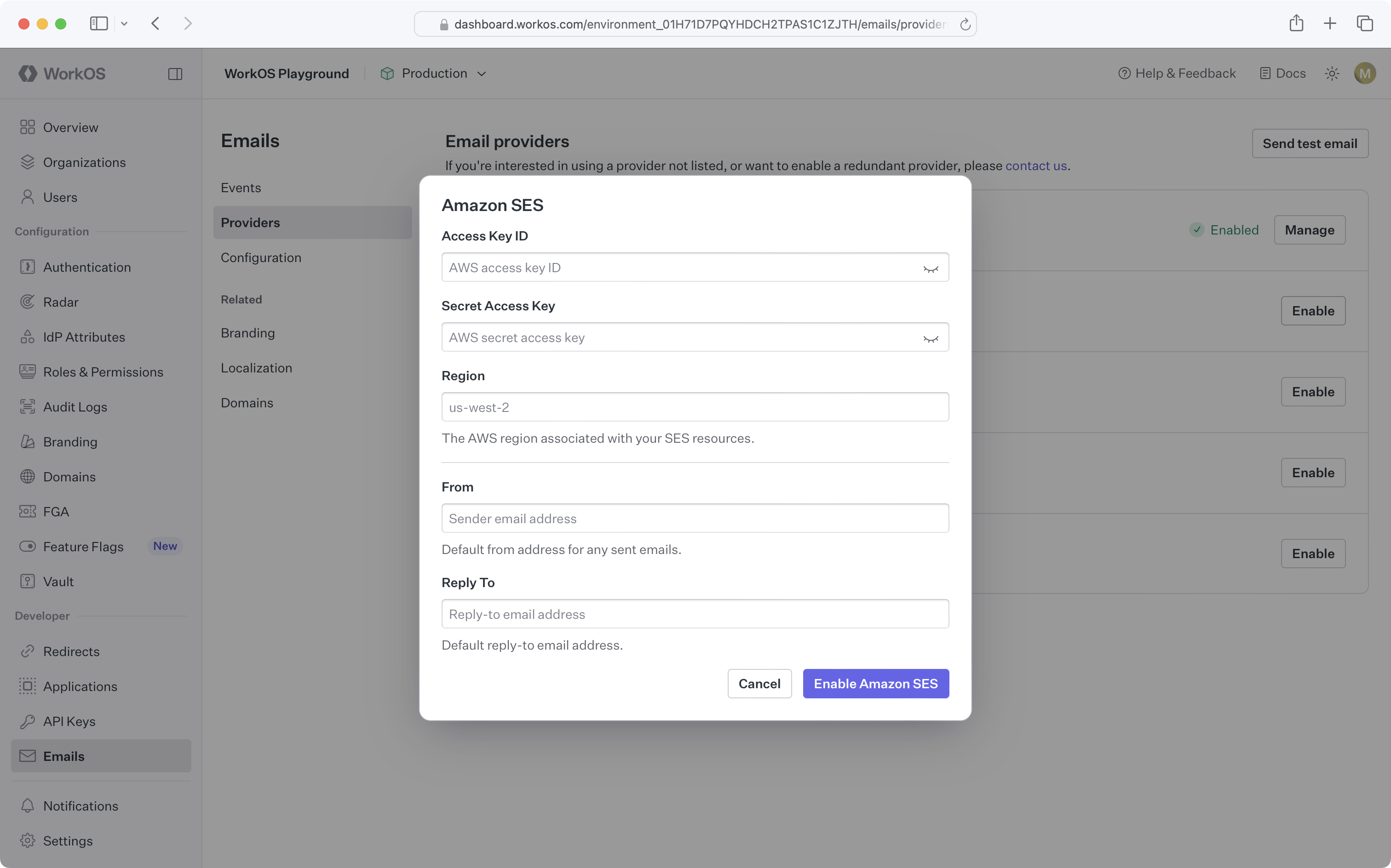
Once the IAM user has the necessary permissions and sending identities are verified, configure the Amazon SES custom email provider in the WorkOS Dashboard:
Before configuring the Mailgun custom email provider in WorkOS, verify your domain in your Mailgun account.
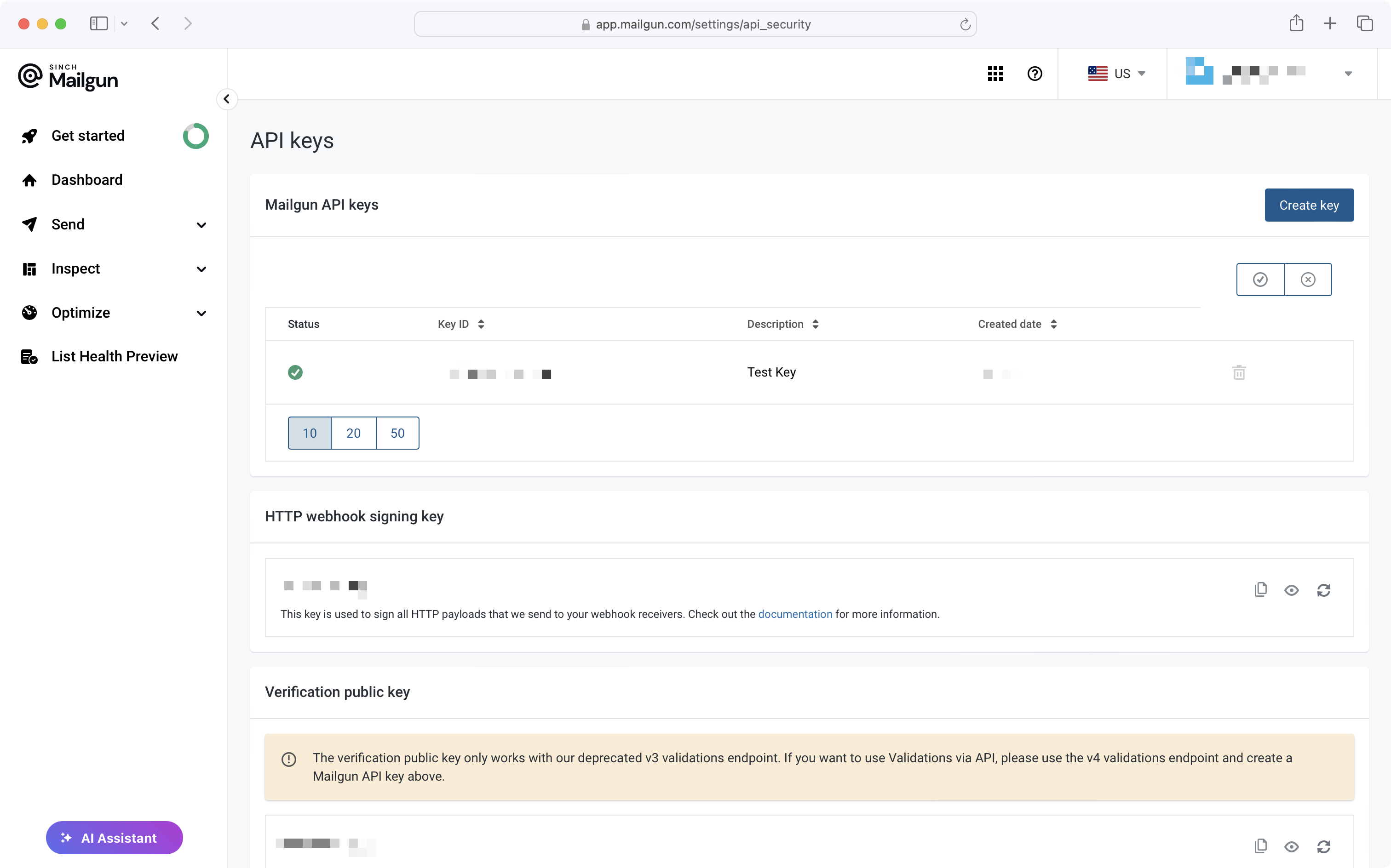
After verifying a domain, create an API key on the API Security page of the Mailgun dashboard. The API key is used to validate verified domains in your account and send emails.
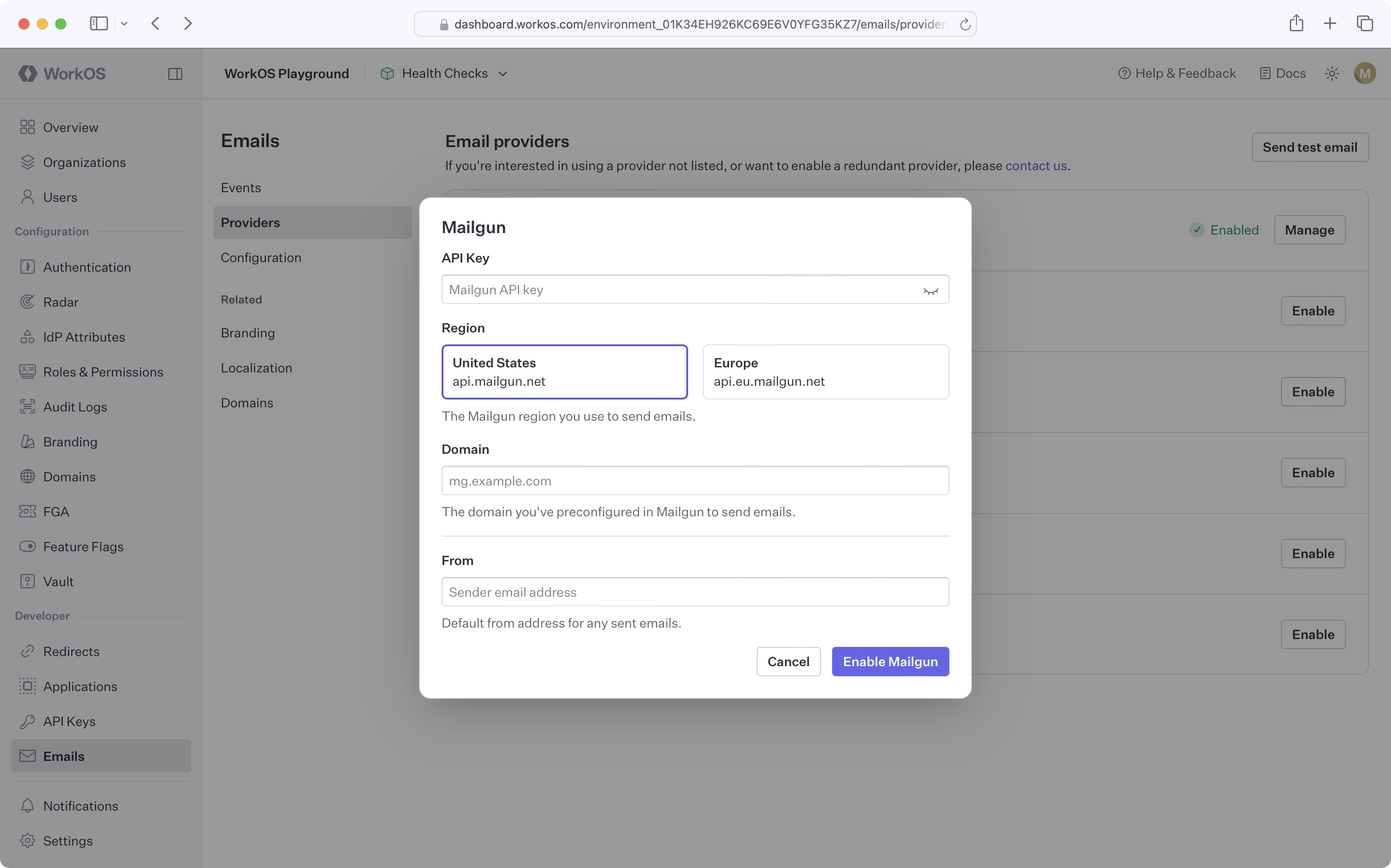
After verifying the domain and obtaining an API key, configure the Mailgun custom email provider in the WorkOS Dashboard:
Before configuring the Postmark custom email provider in WorkOS, verify sender signatures in your Postmark account.
After verifying a sender signature, obtain an account and server token from the API Tokens page of the Postmark dashboard.
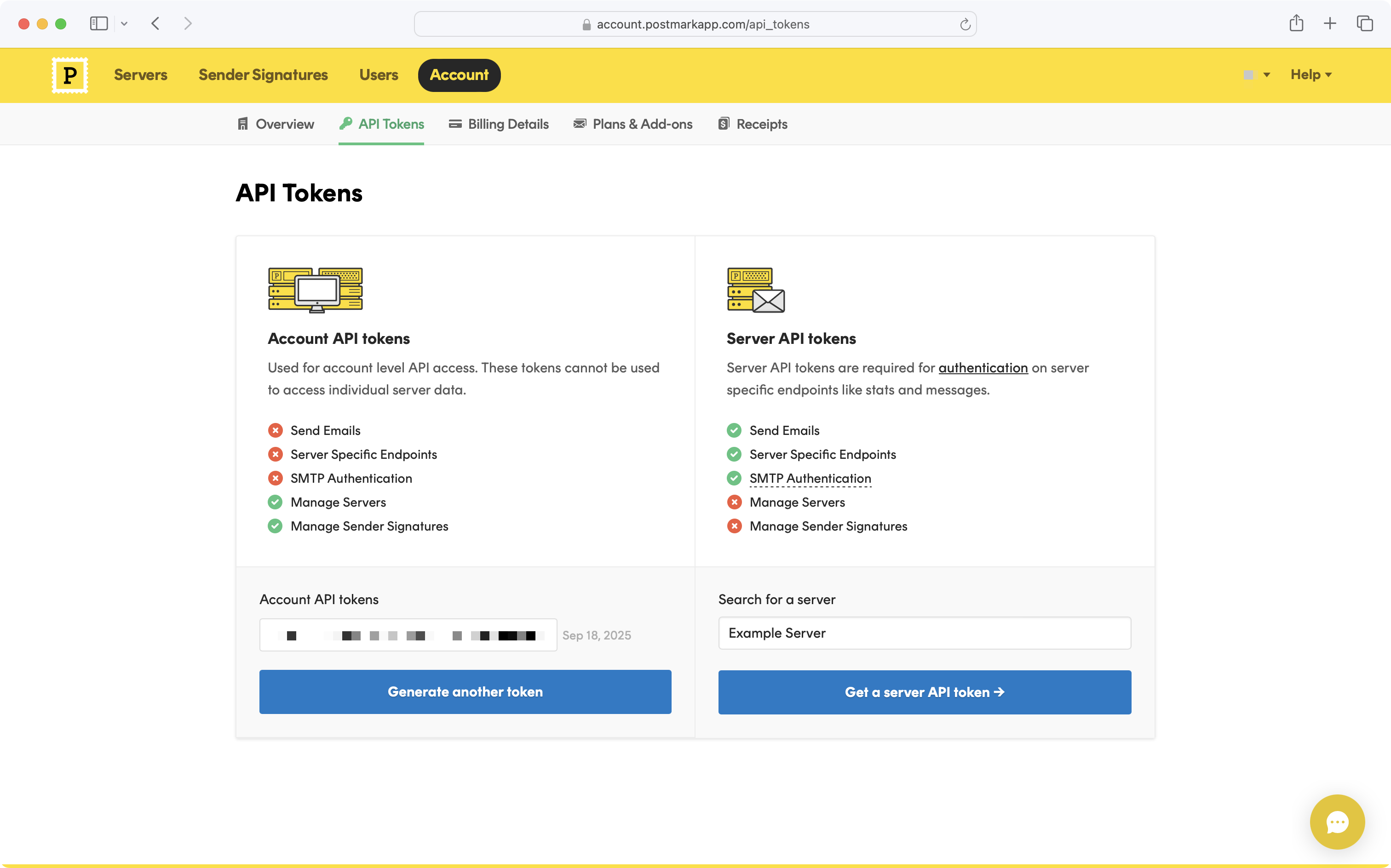
The account token is used to validate sender signatures in your account, and the server token is used to send emails.
After verifying the sender signature and obtaining the account and server tokens, configure the Postmark custom email provider in the WorkOS Dashboard:
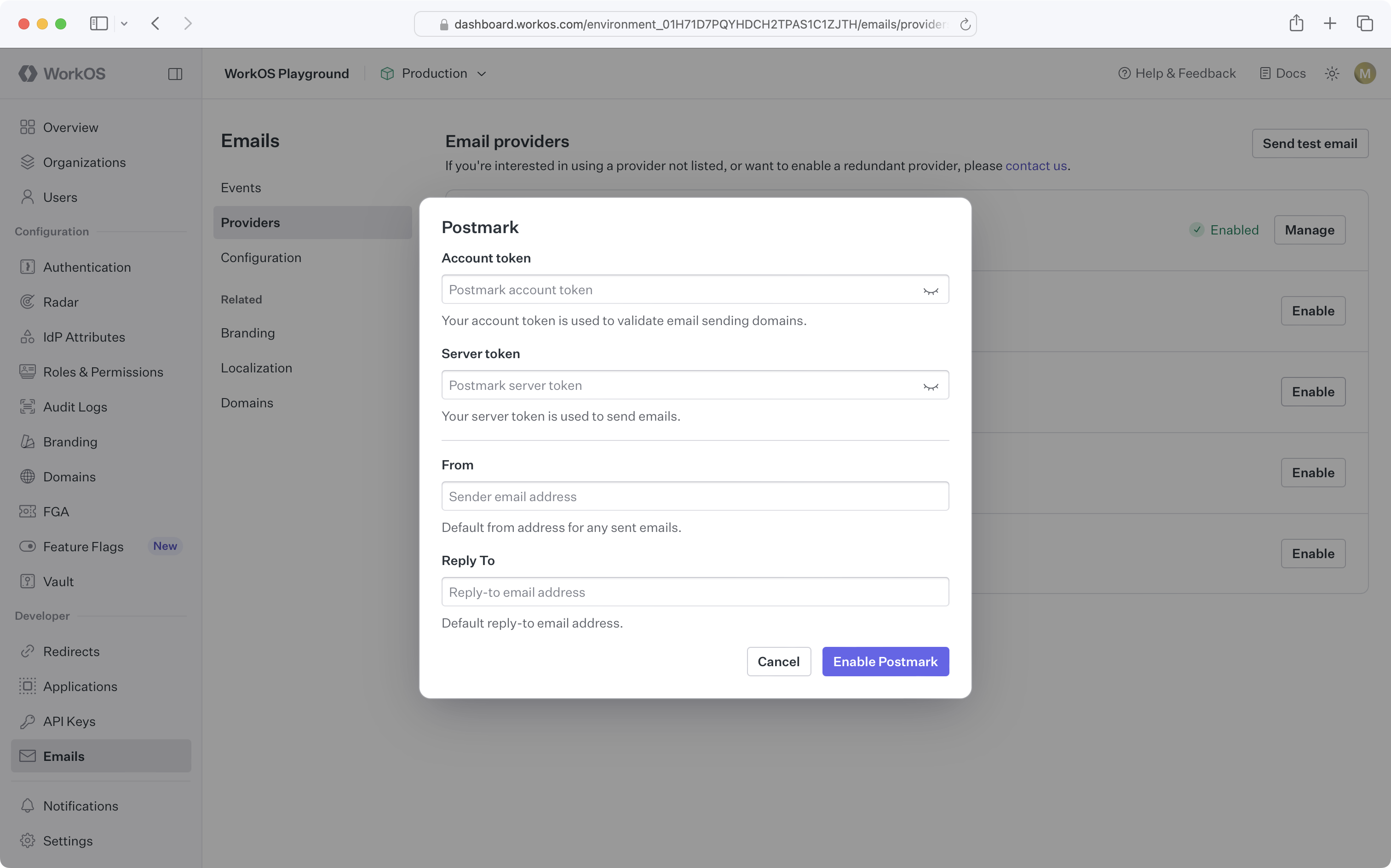
Upon enabling the Postmark custom email provider, a WorkOS transactional message stream with the ID workos-transactional-s will be created for you. All WorkOS emails will be sent using this message stream.
Before configuring the Resend custom email provider in WorkOS, verify domains in your Resend account.
After verifying the domain, create an API key with the “Full access” permission on the Resend API Keys page.
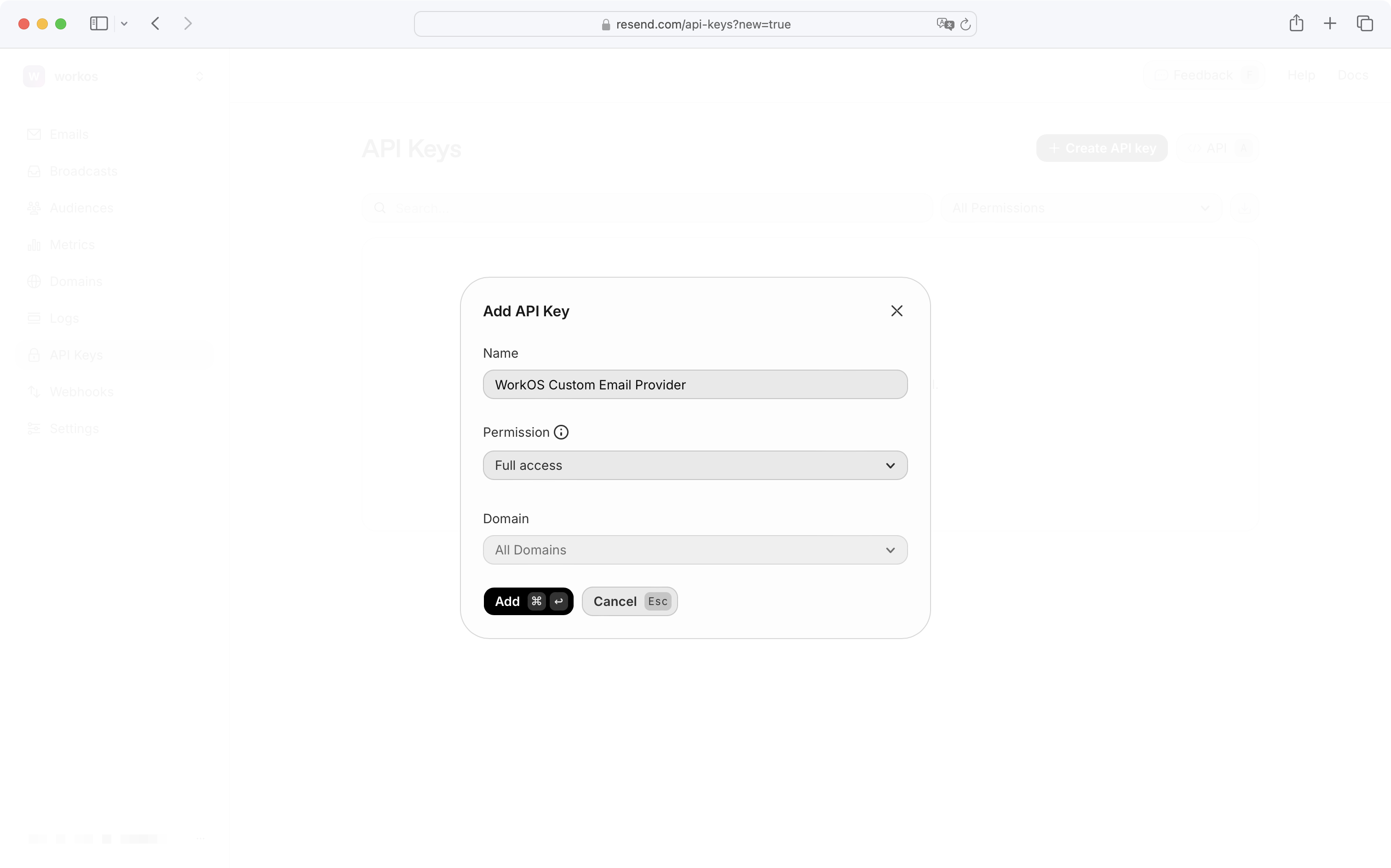
“Full access” permission is required to fetch verified domains and send emails.
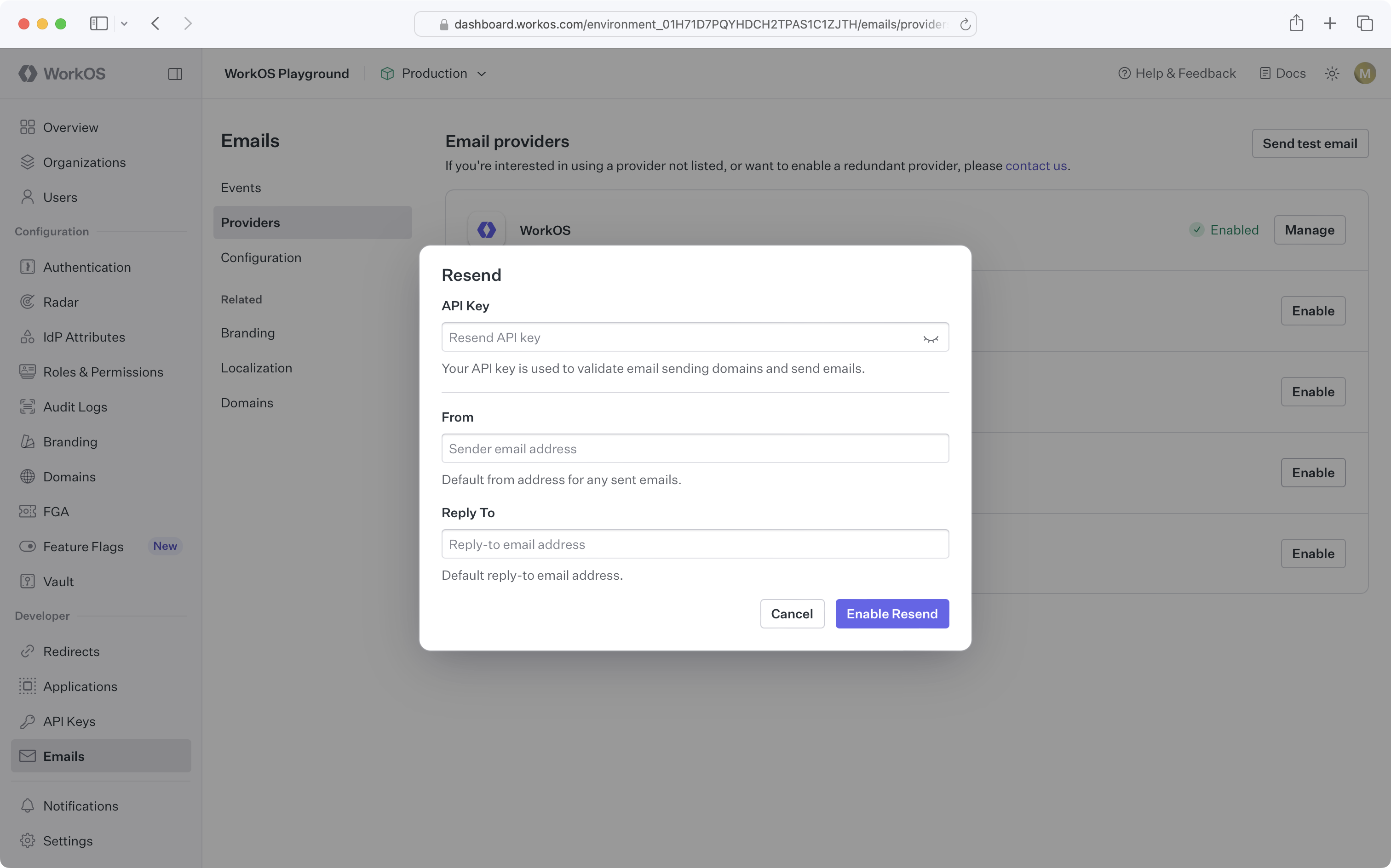
After verifying the domain and obtaining an API key, configure the Resend custom email provider in the WorkOS Dashboard:
Before configuring the SendGrid custom email provider in WorkOS, verify your domain in the Sender Authentication settings in your SendGrid dashboard.
After verifying the domain, create an API key under Settings → API Keys in the SendGrid dashboard.
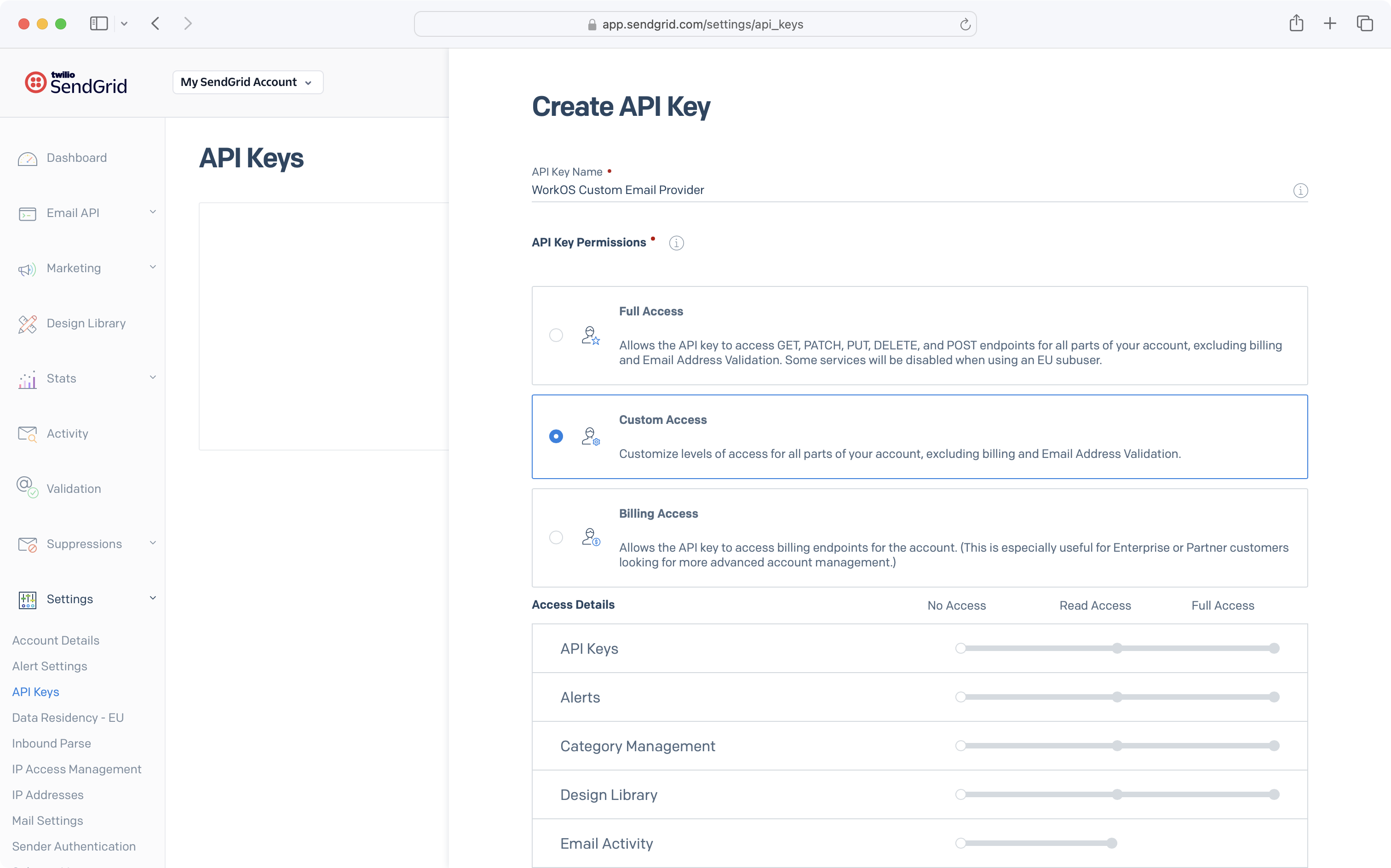
For API key permissions, select “Full Access” for Mail Send, and “Read Access” for Sender Authentication.
After verifying the domain and obtaining an API key, configure the SendGrid custom email provider in the WorkOS Dashboard:
At any time while using a custom email provider, re-enable the WorkOS default provider by navigating to Emails → Providers and clicking Enable next to the WorkOS provider.
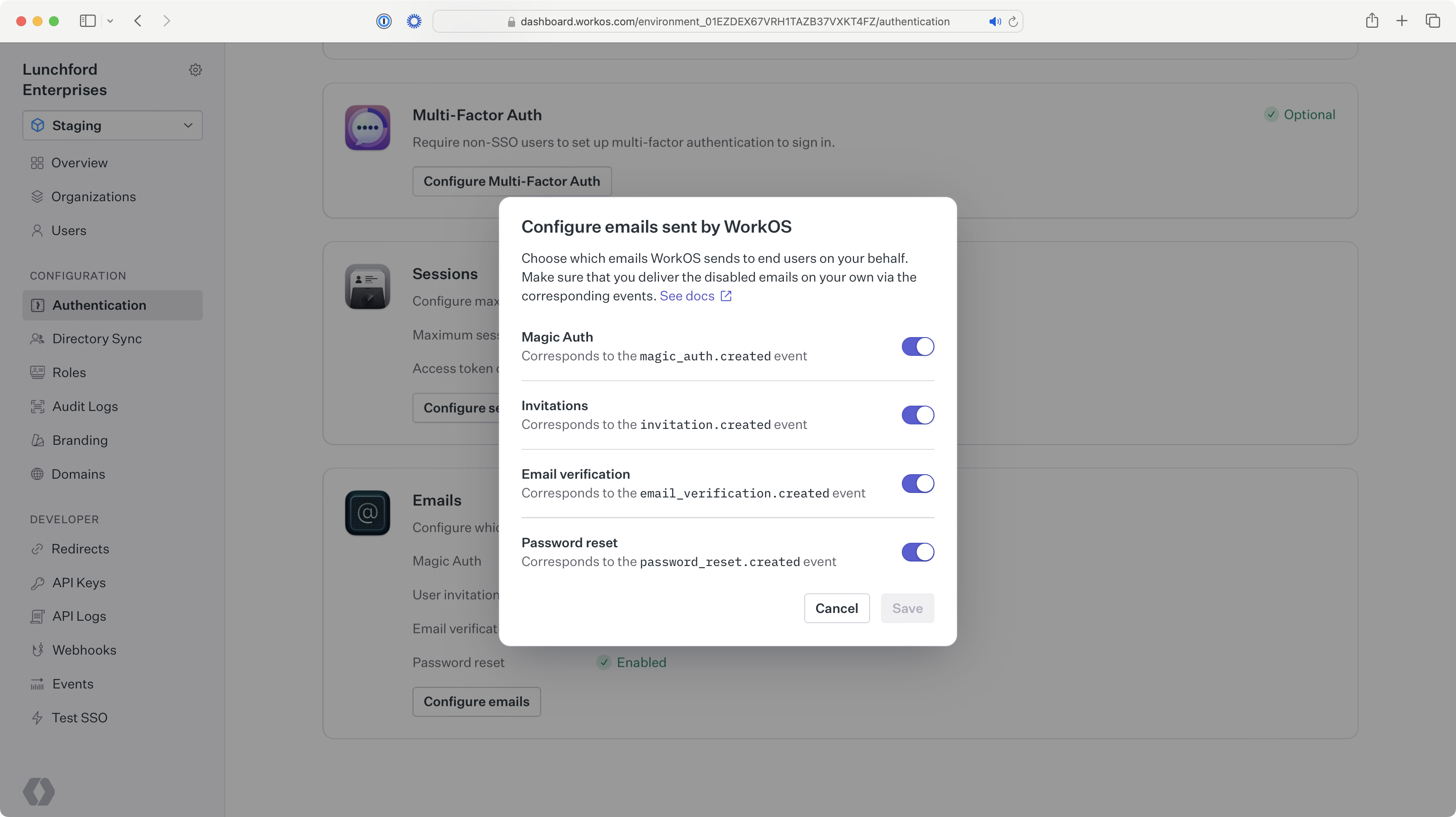
Alternatively, remove the current custom email provider, which automatically re-enables the WorkOS default provider.
What types of emails are sent through custom email providers?
All transactional emails for your users will be sent through your custom email provider when configured. This includes AuthKit invitations and magic codes, Radar challenges, and Admin Portal notification emails.
If I am using a custom email provider, do I need to set up a custom email domain in WorkOS?
No. When using a custom email provider, you configure the sending domain in that provider, not in WorkOS. Any custom email domain set up in WorkOS will not be used.
What happens if emails fail to send via my custom email provider?
If emails fail to send via your custom email provider, you will be notified according to your notifications preferences via the WorkOS Dashboard, email, or Slack. Use the Emails → Events page in the WorkOS Dashboard to track email delivery failures.