Custom Emails
Send your own emails for user lifecycle events.
Send authentication emails from your own domain instead of the default WorkOS sender.
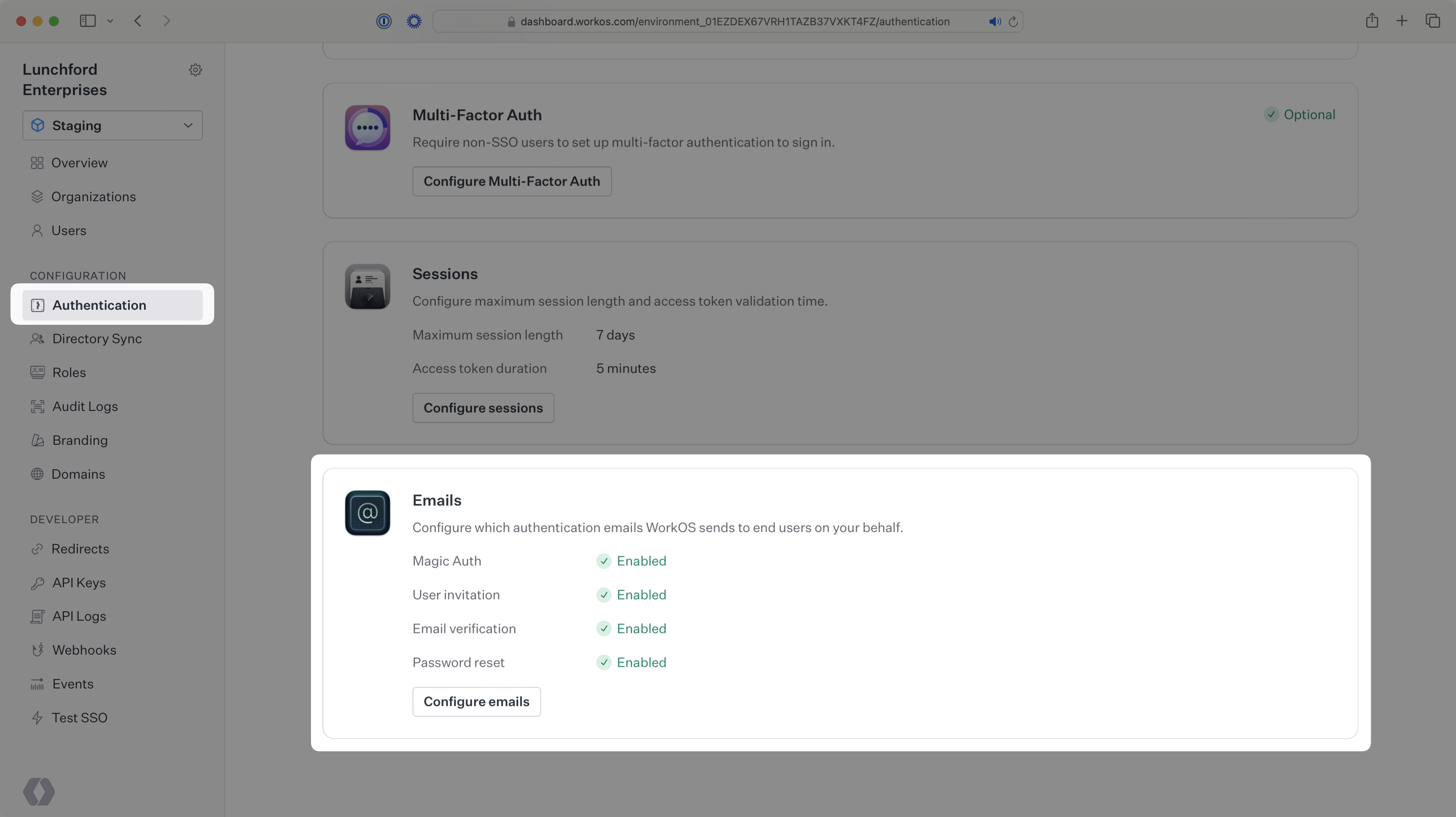
To change email settings for an environment, navigate to Authentication → Emails and select Configure emails. The Admin role is required to update this setting.
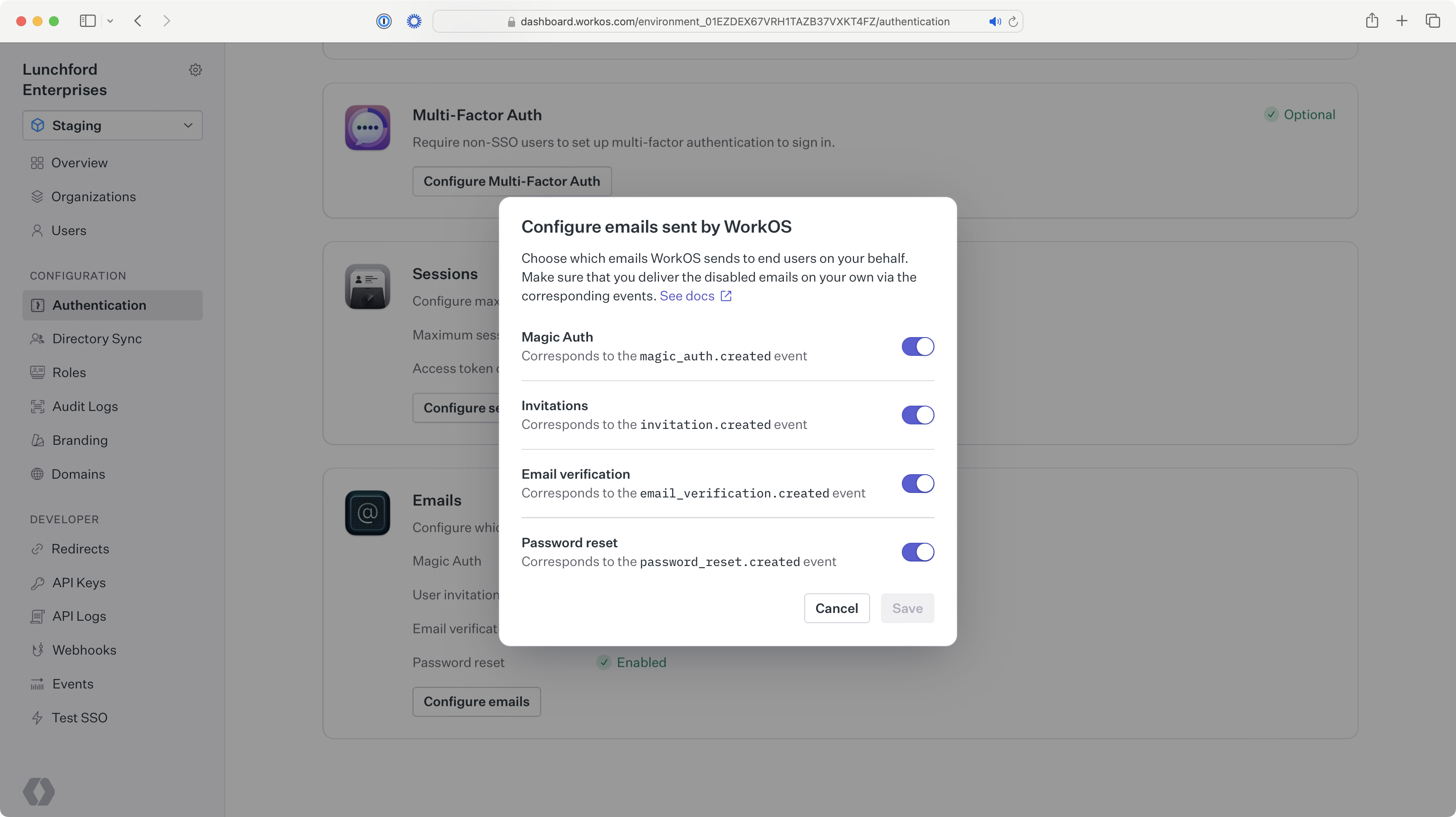
After turning off the default user invitation emails, use the information below to send custom invitation emails.
- invitation.created
- Event emitted when an invitation is created, which can be consumed using the events API or webhooks.
- Get Invitation API
- Used to retrieve the invitation object from the ID in the invitation created event.
- Send Invitation API
- Used to create an invitation via the API without handling the invitation created event.
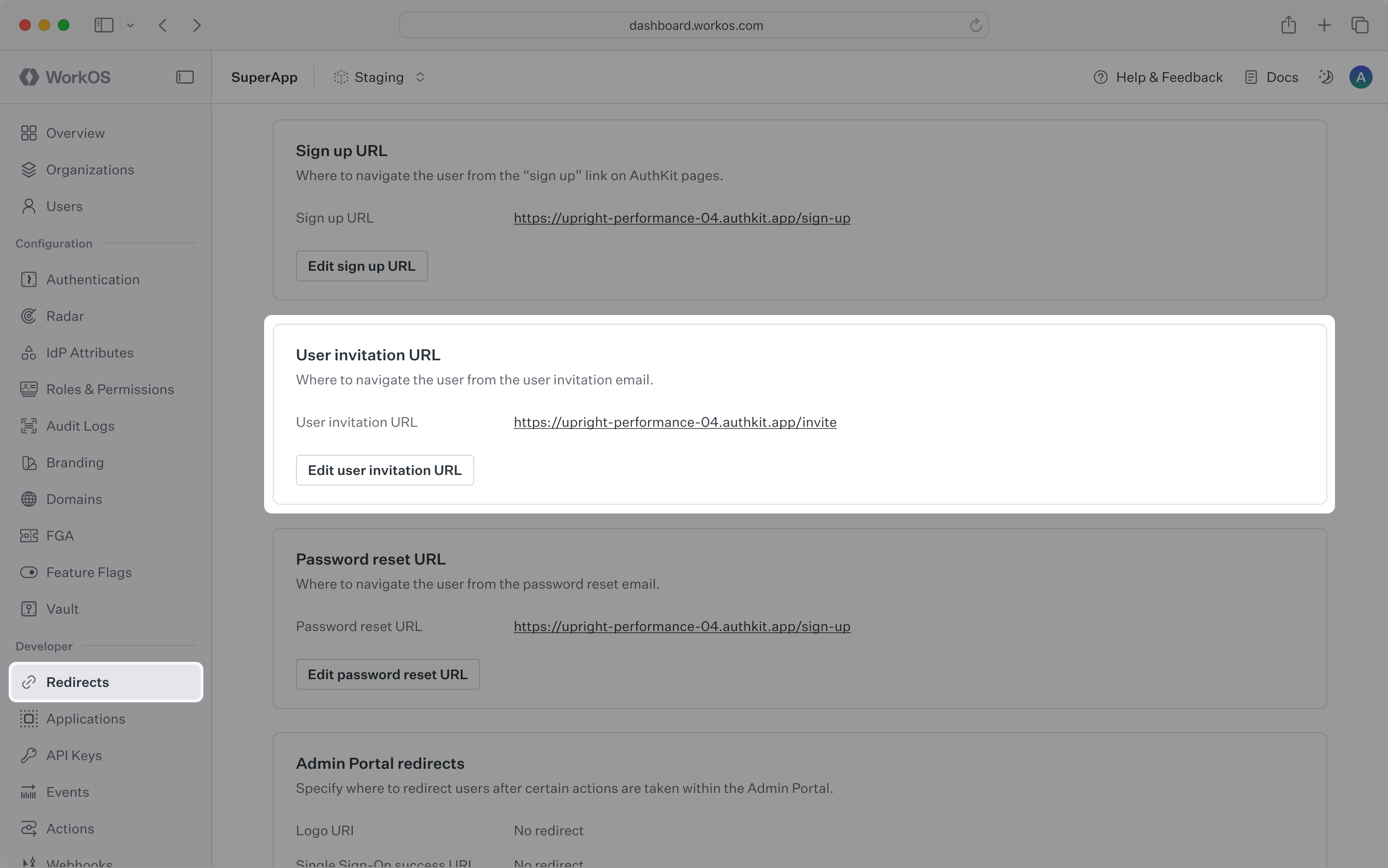
Set up your user invitation URL
Verify the correct user invitation URL is set on your Redirects page. The default setting is the AuthKit URL for accepting invitations. If using your own authentication UI, ensure the URL path is configured to capture the invitation_token query parameter, and pass it into one of the authenticate methods.
A. Handle manually creating invitations
When creating invitations using the WorkOS dashboard, handle invitation.created events using the events API or webhooks.
Due to security concerns, the events do not contain the sensitive information needed to send the email. To retrieve the full invitation object with this information, use the invitation ID from the event to call the Get Invitation API.
Skip this step if you do not plan to create invitations manually in the dashboard.
B. Handle invitations created via the API
When creating invites via the Send Invitation API, send your own email using the information returned in the invitation object.
If also creating invitations manually in the dashboard, handle invitation.created events as described above.
Send your email
The recipient of the email should match the email attribute in the invitation object retrieved via the API. The body of the email should include a link where the user can accept the invitation. For most use cases, you can use the accept_invitation_url as this link.
If building your own authentication app and the invitation acceptance path diverges from this pattern, construct your own URL with the token rather than using the accept_invitation_url.
Additionally, if the invitation object contains an organization ID and/or an inviter user ID, include that information in the body of the email.
After turning off the default Magic Auth emails, use the information below to send custom Magic Auth emails.
- magic_auth.created
- Event emitted when a user initiates a Magic Auth authentication, which can be consumed using the events API or webhooks.
- Get Magic Auth API
- Used to retrieve the Magic Auth object from the ID in the Magic Auth created event.
- Create Magic Auth API
- Used to create a Magic Auth code via the API without handling the Magic Auth created event.
A. Handle Magic Auth codes created via AuthKit
When using AuthKit, handle magic_auth.created events using the events API or webhooks.
Due to security concerns, the events do not contain the sensitive information needed to send the email. To retrieve the full Magic Auth object with this information, use the Magic Auth ID from the event to call the Get Magic Auth API.
Skip this step if building your own authentication app.
B. Handle Magic Auth codes created via the API
When initiating Magic Auth authentication via the Create Magic Auth API, send your own email using the information returned in the Magic Auth object.
Send your email
The recipient of the email should match the email attribute for the Magic Auth object retrieved via the API, and the email should include the code. Recipients will input that code into AuthKit, or your own authentication UI, to authenticate into your application via Magic Auth.
After turning off the default email verification emails, use the information below to send custom email verification emails.
- email_verification.created
- Event emitted when a user requires email verification, which can be consumed using the events API or webhooks.
- Get Email Verification API
- Used to retrieve the email verification object from the ID in the email verification created event.
- Email Verification Required error
- Returned in the API when attempting to authenticate a user that requires email verification.
A. Handle email verification codes created via AuthKit
When using AuthKit, handle email_verification.created events using the events API or webhooks.
Due to security concerns, the events do not contain the sensitive information needed to send the email. To retrieve the full email verification object with this information, use the email verification ID from the event to call the Get Email Verification API.
Skip this step if building your own authentication app.
B. Handle email verification codes created via the API
When using the authentication API, an email_verification_required error is returned if the user being authenticated needs to verify their email. This error contains an email_verification_id that can be used to call the Get Email Verification API endpoint, which returns the email verification object containing the information needed to send the email.
Send your email
The recipient of the email should match the email attribute for the email verification object retrieved via the API, and the email should include the code. Recipients will input that code into AuthKit, or your own authentication UI, to verify their email.
After turning off the default password reset emails, use the information below to send custom password reset emails.
- password_reset.created
- Event emitted when a user requests to reset their password, which can be consumed using the events API or webhooks.
- Get Password Reset API
- Used to retrieve the password reset object from the ID in the password reset created event.
- Create Password Reset API
- Used to create a password reset object via the API without handling the password reset created event.
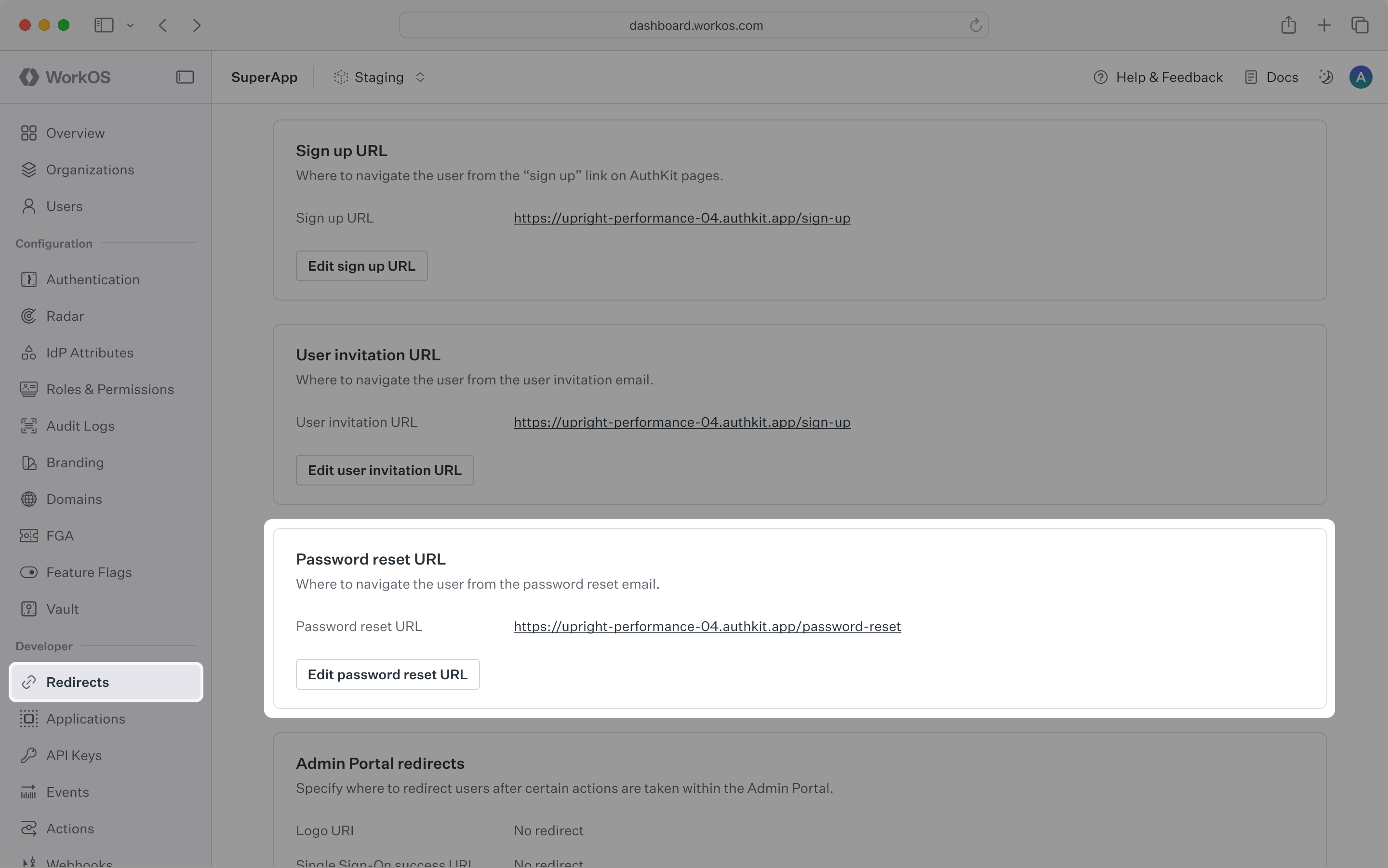
Set up your password reset URL
Verify the correct password reset URL is set on your Redirects page. The default setting is the AuthKit URL for resetting passwords. If using your own authentication UI, ensure the URL path is configured to capture the token query parameter and use it to reset the password.
A. Handle password resets created via AuthKit
When using AuthKit, handle password_reset.created events using the events API or webhooks.
Due to security concerns, the events do not contain the sensitive information needed to send the email. To retrieve the full password reset object with this information, use the password reset ID from the event to call the Get Password Reset API.
Skip this step if building your own authentication app.
B. Handle password resets created via the API
When creating password resets via the Create Password Reset API, send your own email using the information returned in the password reset object.
Send your email
The recipient of the email should be the email attribute in the password reset object retrieved via the API. The body of the email should include a link where the user can reset their password. For most use cases, you can use the password_reset_url as this link.
If building your own authentication app and the password reset path diverges from this pattern, construct your own URL with the password_reset_token rather than using the password_reset_url.