Passkeys
Configuring passkey authentication and enrollment.
Enable passkeys so users can sign in with biometrics or device-based credentials.
Enable passkeys in the Authentication section of the WorkOS Dashboard.
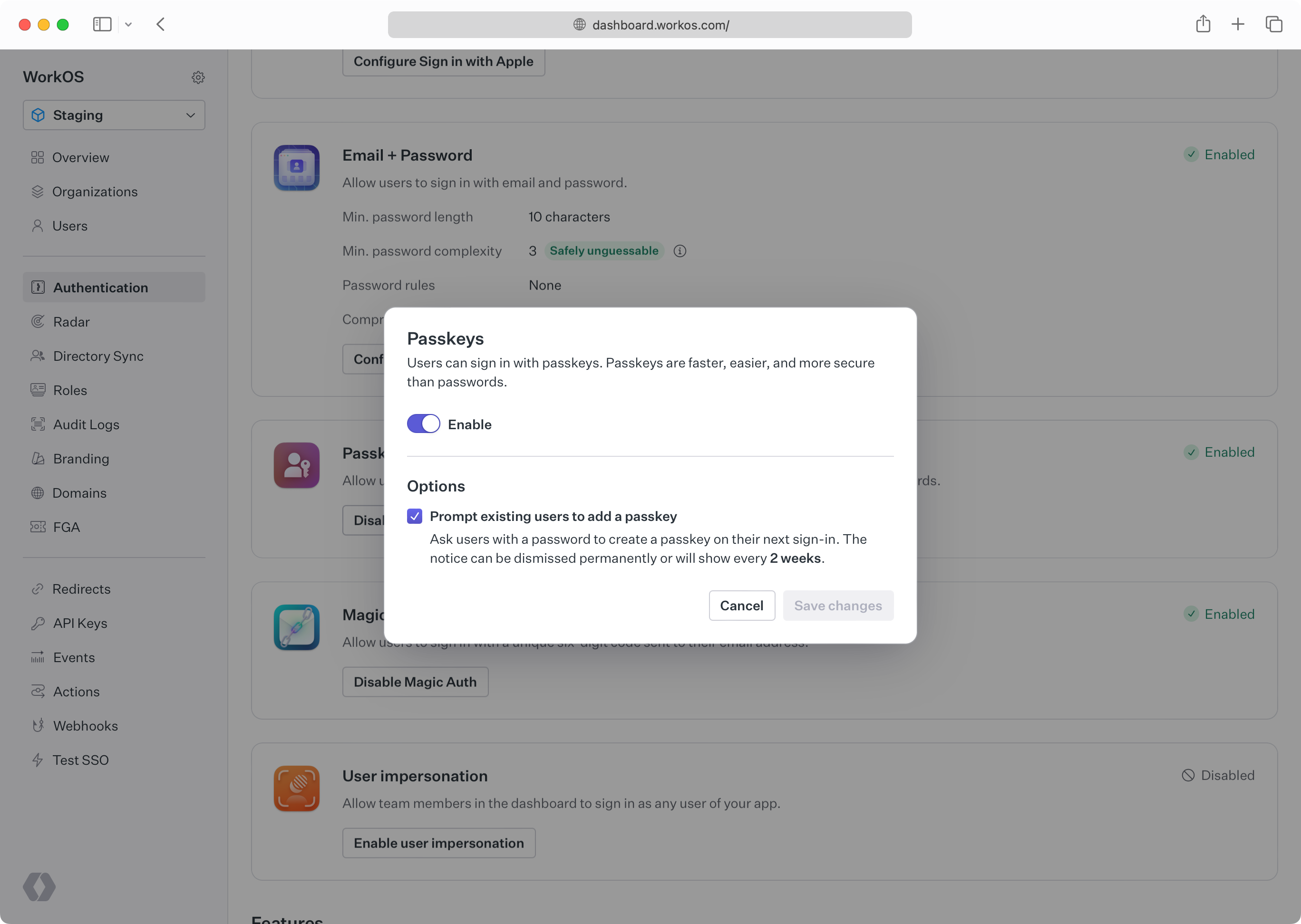
Configure an AuthKit custom domain before enabling passkeys in production. Passkeys are bound to the domain they were registered on. Adding the domain later prevents the usage of passkeys that were registered on the old domain.
Users who are still using password-based authentication can optionally be prompted to create a passkey on their next sign-in. This flow, known as “progressive enrollment”, is disabled by default. Enable it alongside passkey authentication in the WorkOS Dashboard.
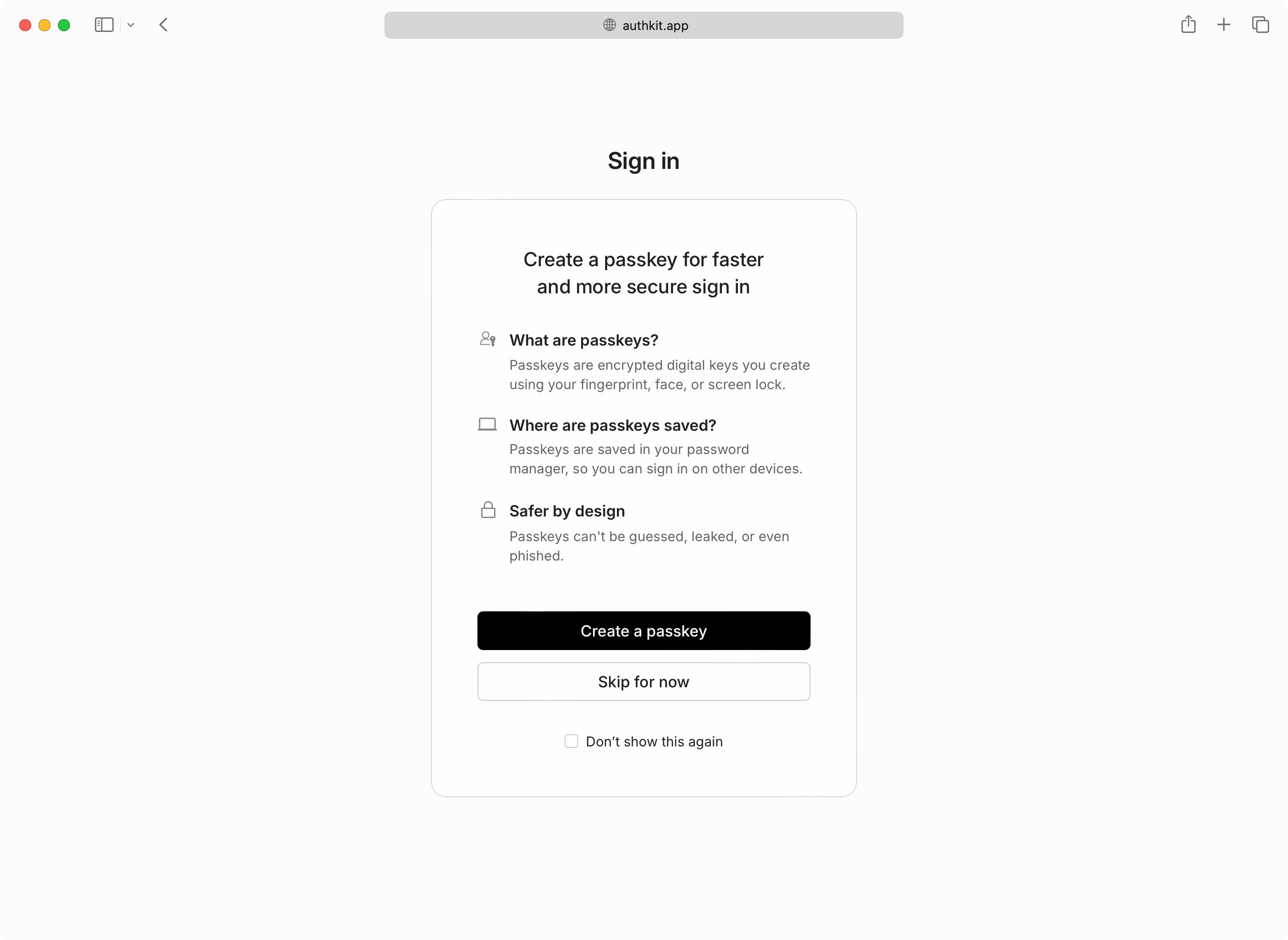
If users skip passkey enrollment they will be reminded every two weeks, and additionally have the option to never be prompted again if they prefer passwords.
If MFA is also enabled and required, users who sign in with a passkey will not be prompted for a separate TOTP code. AuthKit treats passkeys as both a first and second factor by requiring user verification when a passkey is presented.
User verification in the context of a passkey means the passkey must be combined with another “authorization gesture”, like the scanning of a fingerprint, or entering a separate PIN.
Passkey authentication is currently only available with the hosted UI in AuthKit.