Google Analytics
Track user activity on AuthKit pages in Google Analytics.
The Google Analytics AuthKit Add-on provides data about logins, sign-ups, and many other AuthKit activities inside Google Analytics. This data helps in understanding the effectiveness of marketing campaigns and users’ full journeys across the website and AuthKit.
To use the Add-on, the Authentication API Domain must share the same root as the domain where Google Analytics is set up through Google Tag Manager or gtag.js. This gives the Add-on access to users’ Google Analytics client IDs, which it uses to associate events in AuthKit with users from the website.
For example, if the Google Analytics script lives at www.example.com:
- Valid: auth.example.com is a valid Authentication API Domain
- Invalid: auth.workos.com is not a valid Authentication API Domain
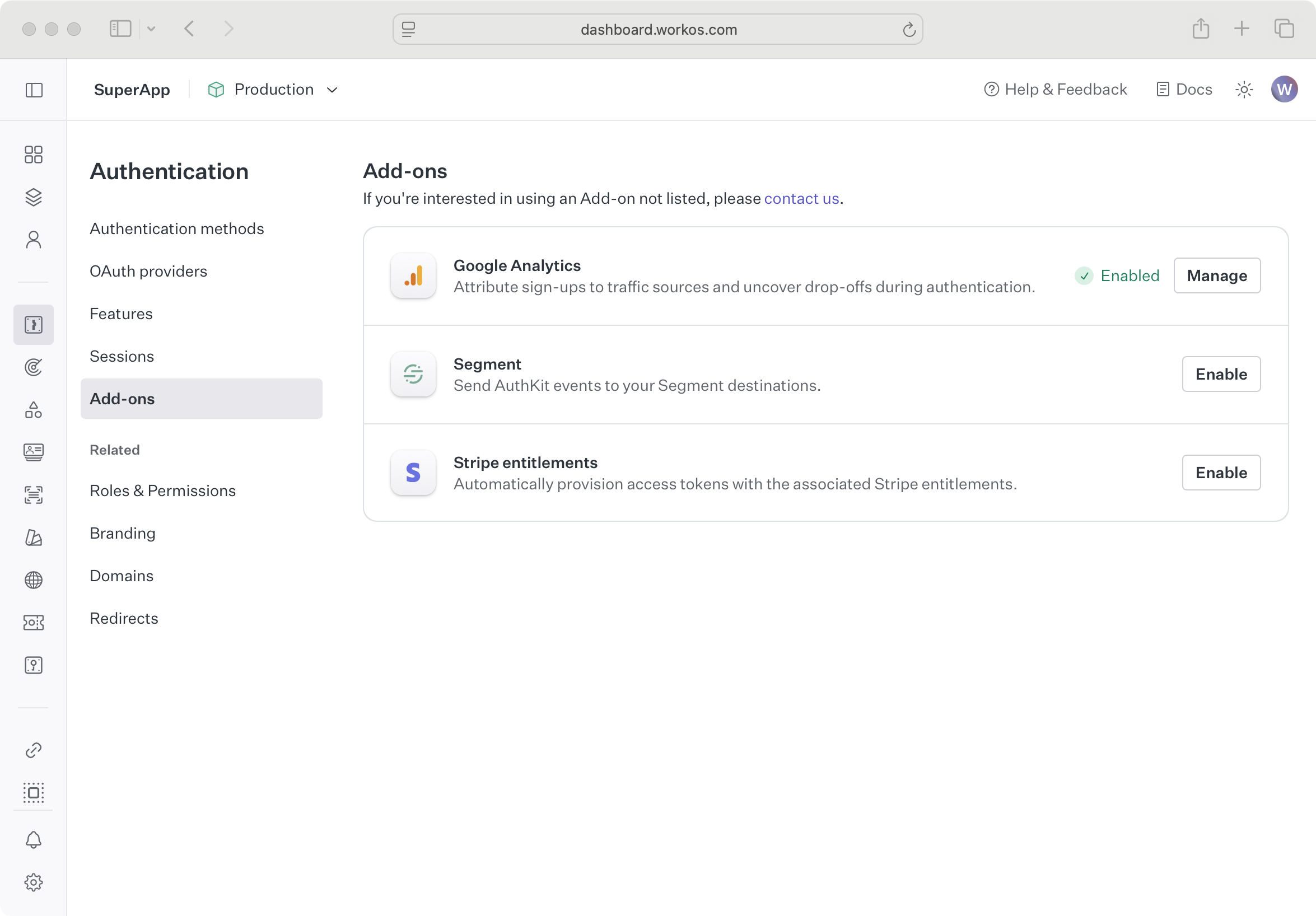
In the WorkOS Dashboard, click the Authentication icon in the sidebar, then click Add-ons.
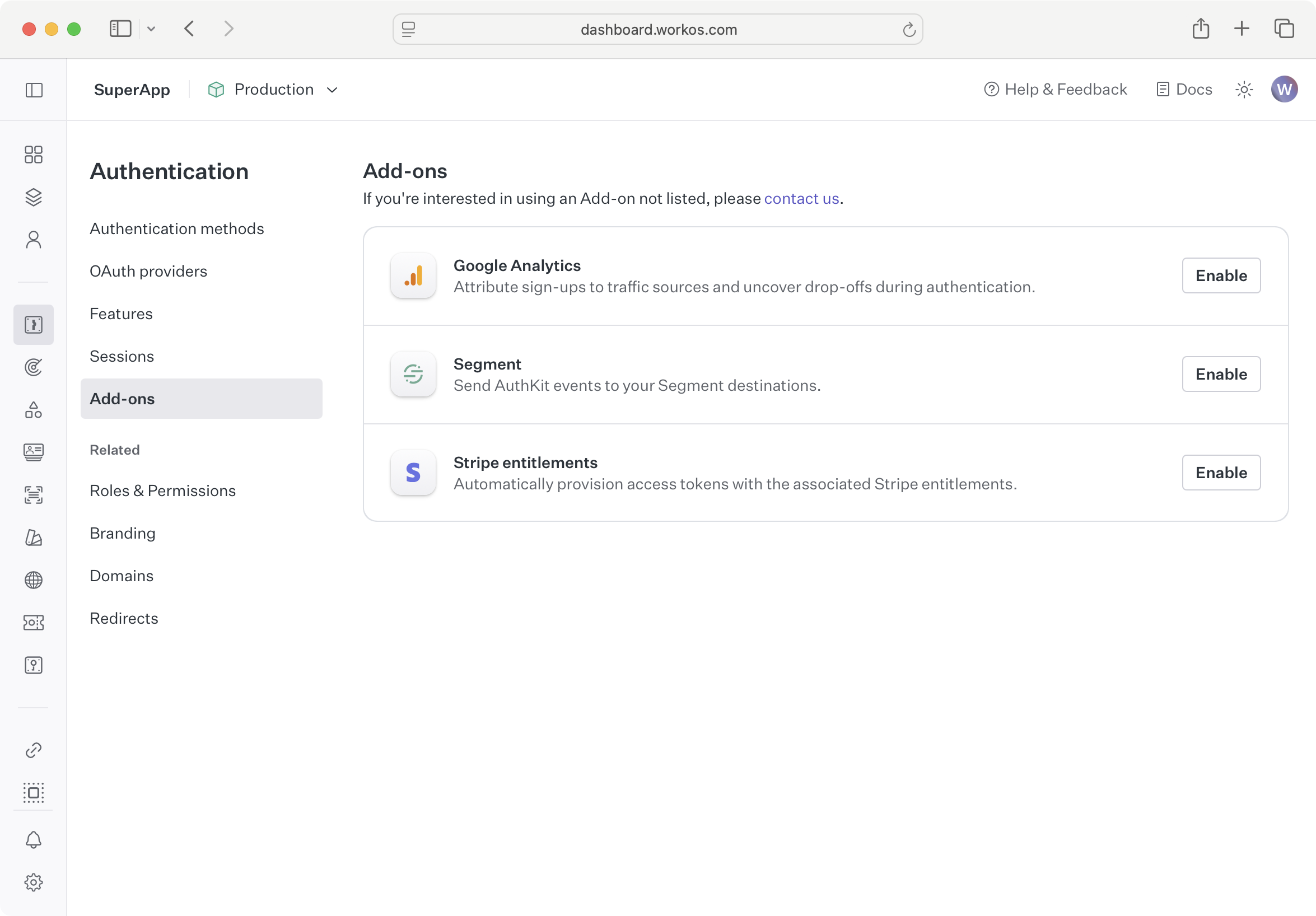
Click Enable next to Google Analytics.
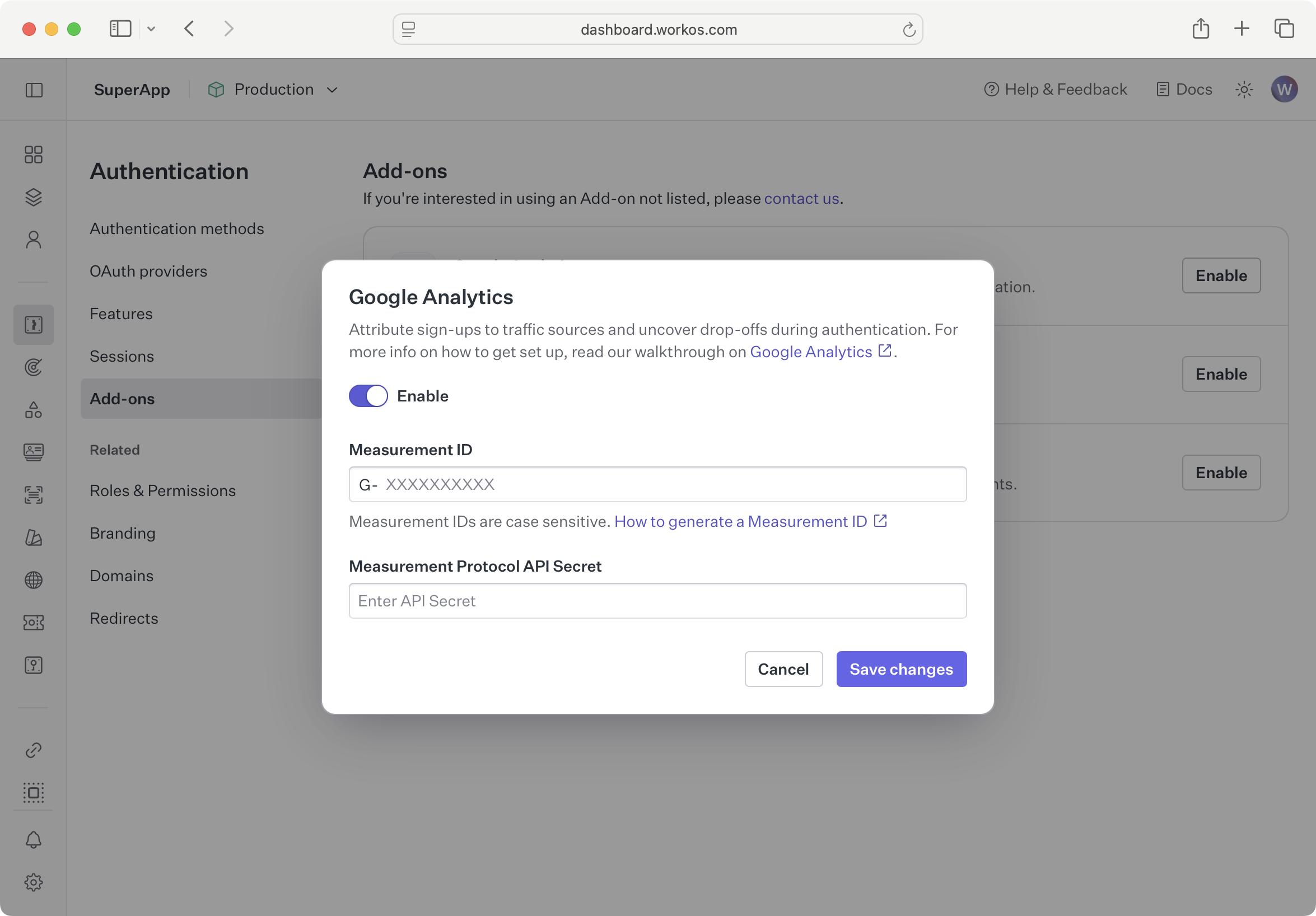
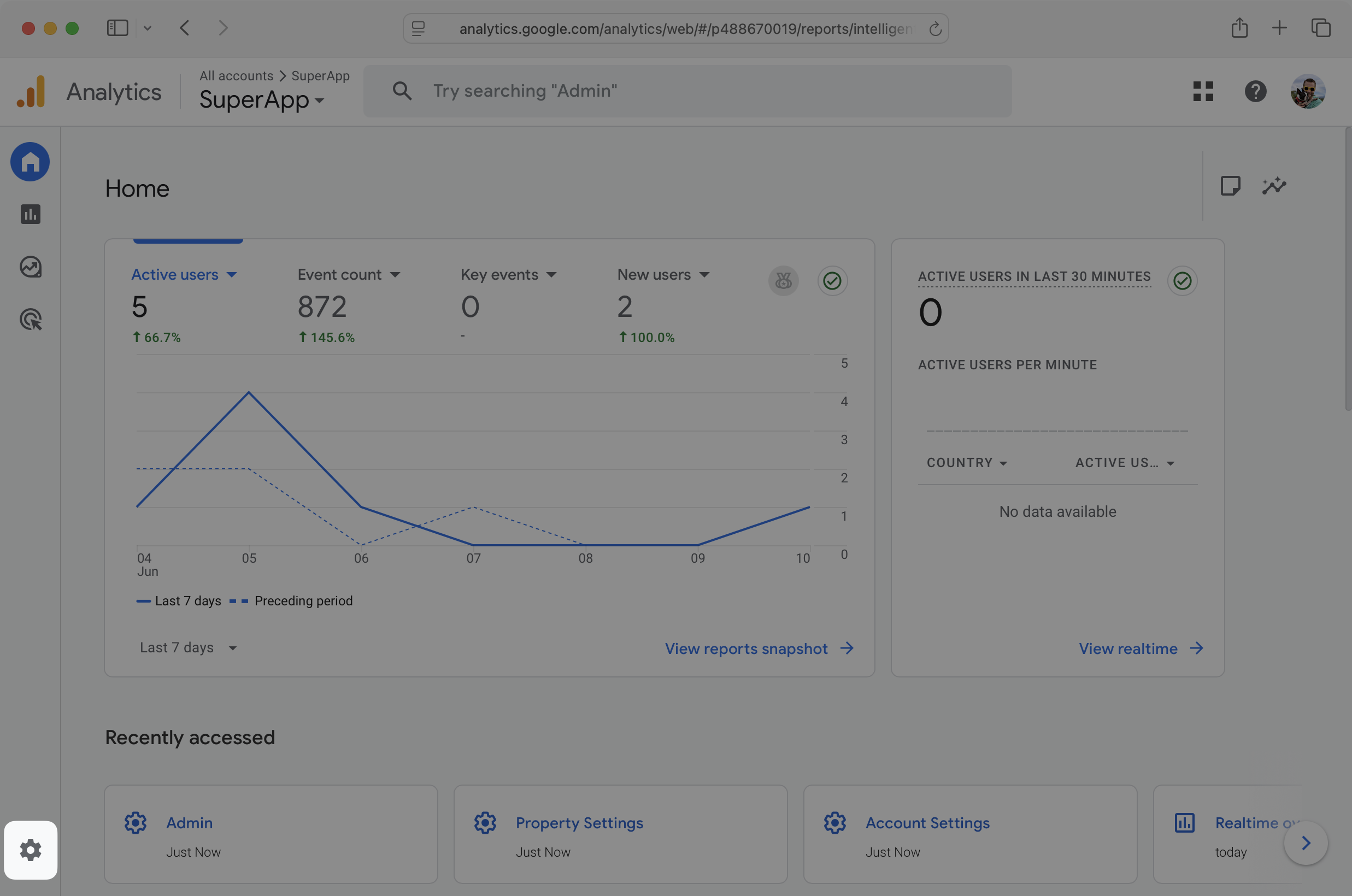
In another browser tab, visit Google Analytics to get the credentials. Click the Admin icon in the bottom left corner.
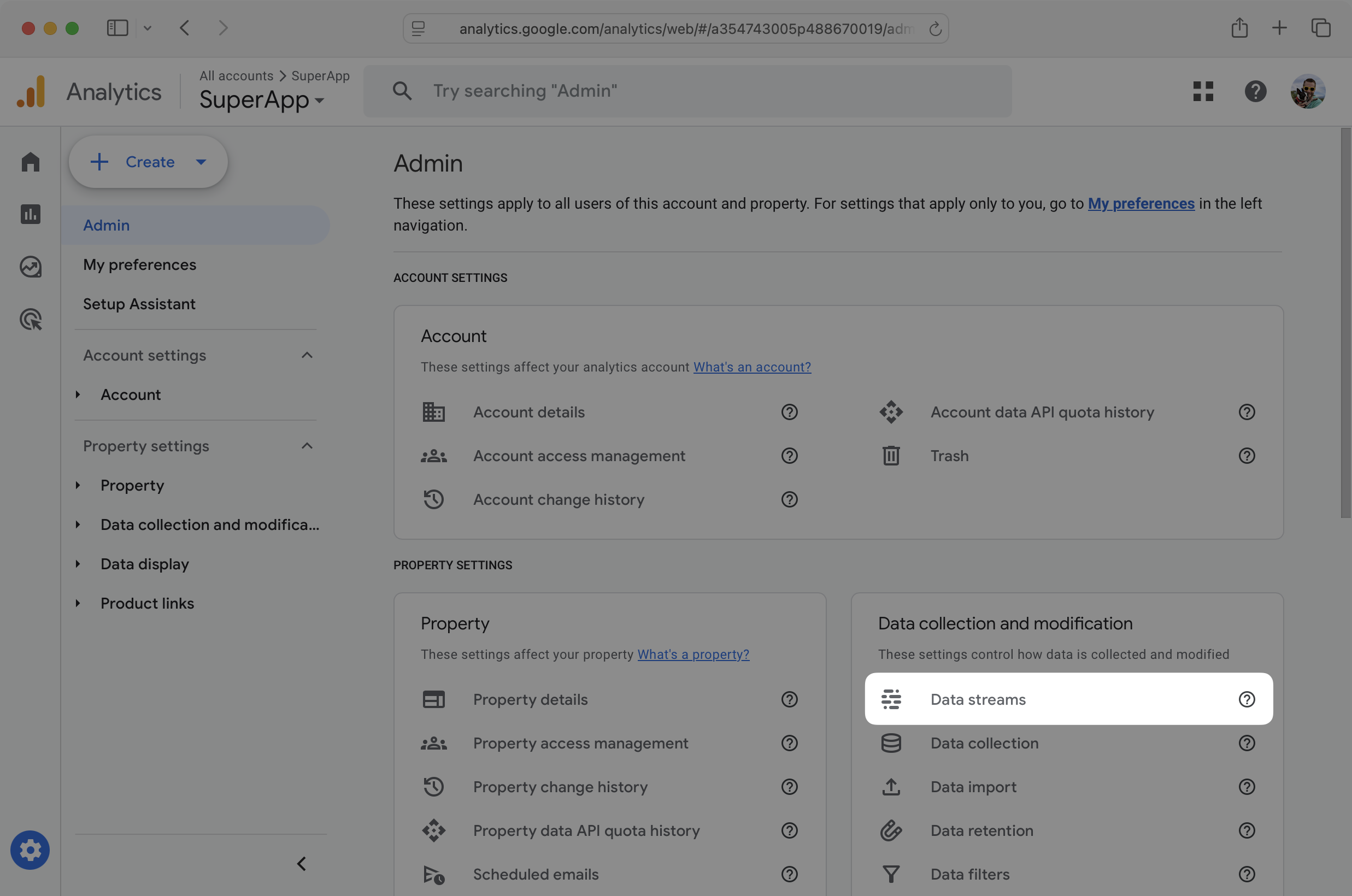
Under Data collection and modification, click Data streams.
Click the data stream used to set up Google Analytics on the website. Under Measurement ID, click the copy icon. Paste the Measurement ID in the Measurement ID field in the WorkOS Dashboard.
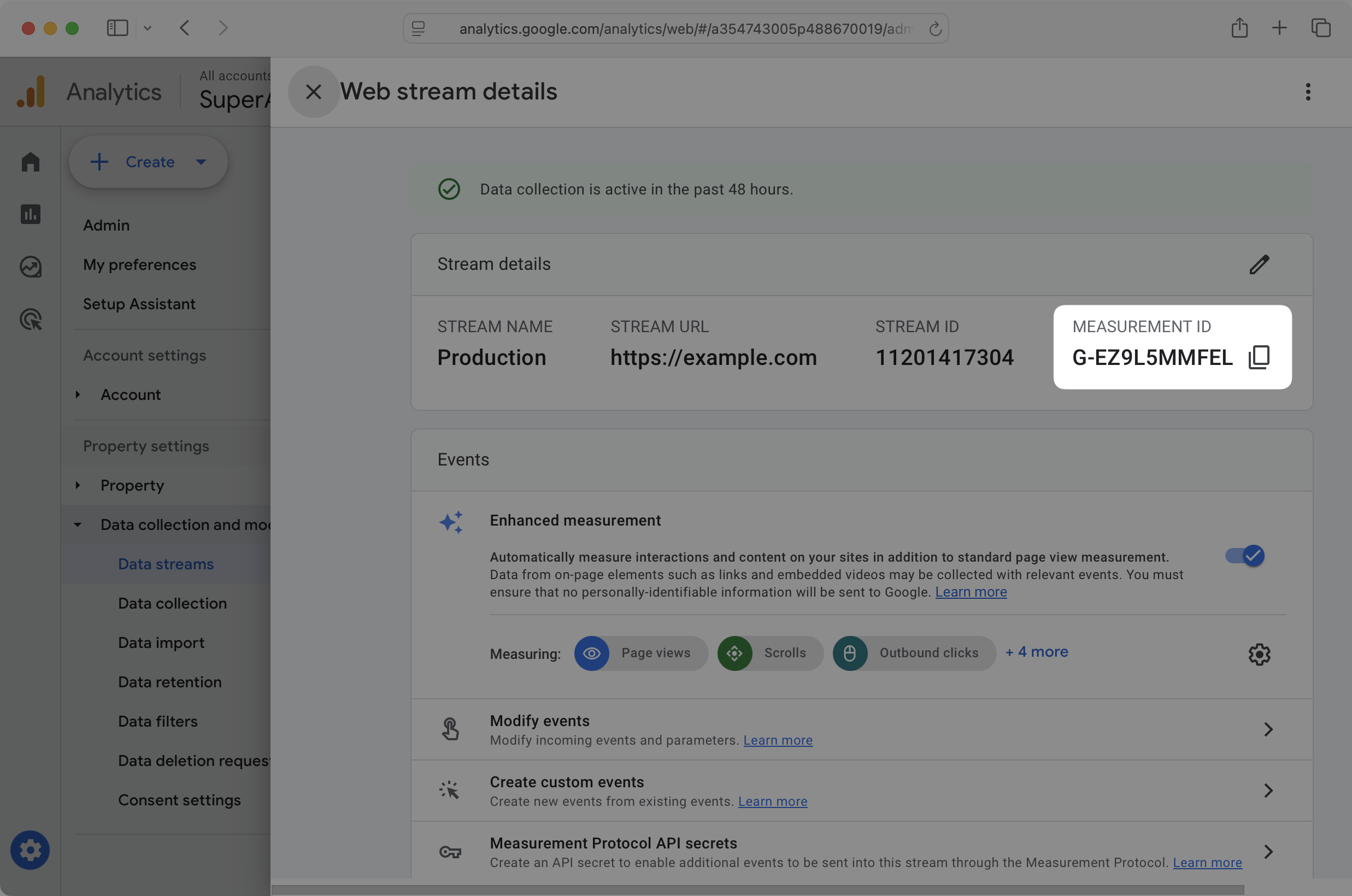
Under Events, click Measurement Protocol API secrets.
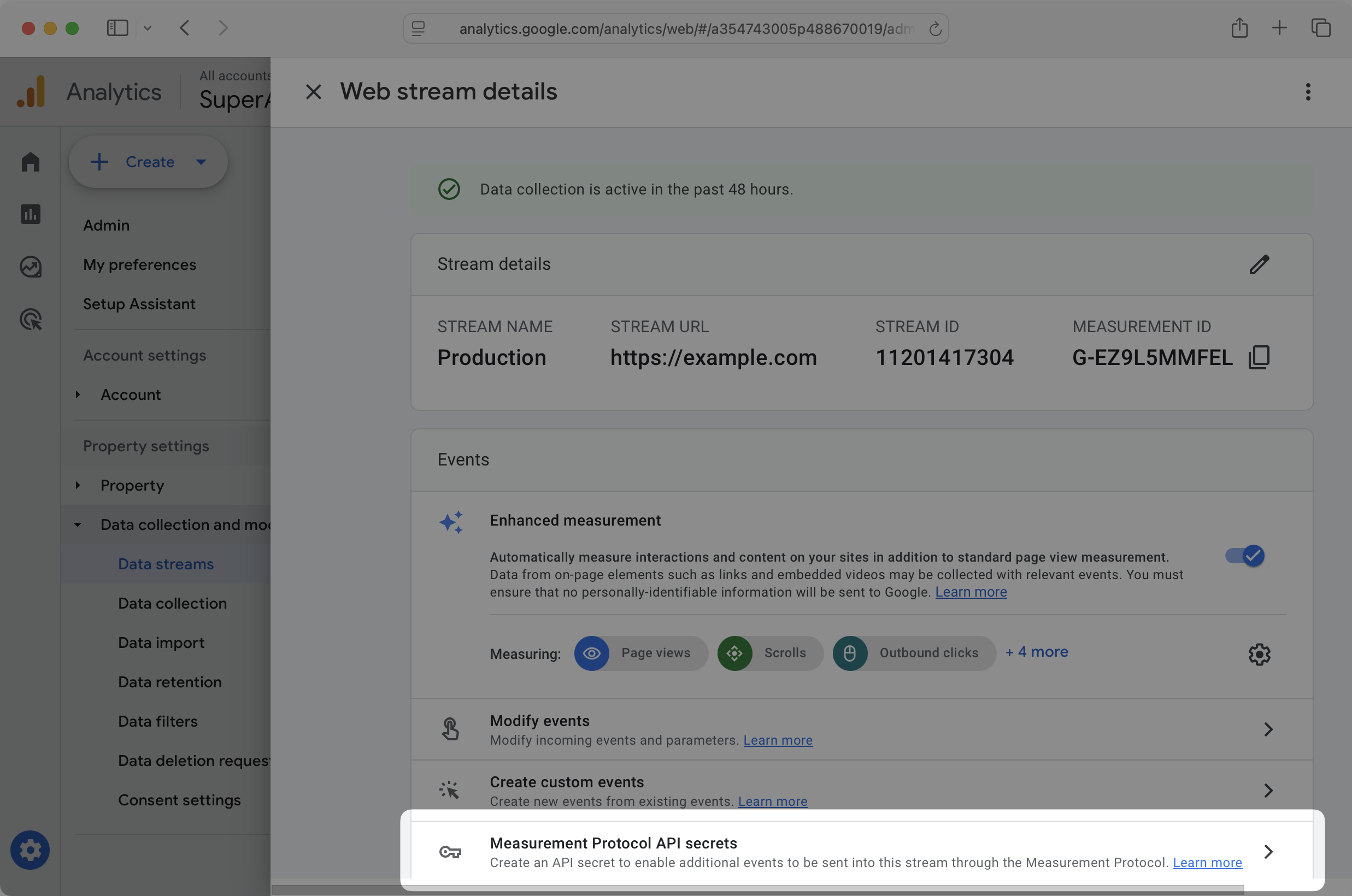
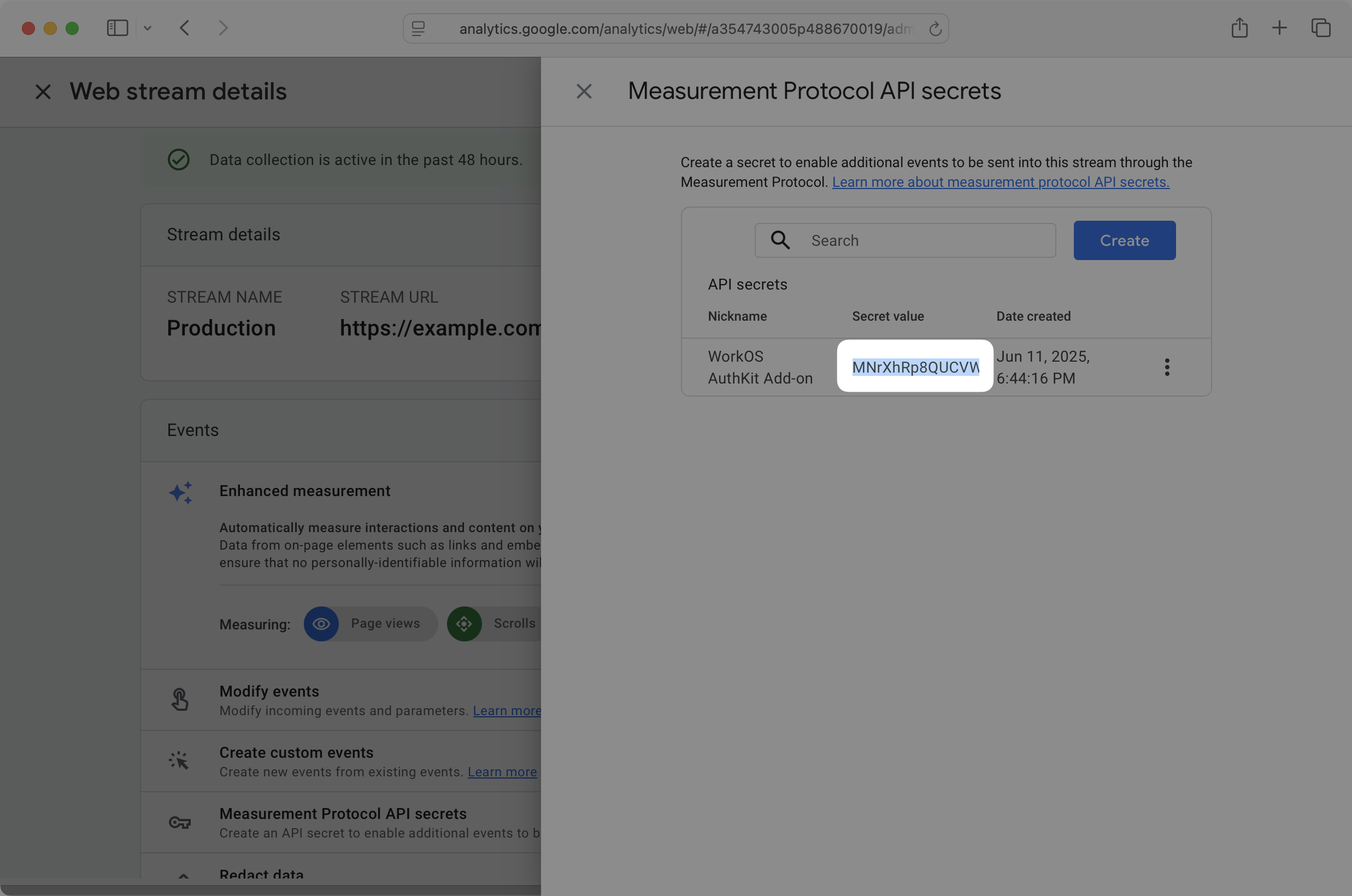
Click Create. Give the new secret a name, like WorkOS AuthKit Add-on. Copy the Secret value. The secret value may be cut off on narrower windows, so try double clicking the value before copying to ensure the full value is selected.
Paste the secret value in the API Secret field in the WorkOS Dashboard. Click Save changes. The Google Analytics AuthKit Add-on is now enabled and will begin sending AuthKit events to Google Analytics.
The Add-on sends events to Google Analytics when certain WorkOS Events occur:
user.createdsends Google asign_uprecommended eventauthentication.magic_auth_succeeded,authentication.mfa_succeeded,authentication.oauth_succeeded,authentication.passkey_succeeded,authentication.password_succeeded, andauthentication.sso_succeededsend Google aloginrecommended event including amethodparameter matching the login method- The remaining Authentication events, Email verification events, Magic Auth events, Password reset events, and
session.createdsend Google events based on the WorkOS event name, with underscores replacing periods authentication.email_verification_succeededis shortened toauth_email_verification_succeededto meet Google’s requirement that event names be 40 characters or shorter
After enabling the Add-on, visit the website, click the sign-in button, and sign in to the application. Visit Google Analytics and click Reports in the sidebar, then click Realtime overview. Within five minutes, a login event should appear under Event count by Event name.
If no login event appears, visit the Add-ons page in the WorkOS Dashboard to verify the Measurement ID and API Secret match the values from Google Analytics. If the values match and support is still needed, reach out via Slack.