AuthKit
Easy to use authentication platform designed to provide a flexible, secure, and fast integration.
Quickly integrate AuthKit in your project with the AI-powered WorkOS CLI.
What you’ll build
In this guide, you’ll add a complete hosted authentication flow to your application using AuthKit. By the end, you’ll have signup, sign-in, and session management working end-to-end.
For additional implementation patterns, see the example apps.
Before getting started
Make sure you have:
- A WorkOS account
- Your WorkOS API Key and Client ID
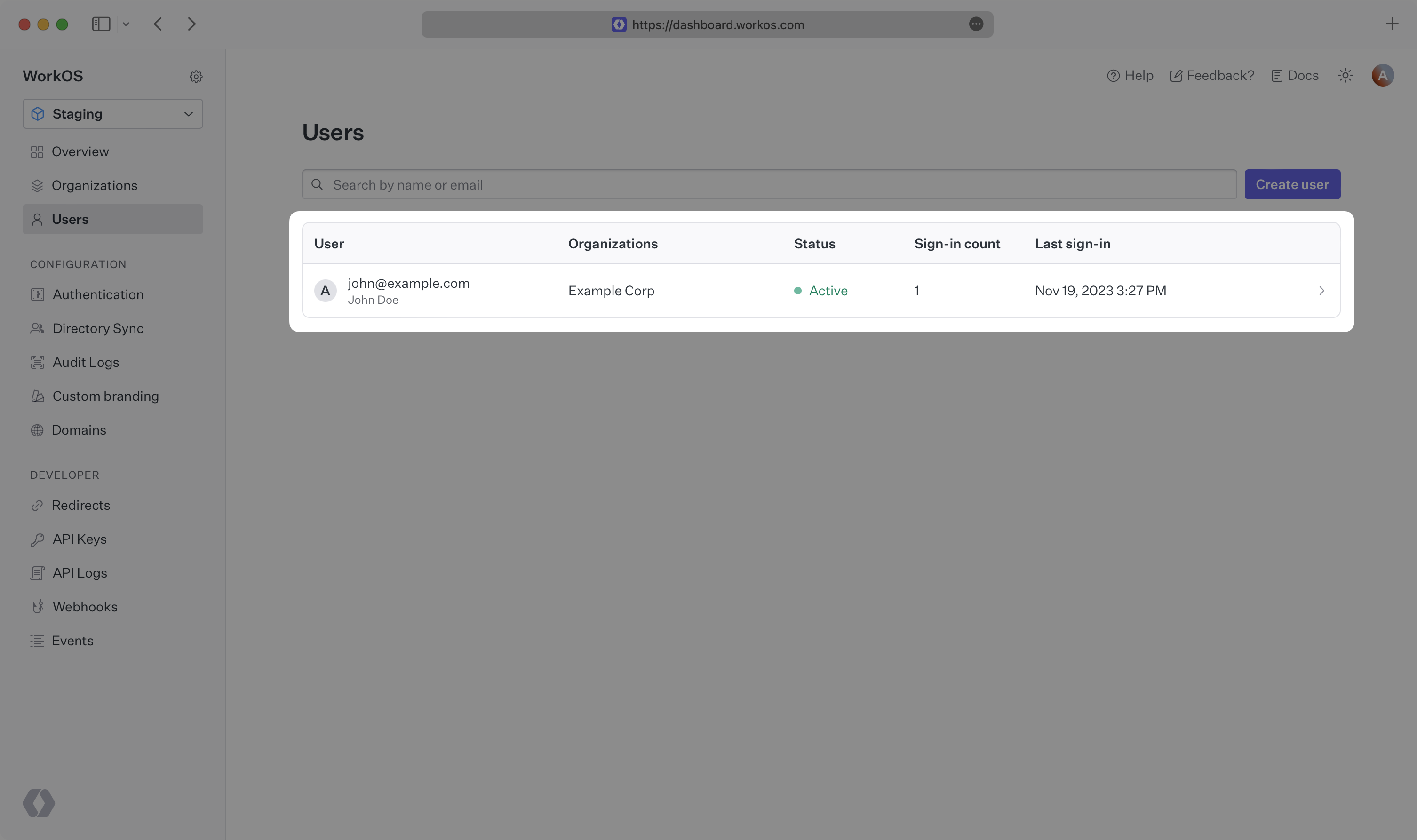
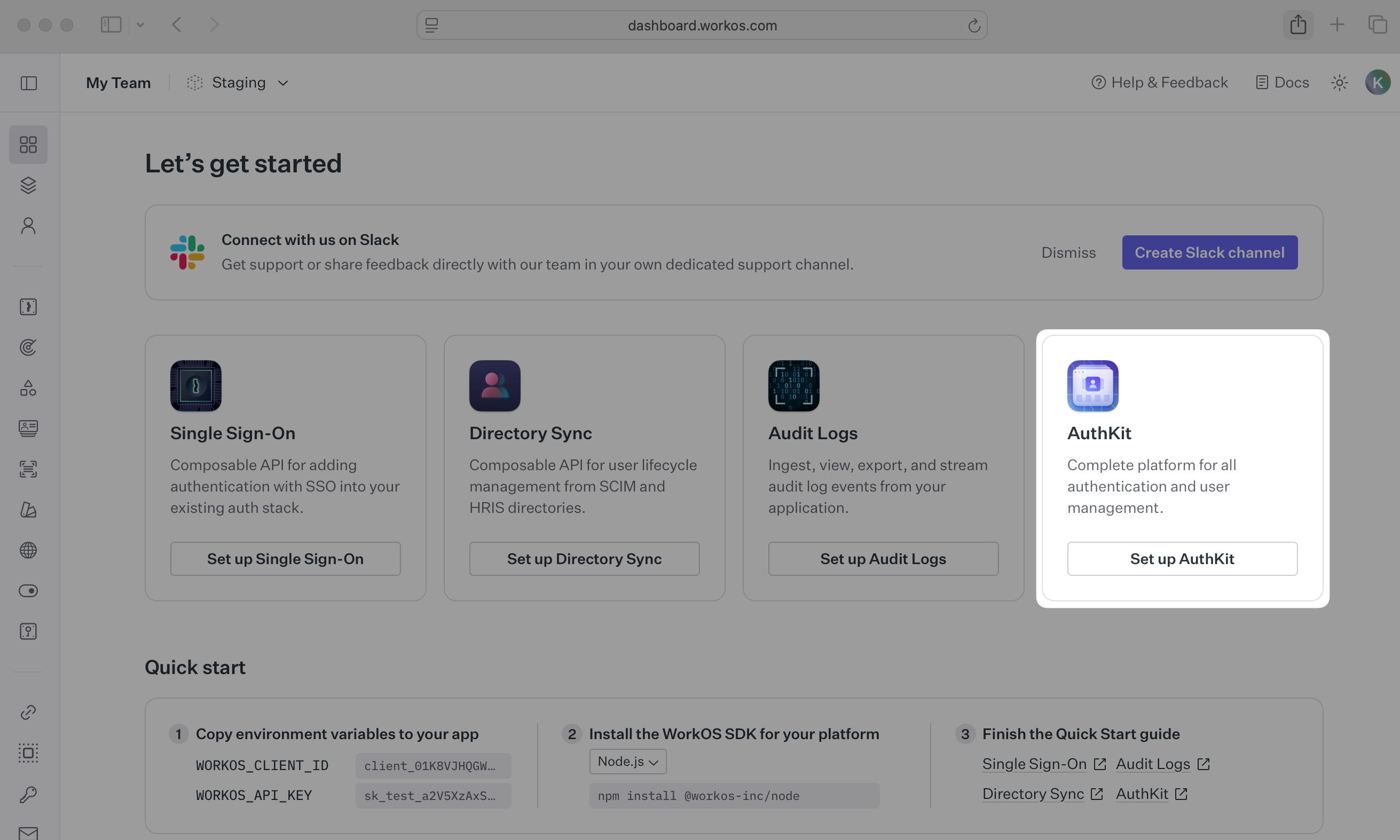
Activate AuthKit in your WorkOS Dashboard if you haven’t already. In the Overview section, click the Set up AuthKit button and follow the instructions.
A redirect URI is a callback endpoint that WorkOS redirects to after a user has authenticated. This endpoint exchanges the authorization code returned by WorkOS for an authenticated User object.
Set a redirect URI in the Redirects section of the WorkOS Dashboard. Use http://localhost:3000/callback as the default.
WorkOS supports using wildcard characters in Redirect URIs, but not for the default Redirect URI. More information about wildcard characters support can be found in the Redirect URIs guide.
When users sign out of their application, they will be redirected to your app’s Sign-out redirect location which is configured in the same dashboard area.
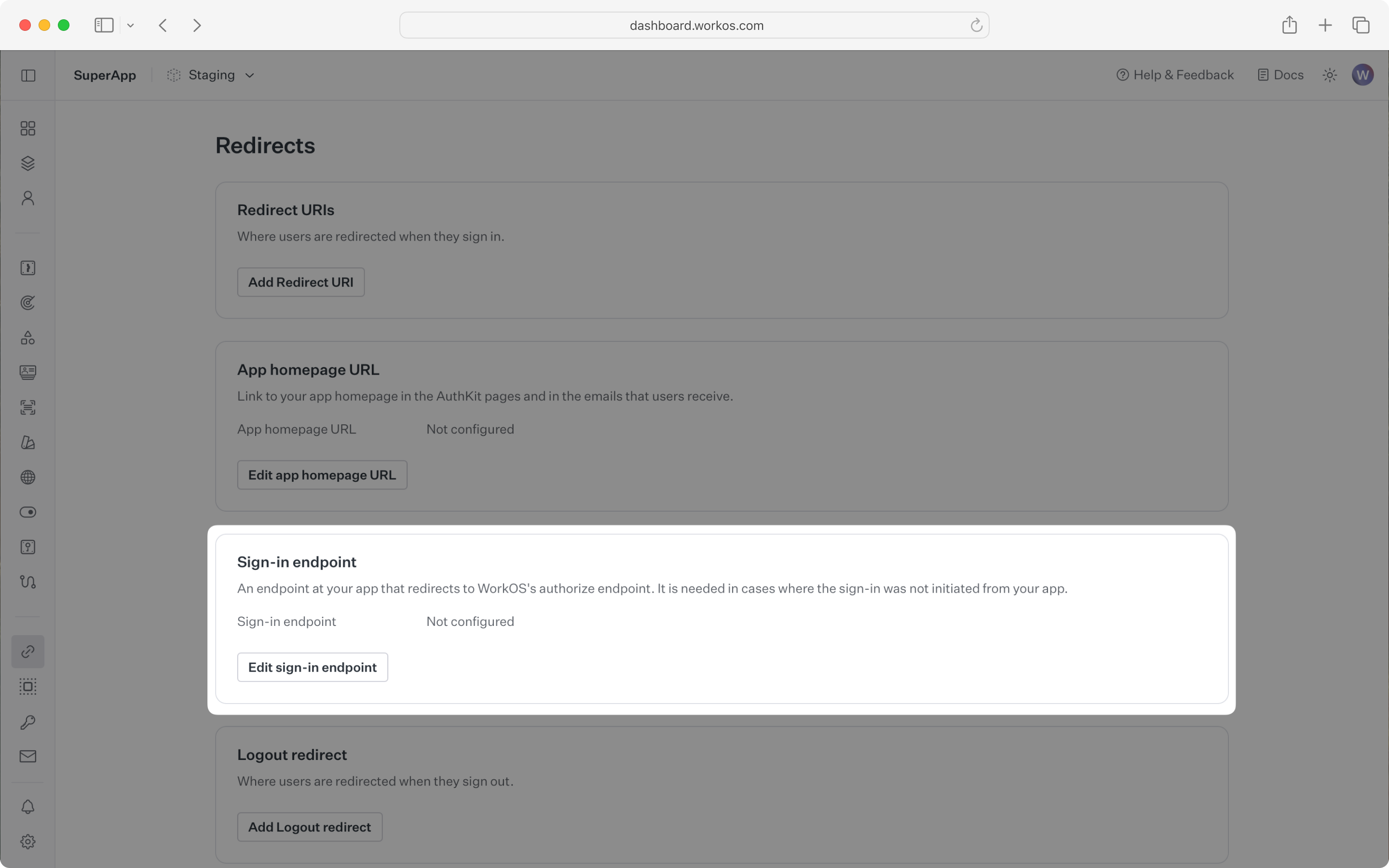
In these cases, AuthKit detects when a sign-in request did not originate at your application and redirects to your application’s sign-in endpoint. This is an endpoint that you define at your application that redirects users to sign in using AuthKit.
Configure the sign-in endpoint from the Redirects section of the WorkOS dashboard.
The code examples use your staging API keys when signed in
Integrate the hosted authentication flow into your app.
If you haven’t configured a Sign-out redirect in the WorkOS dashboard, users will see an error when logging out.
Sign in with the newly created credentials and verify the user appears in the Users section of the WorkOS Dashboard.